CR-N/X PTZ
https://support.cyanview.com/docs/Integrations/Canon/CanonPTZ
Supported Models
This page covers the setup for:
- CR-N100 (currently using the CR-N300 protocol)
- CR-N300
- CR-N500
- CR-N700
- CR-X300
The CR-X500 is not an IP camera and can't be controlled using the XC protocol. It is partially supported over RS422, but since demand is very low, no cable is provided for this camera.
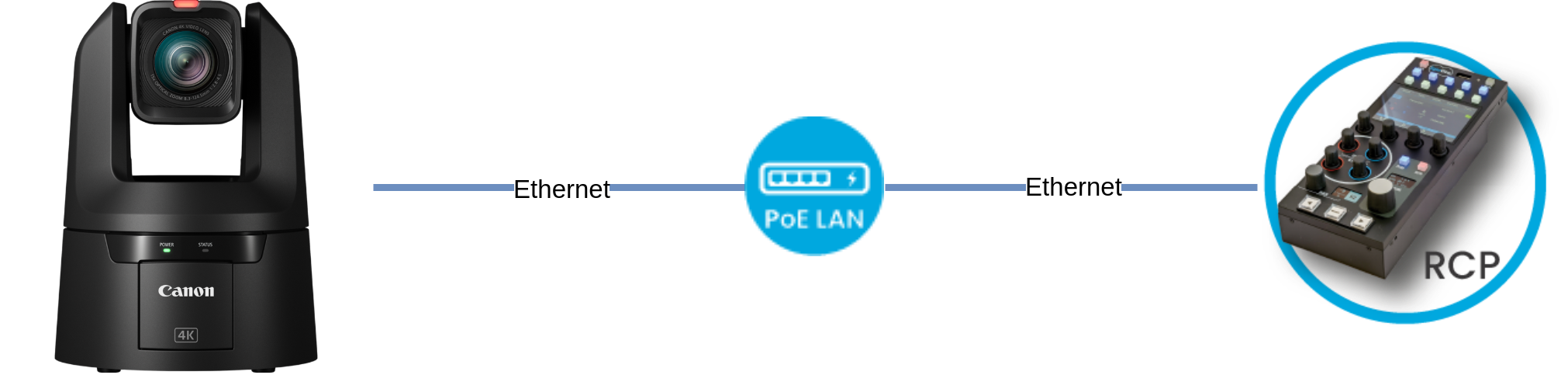
Wiring
Supported Controls
The RCP can control nearly every setting of these cameras, as the XC protocol covers all the parameters visible on the camera's web page.
| Control | CR-N300 | CR-X300 | CR-N500 | CR-N700 |
|---|---|---|---|---|
| Exposure (Iris, Gain, Shutter, ND filter), manual and auto | ✓ | ✓ | ✓ | ✓ |
| White balance (R/B and color temperature) | ✓ | ✓ | ✓ | ✓ |
| Black balance (R/B, master black and black gamma) | ✓ | ✓ | ✓ | ✓ |
| Other color settings (detail, knee, saturation, gamma, color space, denoise) | ✓ | ✓ | ✓ | ✓ |
| OETF and color space selection | ✓ | ✓ | ✓ | ✓ |
| Red and green tally | ✓ | ✓ | ✓ | ✓ |
| OSD/Menu | ✓ | ✓ | ✓ | ✓ |
| Pan/Tilt (from the RCP touchscreen or a USB joystick) | ✓ | ✓ | ✓ | ✓ |
| Lens (zoom, focus) | ✓ | ✓ | ✓ | ✓ |
| Scene file save/recall | ✓ | ✓ | ✓ | ✓ |
| Outdoor features (wiper, washer) * | - | ✓ | - | - |
* The outdoor features can be accessed in the "CUSTOM 1" menu (CAMERA > CUSTOM > CUSTOM 1).
Camera Configuration
By default the camera uses DHCP. You can use that IP address (which may change), or set up a static IP as follows:
-
Connect to the camera's DHCP address in a browser (you can find it by scanning the network or in your internet router)
-
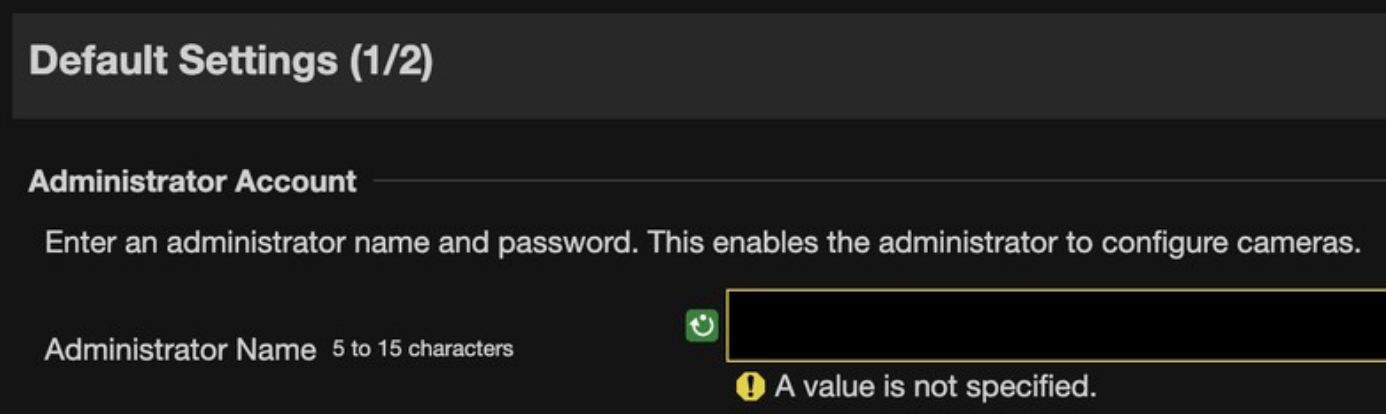
On first setup, you will be asked to create a user/login
-
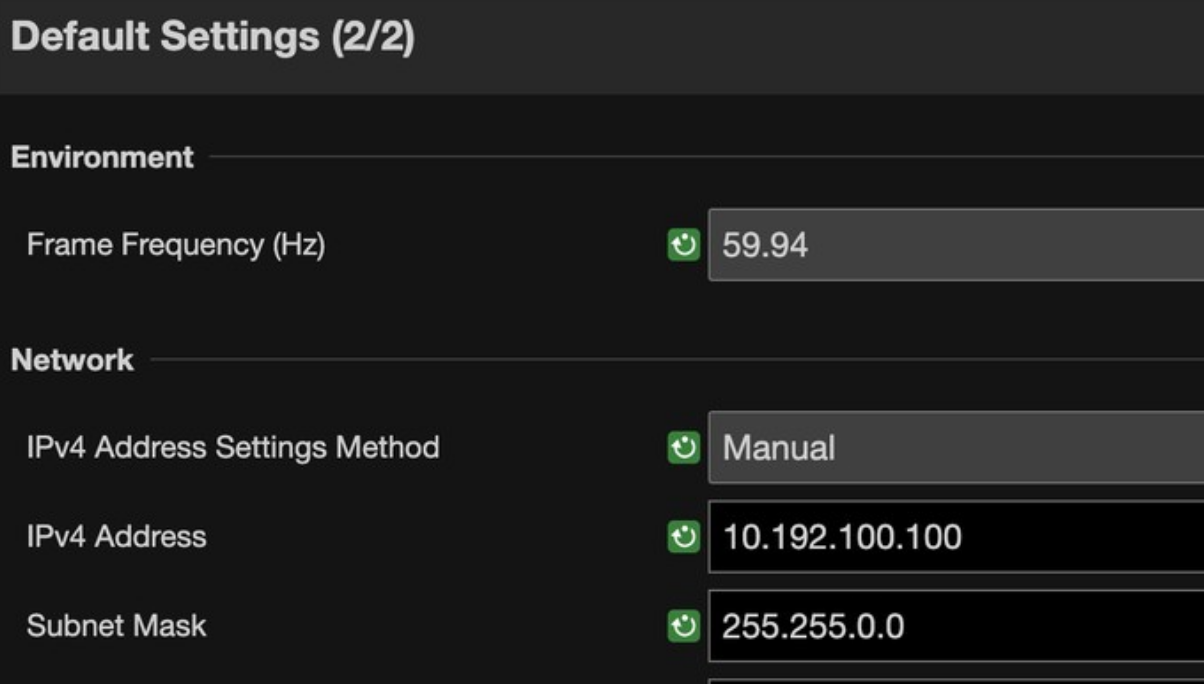
In the network settings, change:
- IPv4 Address Settings Method to Manual
- IPv4 address to the desired camera IP (e.g.
10.192.100.100) - Subnet Mask to the desired mask (e.g.
255.255.0.0)
-
The camera reboots and becomes controllable
-
(Optional) Set Shooting Mode to M and disable all auto modes

If your camera IP is not in the 10.192.0.0/16 range, see IP Configuration to set up the RCP so it can reach the camera.
If anything in the camera web interface is set to Auto (AWB, auto iris, etc.), the RCP cannot control it. Set the parameters you want to control from the RCP to Manual.
RCP Setup
The Canon CR-N300 and CR-N500 both use the XC protocol, but they have different lenses, etc. Make sure to select the correct model on the RCP to get the right control range. Follow the Generic PTZ setup guide for the basic steps.
Canon CR-N300
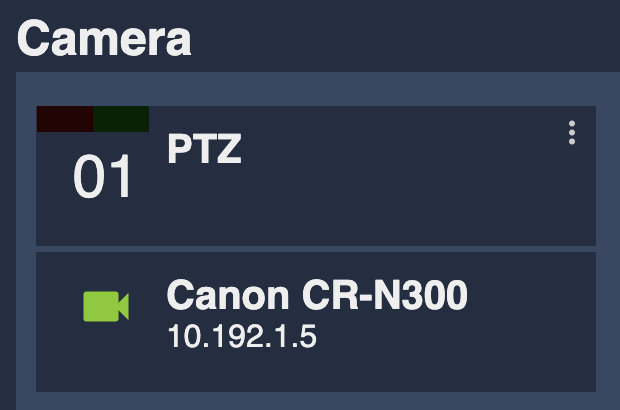
Select brand Canon and model CR-N300. If everything is set up correctly, you should see:
Canon CR-N500
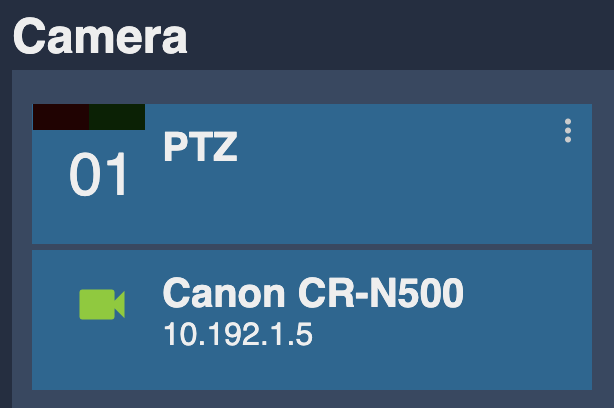
Select brand Canon and model CR-N500. If everything is set up correctly, you should see:
Troubleshooting
Check the following:
- The camera is in Manual mode
- The camera IP is static and in the RCP's range (see IP Configuration)
- Wiring and cables
- From your computer, you can reach both the PTZ web UI and the RCP web UI