XF605
Source
This content is based on Cyanview's official manuals. Always check the official page for the latest information and precise specifications.
https://support.cyanview.com/docs/Integrations/Canon/CanonXF605
https://support.cyanview.com/docs/Integrations/Canon/CanonXF605
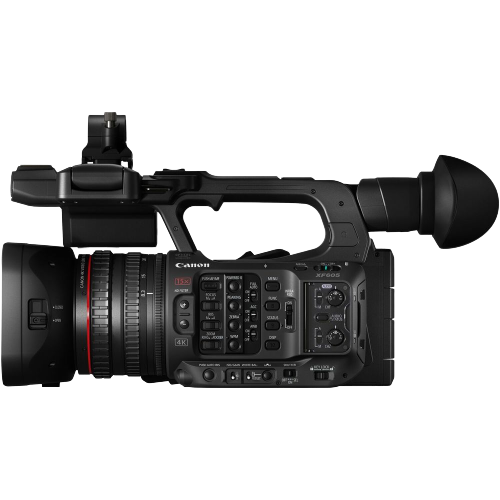
This page covers the integration of the Canon XF605. The camera supports the XC protocol.
note
You can also follow the generic XC guide, but prefer this one, as all the ranges (lens, etc.) are correctly adapted to the XF605.
Wiring
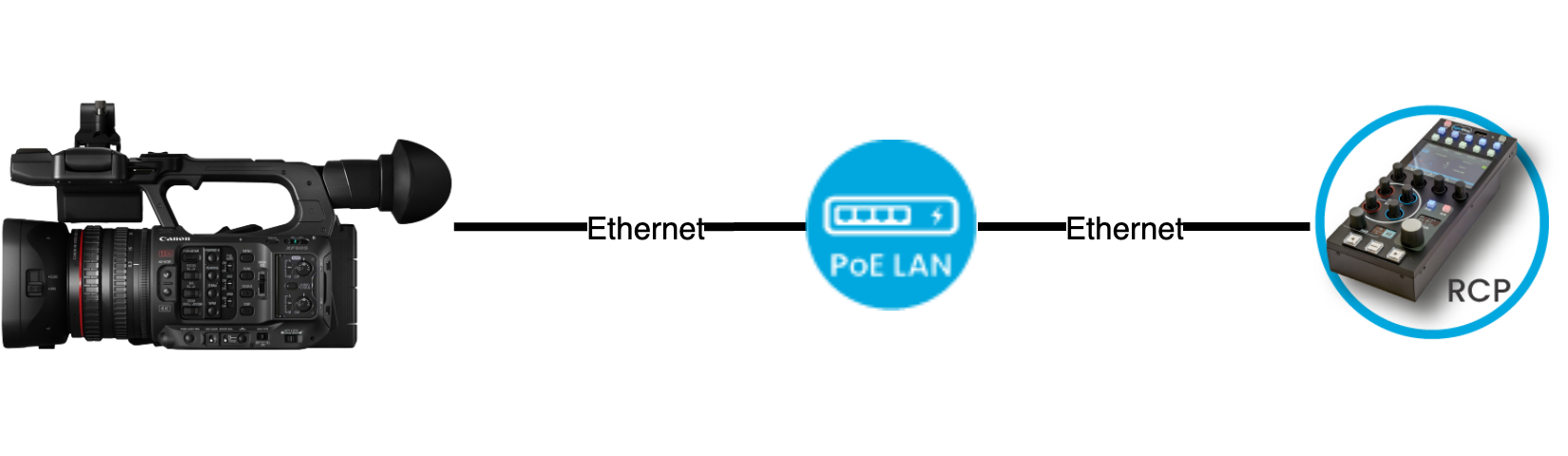
Control is done over Ethernet.
Supported Controls
| Control | XF605 |
|---|---|
| Exposure (Iris, Gain, Shutter, ND filter) | ✓ |
| White balance (R/B, color temperature) | ✓ |
| Black balance (R/B, master black and black gamma) | ✓ |
| Other settings (saturation, knee, detail, denoise) | ✓ |
| Tally | ✓ |
| OSD/Menu | ✓ |
| Lens (zoom, focus) | ✓ |
| Scene file save/recall | ✓ |
Camera Setup
On the camera, configure a static Ethernet IP and enable the XC protocol. The camera configuration in the generic XC guide can also help.
- In Network Settings, set Network to Enable
- Click New Conn. Setting (Wizard)
- In Select function, choose XC Protocol
- In Communication settings, click Create New Comm. Setting
- In Network type, select Ethernet
- In Setting Method, select Setup with Network Connection
- In IP Address Settings (IPV4), select Manual Setting
- In the next IP Address Settings (IPV4) screen, fill in the IP Address and Subnet Mask, then click OK
- In TCP/IPV6, select Disable
- In XC Protocol, select Create New Func. Setting
- In Authentication Method, select No Auth. (general user)
- In Conn. Setting Save Dest., select a free slot (e.g. SET 1)
RCP Setup
- In your RCP/RIO web UI, open the Configuration tab
- Click "+" to create a new camera
- Enter a number and a name
- Select brand Canon and model XF605
- Enter the camera's IP address
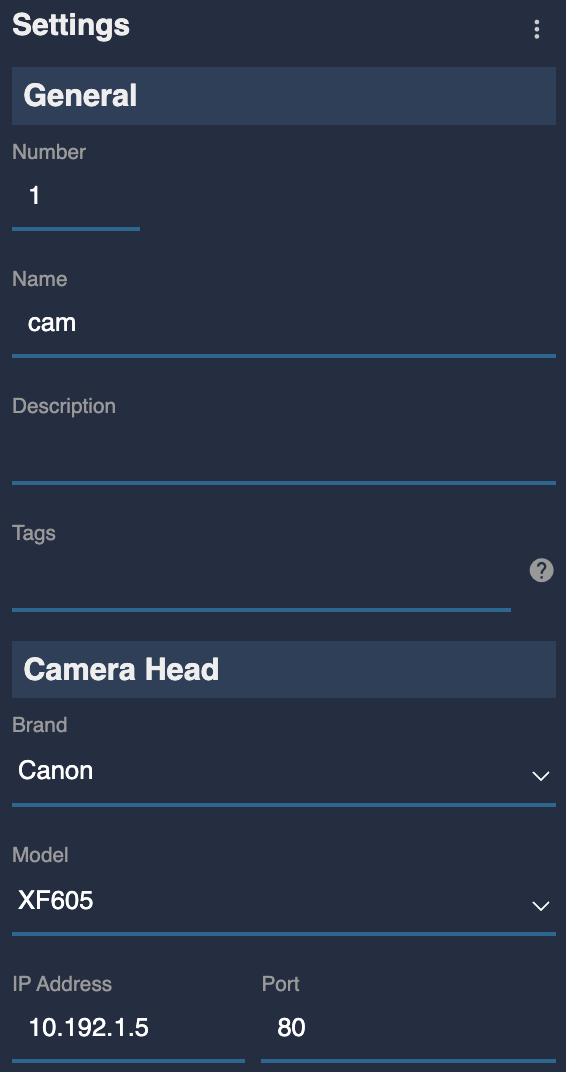
Once correctly connected, it turns green.
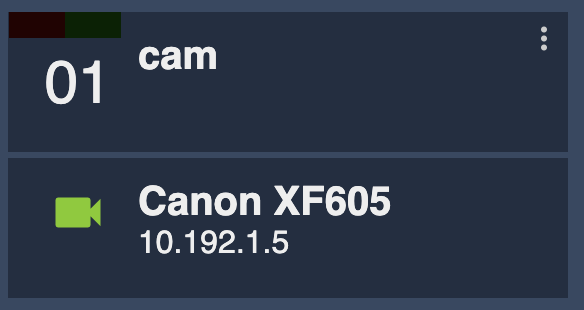
And on your RCP:

Tally Integration with ATEM (Optional)
- In your RCP/RIO web UI, open the Configuration tab
- Click "+" to create a new component
- Select Router/Switcher, then Blackmagic : ATEM
- Enter a name (optional) and an IP address
- In Inputs, link the camera to an SDI input
- In Outputs, link the RCP to an SDI output
- Set red/green tally to AUTO
Troubleshooting
See the generic XC protocol troubleshooting section.