Sony Burano
https://support.cyanview.com/docs/Integrations/Sony/SonyBurano
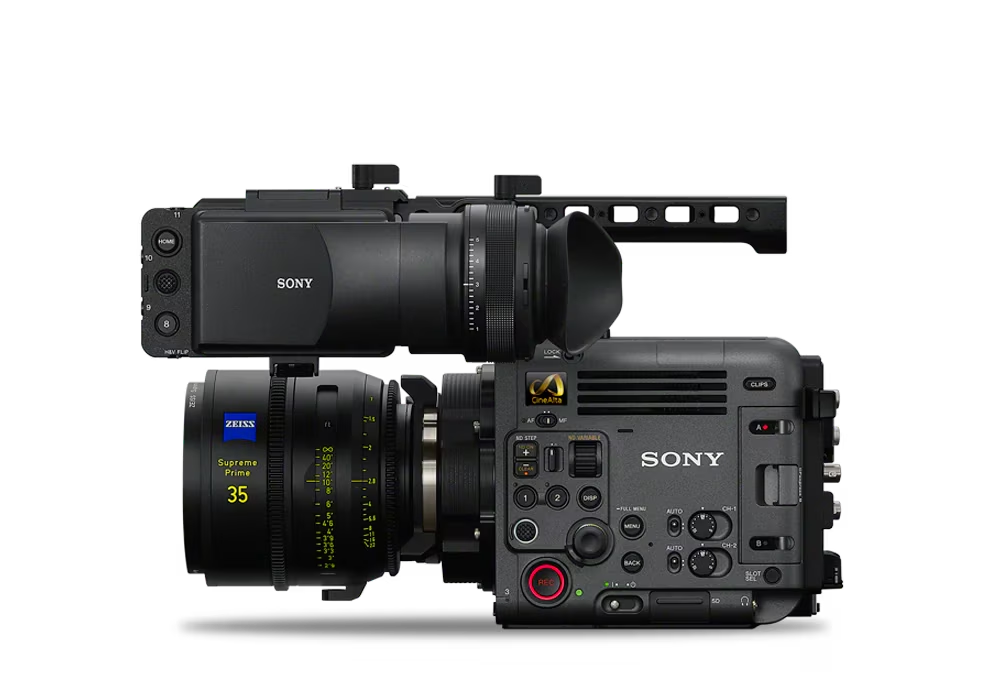
Camera Control
The Sony Burano can be controlled in two different ways, both over an IP/Ethernet connection:
- Burano model (Sony SDK): the protocol used by the Sony "Monitor & Control" app. It provides most controls for exposure, white balance and recording. On the RCP, this protocol is called "Burano", as it was initially the only protocol available.
- CNS-Bridge protocol: the protocol used by the Sony RCP. It offers a more limited set of controls but includes broadcast paint controls such as black, R/B gains, detail and multi-matrix. Since this protocol is the same as for other Sony cameras, it is listed as "CNS-Bridge" on the RCP.
:::caution Only one protocol at a time The Burano allows only one control protocol at a time. If you enable CNS-Bridge, the camera disables the SDK functions. In that case, selecting the "Burano" protocol on the RCP leaves the camera icon red; you must select CNS-Bridge instead.
(The FR7 allows both protocols at the same time, but on the Burano the two feature sets cannot be combined.) :::
Control Comparison
| Control | Description | Burano (Sony SDK) | CNS-Bridge |
|---|---|---|---|
| White balance | Color temperature and tint, no R/B gains | ✓ | ✓ |
| AWB / ATW | Single shot and Auto Tracking White | ✓ | ✓ |
| Iris | Manual and auto iris | ✓ | ✓ |
| Variable ND | Clear, variable and auto | ✓ | ✓ (3 steps only) |
| Gain/EI | Gain in dB or ISO, or exposure index (EI) in Cine EI mode | ✓ (1 dB steps) | ✓ (3 dB steps) |
| Shutter | Manual, auto, ECS, OFF | ✓ | - |
| Record | ON/OFF + status | ✓ | - |
| Color gains | R/B gains | - | ✓ |
| Black | Master, R, B | - | ✓ |
| Detail | Master, H/V, Limit, Crispening | - | ✓ |
| Multi Matrix | Standard 16-vector multi-matrix | - | ✓ |
| Tally | - | ✓ |
Variable ND can be assigned to the iris joystick for very smooth control, while iris remains accessible from the exposure knob.
Wiring
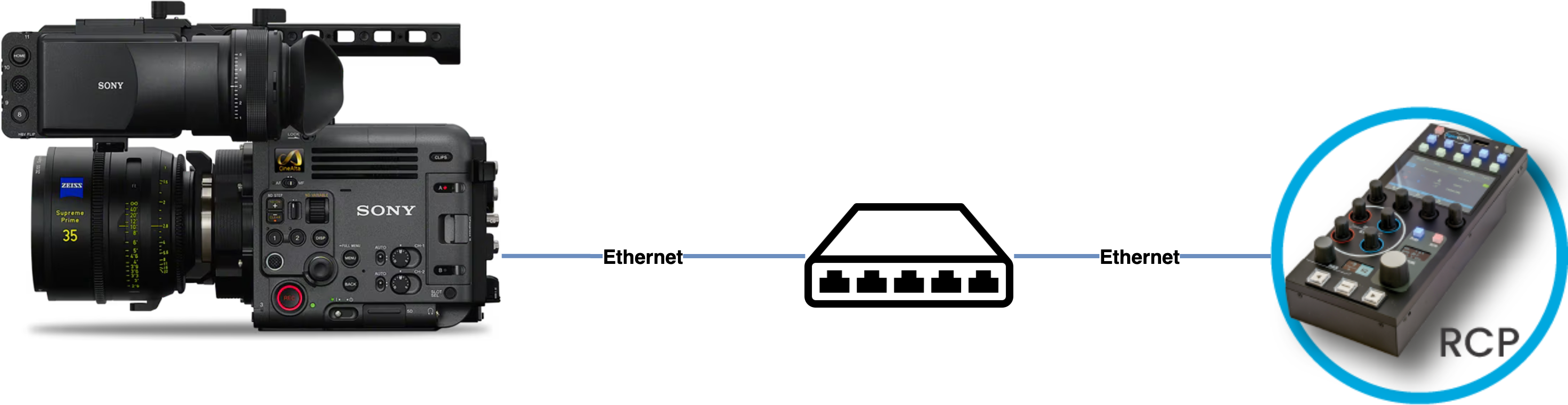
Wired connection:
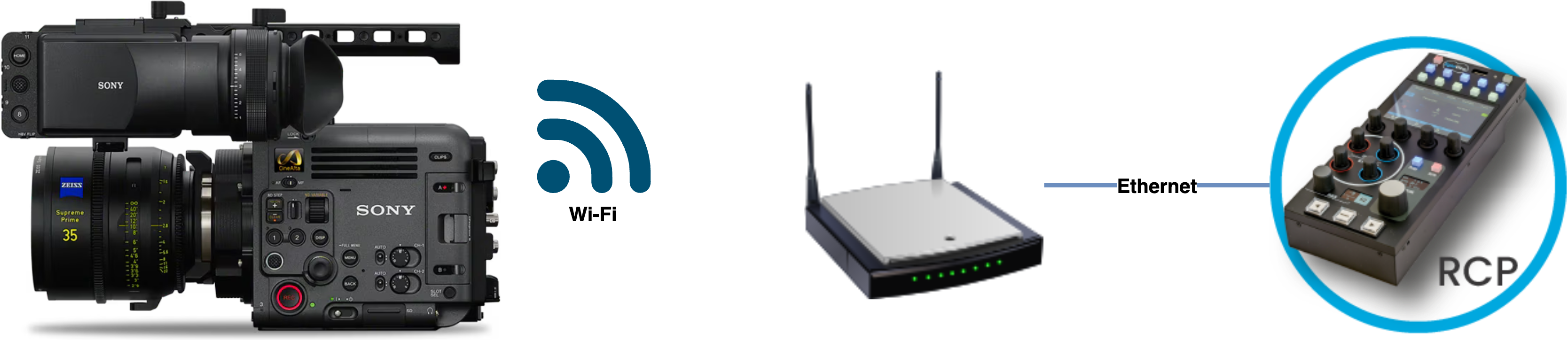
Wi-Fi connection:
If you need to use non-Sony lenses, you need a RIO with a cable (Canon/Fujinon motorized lenses, Tilta motors, ARRI C-Force, etc.).
Camera Configuration (CNS-Bridge Mode)
To control the camera in CNS Bridge mode (as used by the Sony RCP), refer to Sony's BURANO Remote Control Guide. In short, from the camera menus:
- Set a username and password under
Network > Network Setup - Set
Network > Wired LAN > Camera Remote Controlto Enable - Set
Technical > RCP > CNS modeto Bridge
RCP Setup Steps
- Add a new camera in the RCP configuration UI
- Enter a custom number, name, etc.
- Select brand: Sony
- Select model: Burano
- Enter the camera's IP address
- Enter the login/password
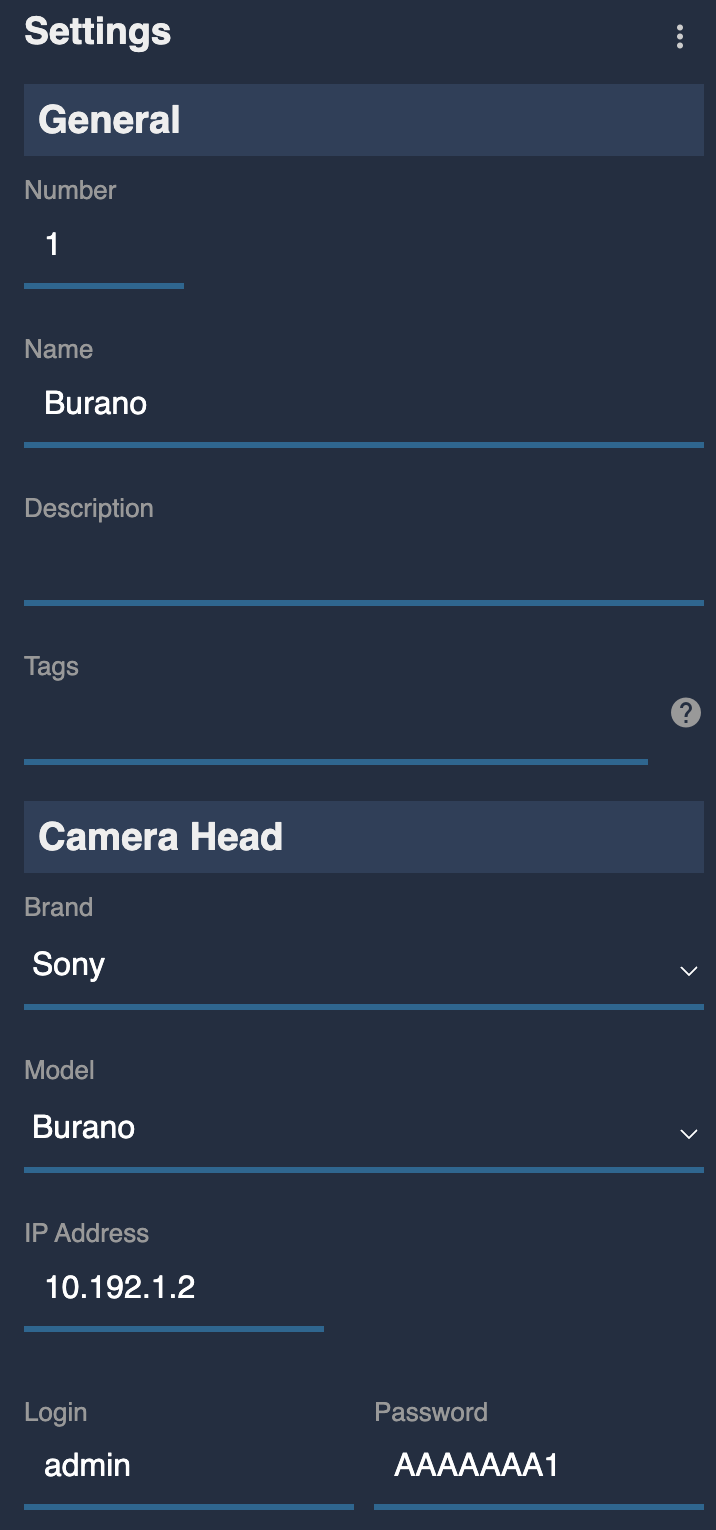
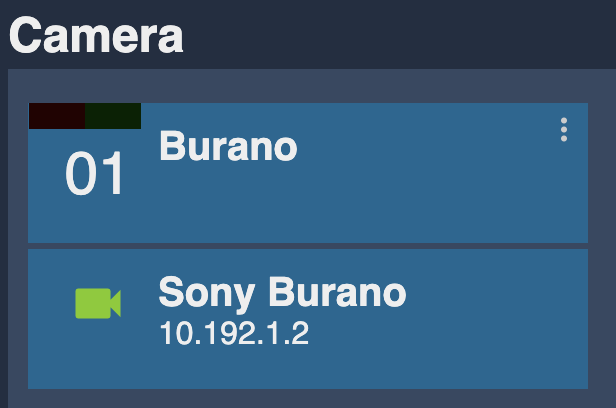
Once correctly configured, the camera icon turns green.
Field Example
Sony Burano with Canon 17-120mm over 4G
For Chanel, Marseille 2024, Planipresse. A RIO is used for:
- Controlling the camera over IP/Ethernet (shading)
- Controlling the camera over LANC (menu navigation)
- Controlling (and powering) the lens using the serial cable (B4)
- Connecting over 4G, with UHF as a backup

LANC is optional and only useful if you need menu navigation from the RCP. Menu access is expected to become available through the SDK in the future.
When wired and using Sony E-mount lenses, the RCP can control the camera directly over Ethernet. A RIO is only needed to add control of other types of lenses or motors, or, for now, for menu navigation and tally.