Sony CBM
Source
This content is based on Cyanview's official manuals. Always check the official page for the latest information and precise specifications.
https://support.cyanview.com/docs/Integrations/Sony/SonyCBM
https://support.cyanview.com/docs/Integrations/Sony/SonyCBM
A protocol that lets you control the camera over WiFi.
Supported Models
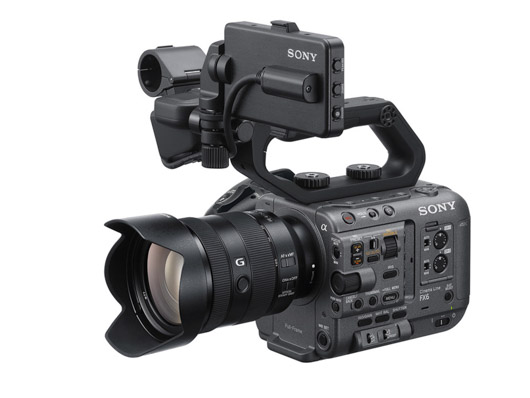
- FX9
- Z280
Wiring
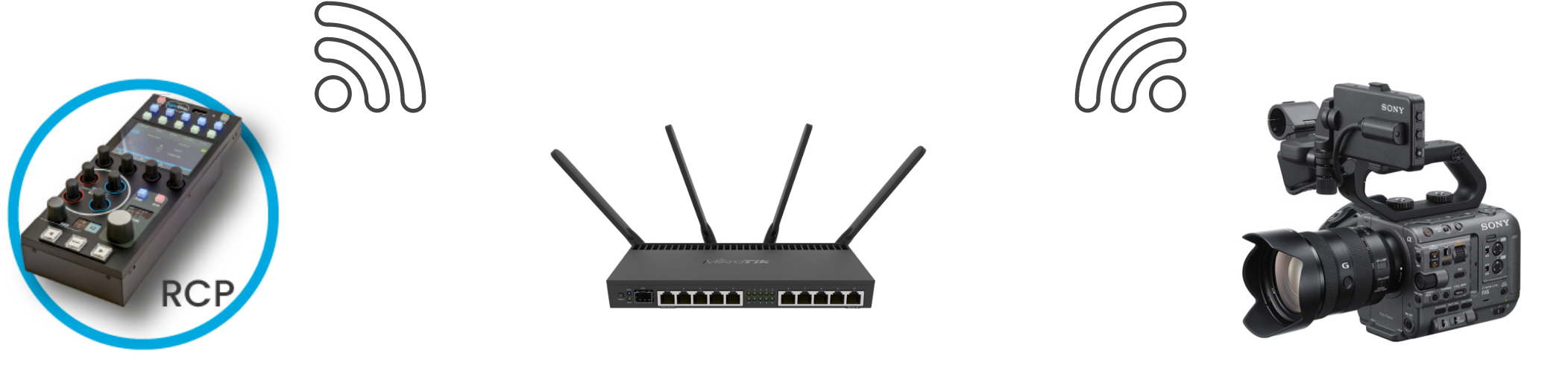
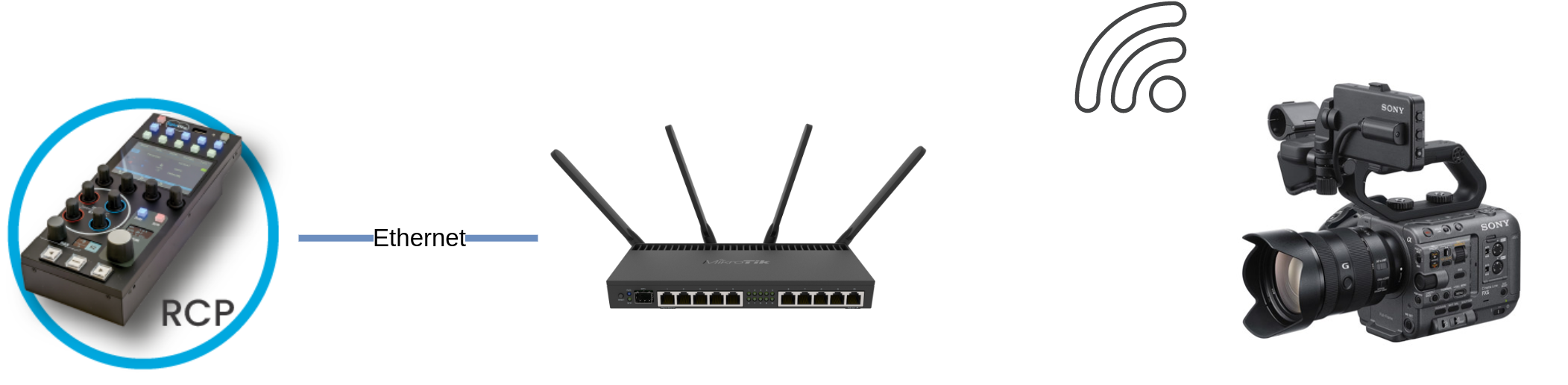
Two connection methods are available.
- Direct WiFi connection
- WiFi + Ethernet connection
Supported Control Functions
| Function | Details |
|---|---|
| White Balance | Color temperature, tint |
| Exposure | Iris, gain, shutter, ND |
| Lens | Zoom, focus (position display only, control is speed-based) |
| Auto | Iris, gain, shutter, ND, ATW, AWB, focus |
| Menu | Up/down/left/right navigation |
| OETF | HyperGamma, STD |
| Pattern | Bar display |
Camera Setup Steps
Default credentials:
- Login:
admin - Password: set to
Abcdef123 - Enable remote control on the WiFi interface
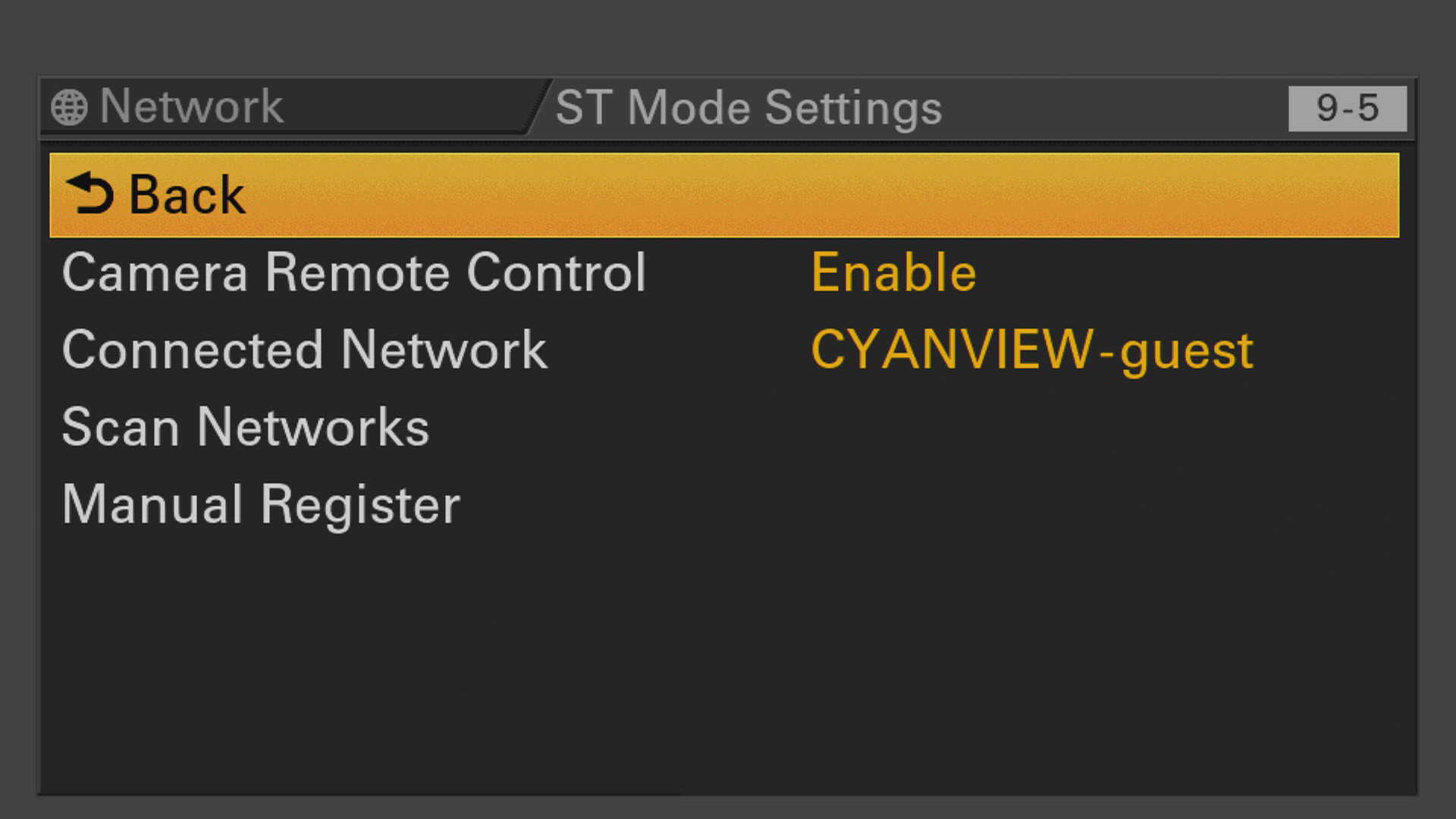
Under Menu > Network > ST Mode Settings, configure the following:
- Set "Camera Remote Control" to Enable
- Enter your WiFi SSID/password under "Connected Network"
- Configure static IP or DHCP
note
The same applies in Access Point mode. Don't forget to enable "Camera Remote Control".
RCP/RIO Setup Steps
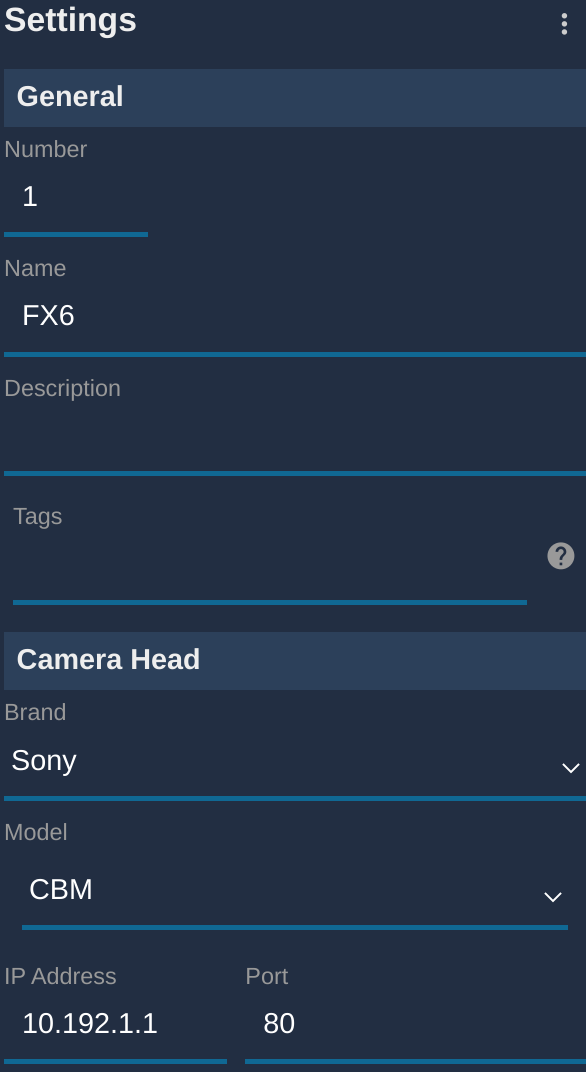
- Add a new camera in the RCP configuration UI
- Enter a custom number and name
- Select brand: Sony
- Select protocol: Sony CBM
- Enter the camera's IP address
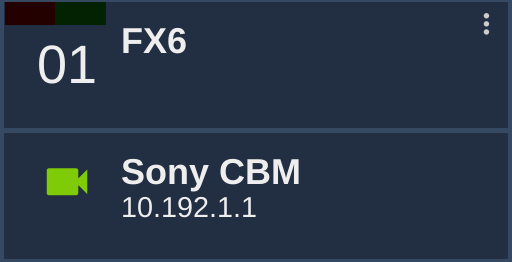
Once configured, the status is displayed in green.