Sony FCB
https://support.cyanview.com/docs/Integrations/Sony/SonyFCB
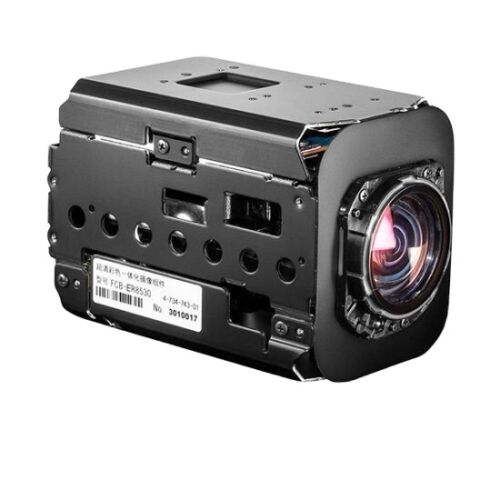
Supported Models
The following models have been tested:
- Sony FCB-7520
- Sony FCB-8230
- Sony FCB-8530
- Sony FCB-8550
- Sony FCB-H11
More or less all FCB models are compatible, but only the models above have been tested. FCB models are often similar with just different capabilities, so if your model is not listed, choose a close model and try it.
Supported Controls
| Control | FCB-XXX |
|---|---|
| Exposure (Iris, Gain, Shutter) | ✓ |
| White balance (R/B) | ✓ |
| Advanced shading (Master Gamma, Detail value + on/off) | ✓ |
| Lens (Zoom/Focus in speed/position) | ✓ |
| Menus (I_lens, I_cam, ICRon, ICRoff, FlipOn, FlipOff) | ✓ |
| Other (AWB/ATW, Auto Focus, Auto Gain/Shutter/Iris (and EV comp)) | ✓ |
| Scene file save/recall | ✓ |
Wiring

The camera is connected to the CI0 using the CY-CBL-6P-FAN cable (see the Cable Catalog):
- GND / PWR to the camera's power input (the CI0 can be powered by PoE or 12V and will power the camera and control it over serial)
- GND / Tx / Rx to the camera's VISCA/RS232 port
- The RCP is connected to the CI0 over Ethernet
For remote/wireless/RF applications, you can use a RIO with a CY-CBL-6P-FAN cable to connect to the camera.
Setup
Adding the VISCA Bus
This camera is controlled using the VISCA protocol over serial. First, add the bus in the RCP configuration UI:
- In Features, click "+"
- Select Sony: VISCA Bus
- Click the new Sony VISCA block that appears
- Configure it as follows
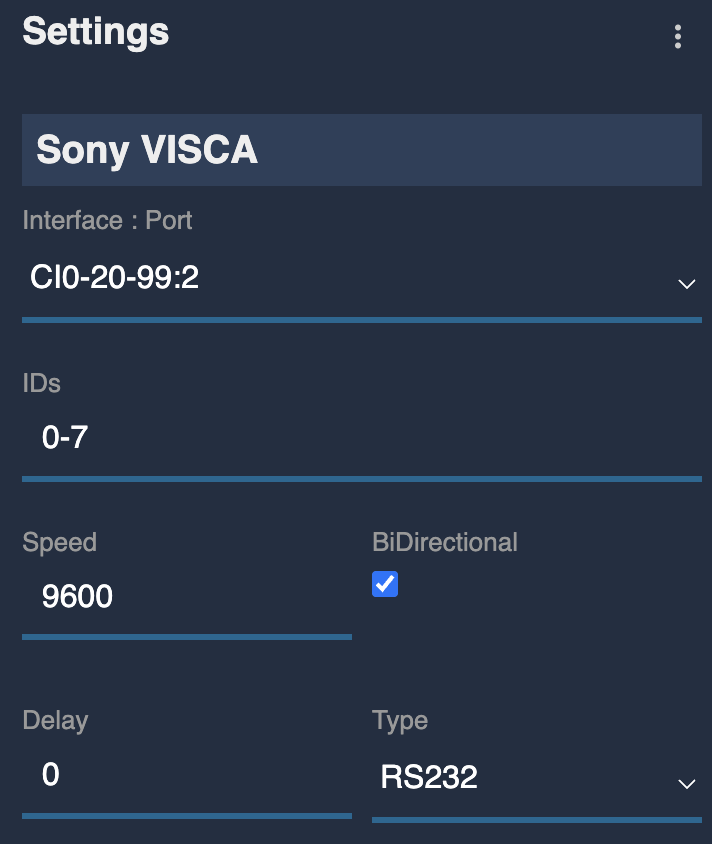
Adapt the IDs, baud rate, etc. to your camera's setup.
It should then look like this:
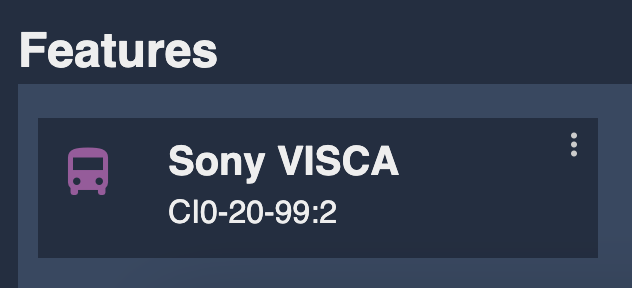
This bus has no status (red/green), as it only makes sense once linked to a camera.
Adding the Camera
Next, create a camera in the RCP configuration UI and link it to the VISCA bus:
- In Camera, click "+"
- Click the new camera block that appears
- Enter a number and a name
- Select brand: Sony
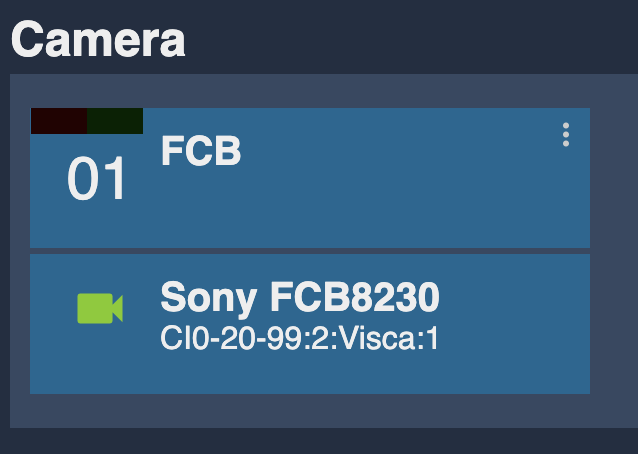
- Select model: FCBXXXX (in the official example, FCB8230 is selected because the actual camera, an FCB-ER8530, is not in the list)
- Select the CI0 port and VISCA bus ID (for example,
CI0-20-99:2:Visca:1means the VISCA bus on CI0 20-99, port 2, with camera ID 1 on that bus)
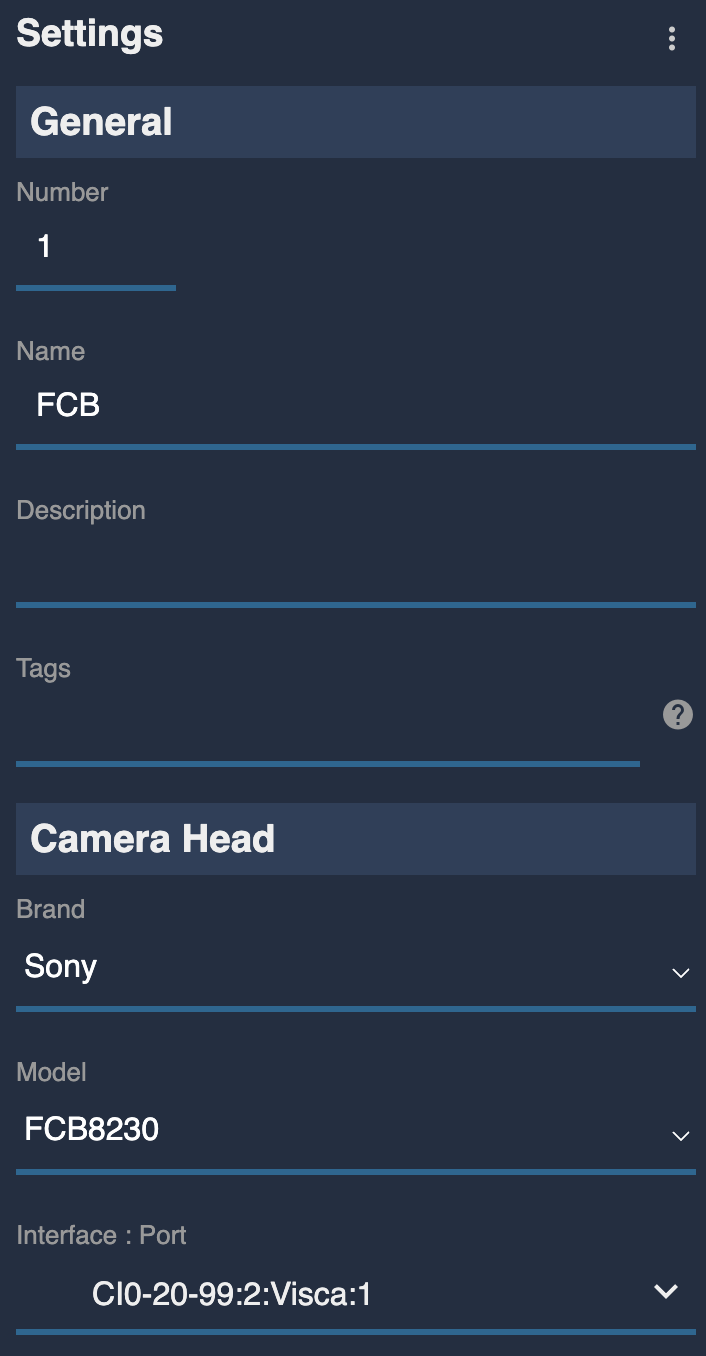
It should then look like this: