Sony FX6
https://support.cyanview.com/docs/Integrations/Sony/SonyFX6
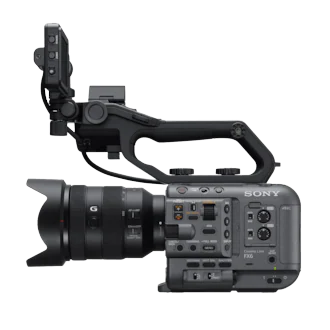
Supported Controls
| Control | Details | IP | LANC |
|---|---|---|---|
| White balance | Color temperature and tint, no R/B gains | ✓ | - |
| Iris | Manual and auto iris | ✓ | ✓ |
| Variable ND | Clear, variable and auto | ✓ | - |
| Gain/EI | Gain in dB or ISO, or exposure index (EI) in Cine EI mode | ✓ | - |
| Shutter | Manual, auto, ECS, OFF | ✓ | - |
| Record | ON/OFF + status | ✓ | - |
| Tally | Red/green tally, only available through LANC | - | ✓ |
| Menu navigation | Only available through LANC | - | ✓ |
Variable ND can be assigned to the iris joystick for very smooth control, while iris remains accessible from the exposure knob.
:::note Limited control Sony has announced that there will be no further firmware releases for the FX6, except for one planned update in 2026, and that update will not add any new paint controls. As a result, functions such as master black, black balance, gamma or saturation will likely never be available for remote control on the FX6. :::
Wiring
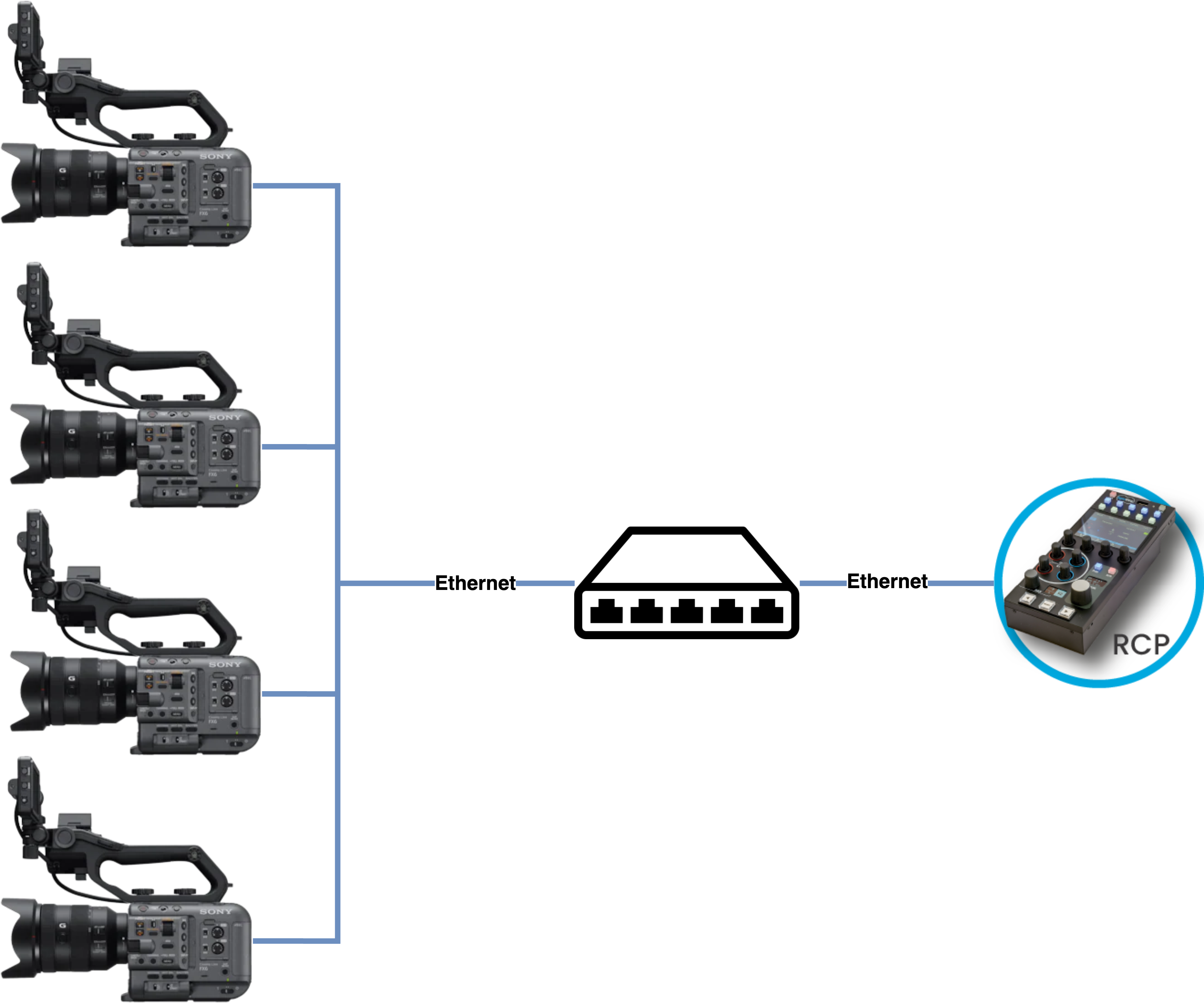
The FX6 is controlled over IP or LANC.
- IP control works over LAN or Wi-Fi. LAN requires a compatible USB-to-Ethernet dongle. Most USB-C dongles will not work, so be sure to check USB-Ethernet Dongle Compatibility.
- LANC is useful for adding tally and menu navigation to IP control. See Sony LANC.
FX6 Hands-on Video
Watch the setup and operation on YouTube (with chapters).
Camera Configuration
Firmware Requirements
- Camera: firmware v4 or higher
- RCP/RIO: release 24.1 or above
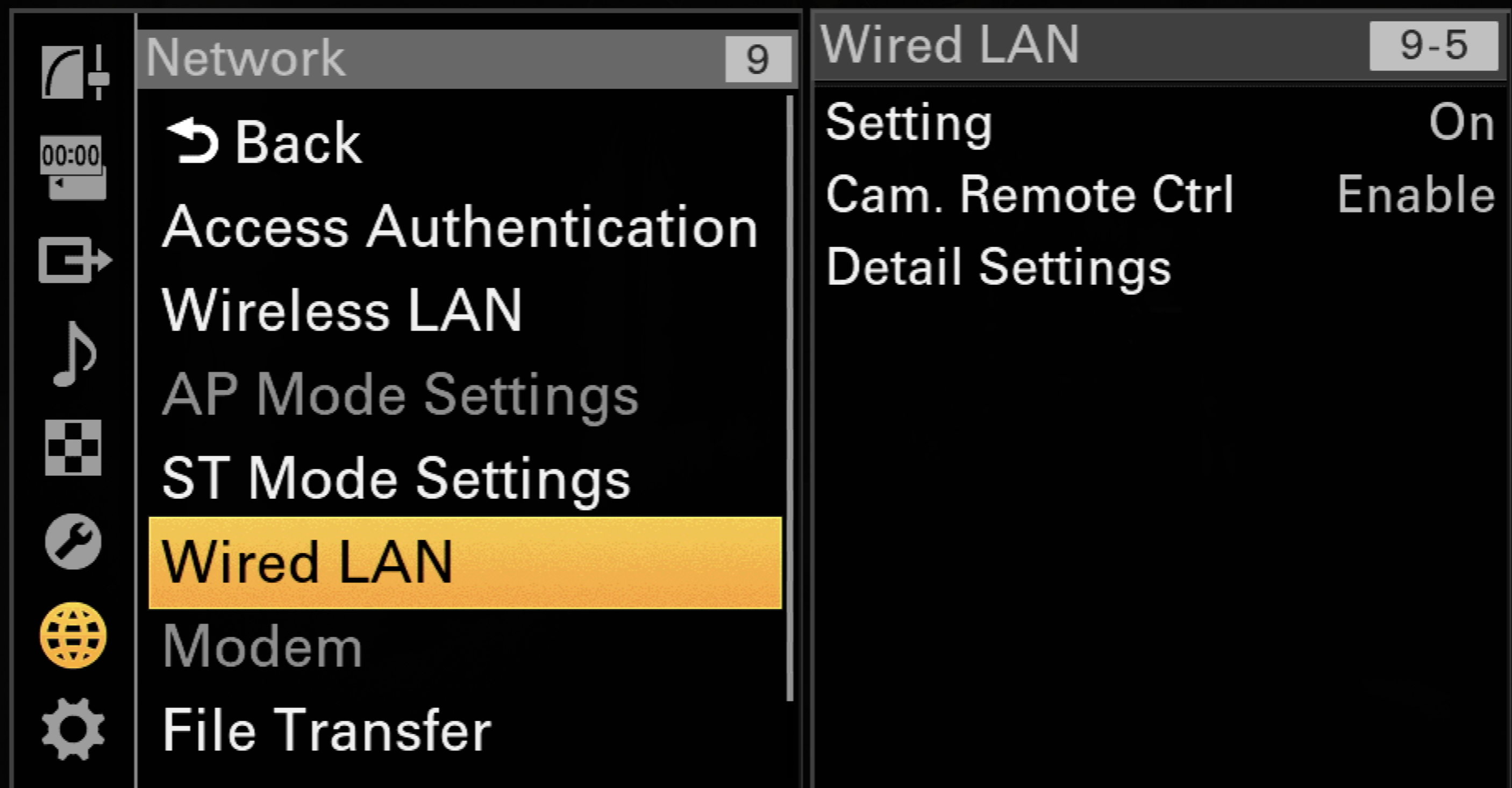
LAN
Authentication must be enabled for IP control; you will need the login and password for the RCP configuration.
- Open
menu > Network > Wired LAN - Enable Camera Remote Control
- Check your IP address in Detail Settings
Wi-Fi
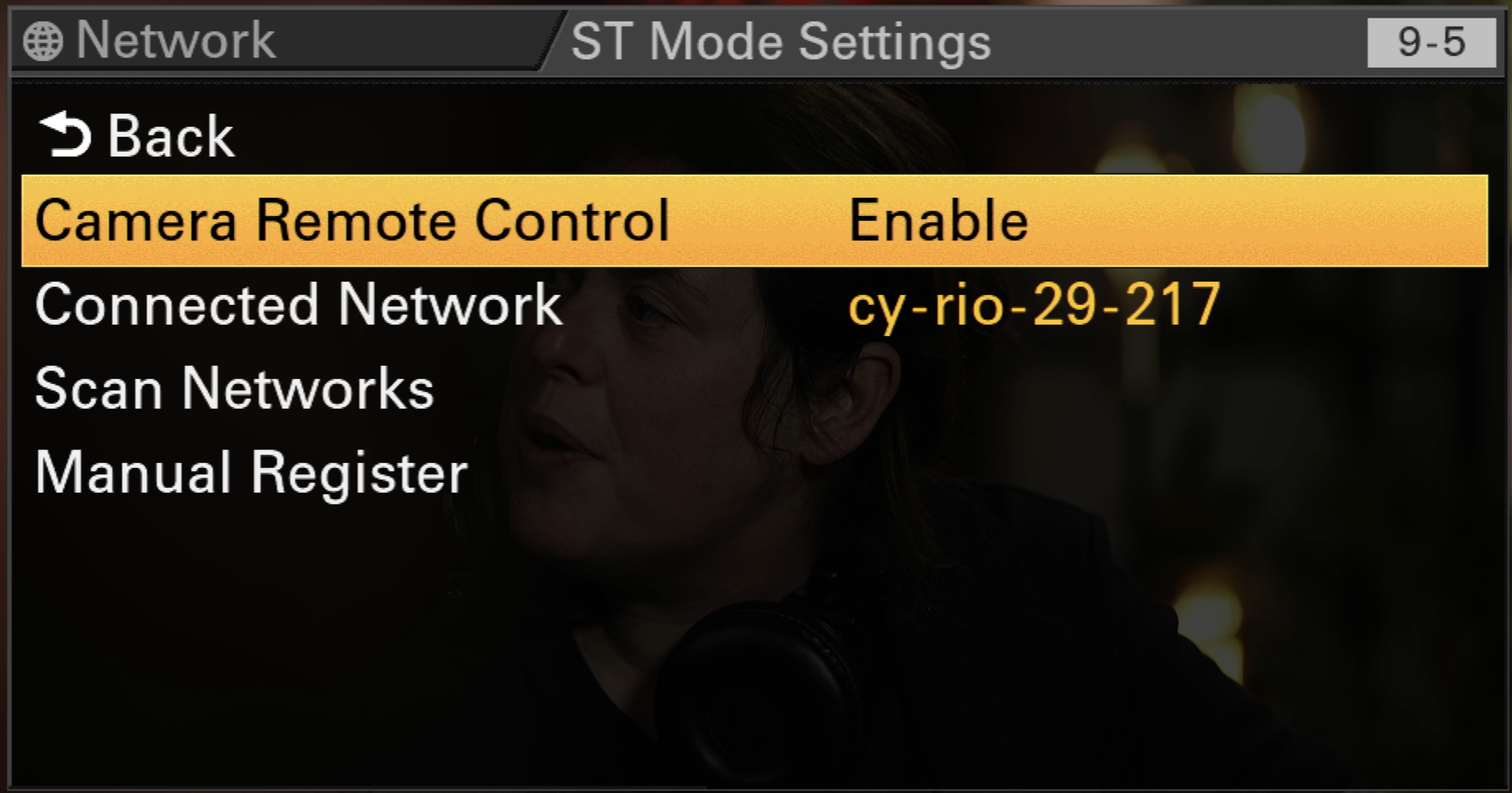
Wi-Fi uses a different option. When Wi-Fi is set to Station Mode:
- Open
menu > Network > ST Mode Settings - Enable Camera Remote Control
- Once connected, your IP address is displayed under Connected Network
RCP Setup Steps
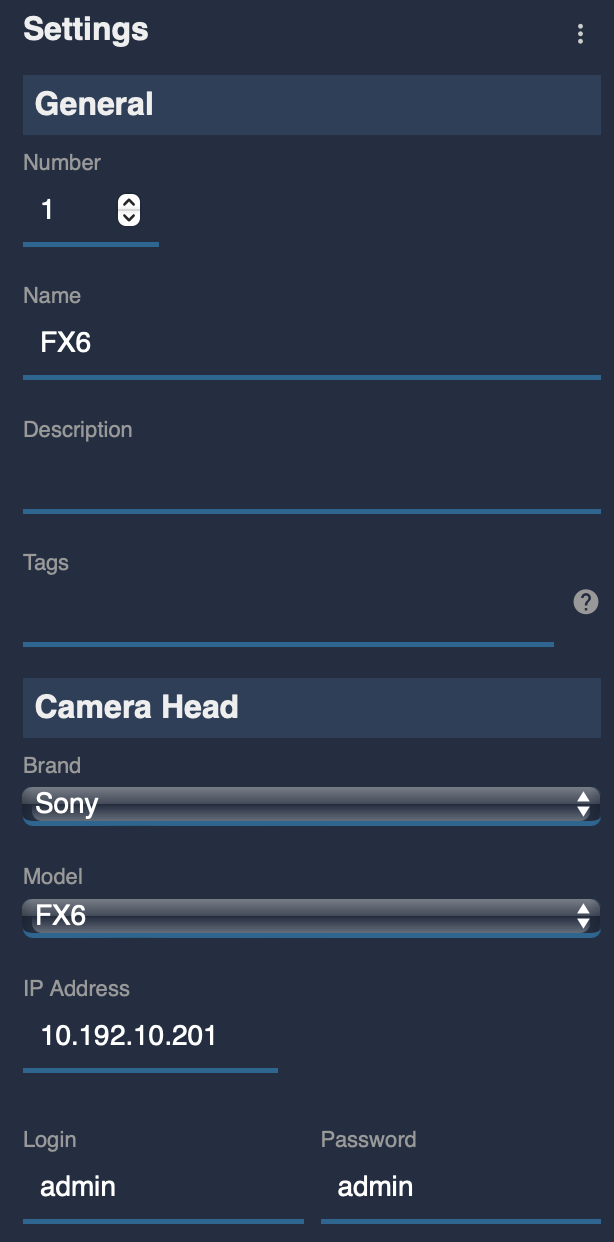
- Add a new camera in the RCP configuration UI
- Enter a custom number, name, etc.
- Select brand: Sony
- Select model: Sony FX6
- Enter the camera's IP address
- Enter the login/password
:::caution Important Make sure the RCP has an IP address in the same range as the camera. See IP Configuration to add a new IP address to the RCP. :::
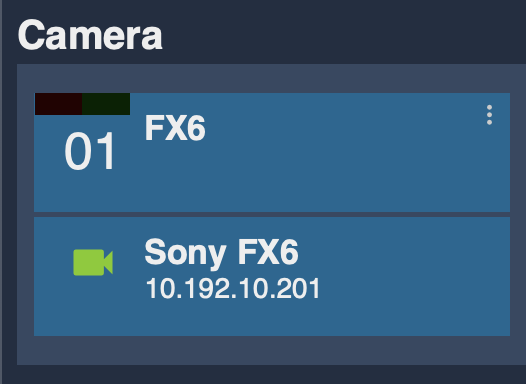
Once correctly connected, the camera icon turns green.
Troubleshooting
The camera doesn't turn green
Check the following, in order:
- Ping the camera from a computer
- Set the computer in the same IP range as the camera.
- If this doesn't work, check the Ethernet dongle and the camera's IP configuration.
- If the camera is set to DHCP but you are not sure there is a DHCP server, consider using static IPs instead.
- Ping the RCP from the computer
- Ping the RCP IP address that is in the same range as the camera. This confirms that the RCP and the camera are on the same network/mask.
- If this doesn't work, make sure you have assigned an IP address on the RCP.
- Disable and re-enable remote control in the network settings
- The camera sometimes gets stuck in uncontrolled mode, and toggling this setting properly re-enables control.
- Power cycle the camera (if necessary, remove the battery or PSU)
Iris or other lens controls don't work
Various issues can occur when using Metabones Canon EF to Sony E-mount adapters or the Chrosziel E-to-PL mount adapter. If other parameters can be controlled normally, the RCP or RIO is unlikely to be the problem. The best way to check the camera is to use Sony's CBM or Monitor mobile apps and test iris, zoom and focus from the app. The RCP uses the same API, so it should behave the same way.
With a RIO, you can directly control servo lenses (B4 or PL) or motors such as ARRI C-Force (coming) or Tilta. Besides being a proper solution on its own, this can also be a good backup when lens control through the camera fails.
USB-Ethernet Dongle Compatibility
The FX6 only supports USB-Ethernet dongles with older chipsets, and compatible ones are becoming increasingly hard to find. Here is what is known so far:
- Dongles with the ASIX AX88179 chipset work. However, the newer AX88179A and AX88179B versions do not.
- Some dongles with the Realtek RTL8153 chipset are compatible, but not all; it's hit or miss.
- Most USB-C Ethernet dongles won't work, since they tend to use newer chipsets. You'll have better luck with older USB-A dongles (if you have any), even through a USB-A to USB-C adapter; not ideal for the connection, but more likely to be compatible.
If you plug in an incompatible dongle, the FX6 can crash and may not even power down when you turn it off. Between each test, remove the USB-Ethernet adapter and fully power cycle the camera before trying another one. Otherwise, you could end up testing a compatible dongle while the camera is still in a bad state, and it won't work anyway.
:::tip Get the right dongle Dongle manufacturers change the chipset without changing the reference number, and online retailers sell multiple versions under a single reference. To help FX6 users, Cyanview manufactures its own compatible dongle. Contact Cyanview for a quote. :::