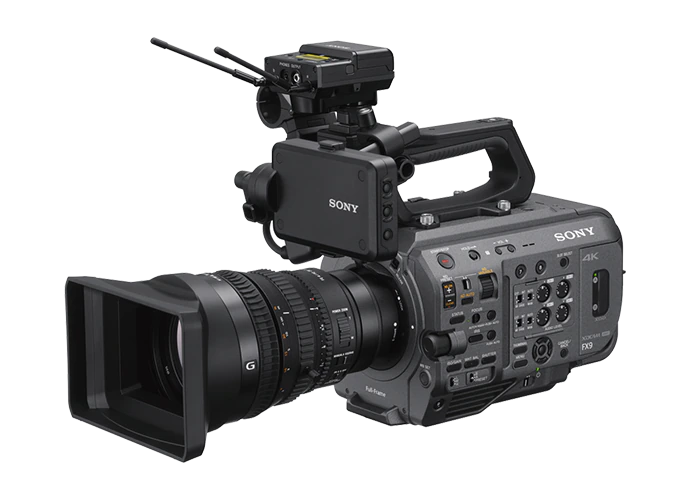
Sony FX9
https://support.cyanview.com/docs/Integrations/Sony/SonyFX9
Wiring
Ethernet
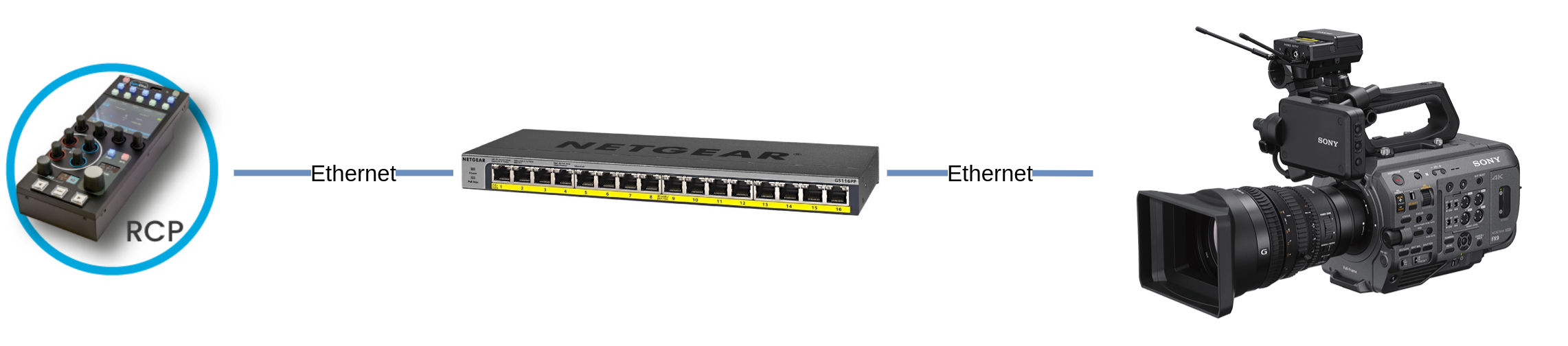
To control the FX9 directly over Ethernet (without a RIO), you need the Sony XDCA extension unit.
Wi-Fi
Use one of the following setups:
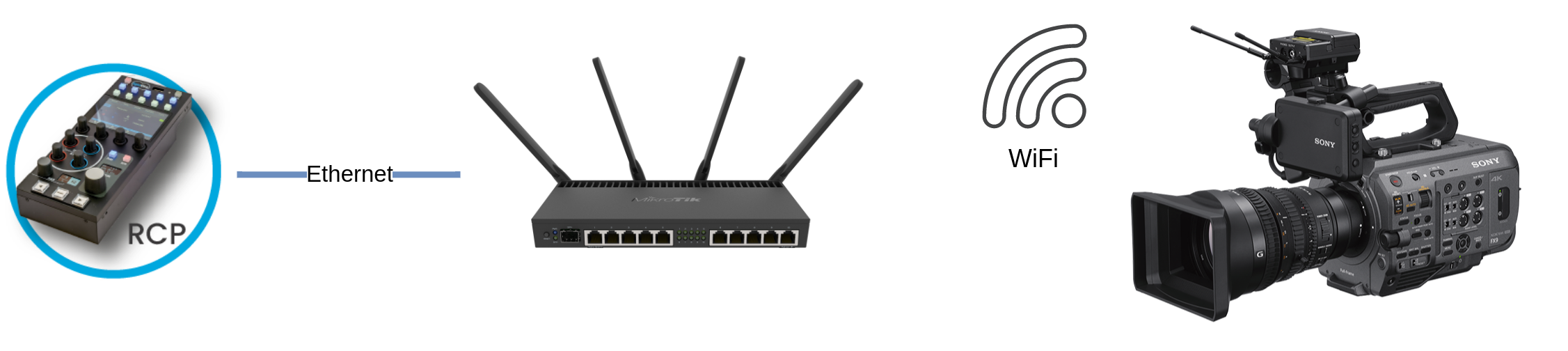
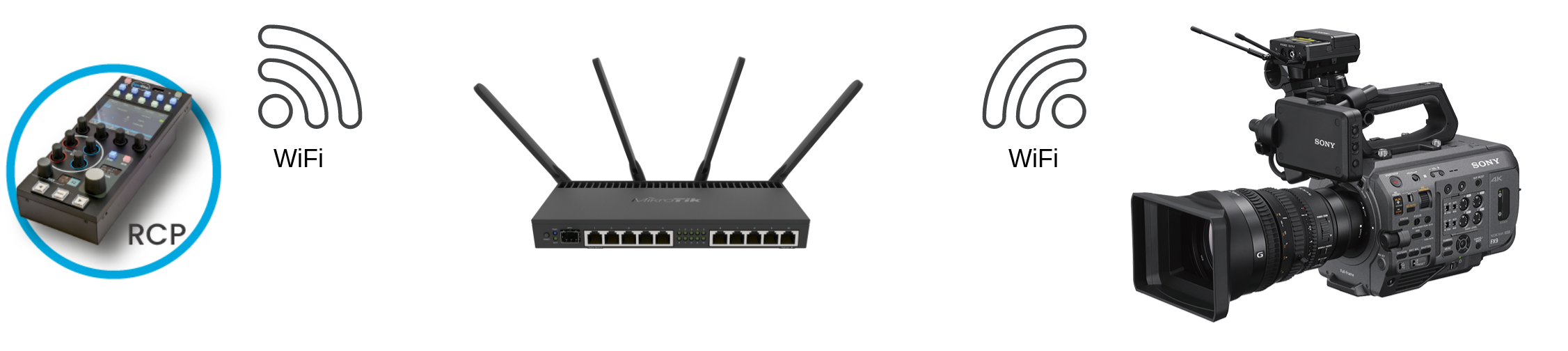
See Wireless Configuration to set up Wi-Fi on the RCP/RIO.
Supported Controls
In the RCP configuration you can choose either the "FX9" or the "CBM" model. The available controls depend on the model you choose.
| Control | FX9 | CBM |
|---|---|---|
| Exposure (Iris, Gain, Shutter, ND filter) | ✓ | ✓ |
| White balance (R/B and color temperature) | ✓ | ✓ |
| Black balance (R/B and master black) | ✓ | - |
| Other controls (Detail, Multi Matrix, ISO base) | ✓ | - |
| Menu navigation | ✓ | ✓ |
| Tally | ✓ | - |
| Camera menu control (OSD) | ✓ | ✓ |
| Lens (iris, zoom, focus) | ✓ | ✓ |
| Scene file save/recall | ✓ | ✓ |
:::note FX9 model vs. CBM model
- FX9 model: combines the S700 and CBM protocols to control the camera. Because of this, the camera is put in RCP mode and you lose variable ND filter and fine gain control.
- CBM model: control is more limited because the S700 controls (blacks, multi-matrix, etc.) are not available, but the camera stays unrestricted (gain steps and ND filter).
As a rule of thumb, when your camera is in S-Log, prefer the CBM model over the FX9 model, as it gives you more control over the camera. :::
Camera Configuration
Color Temperature and Master Black
Set the WB switch on the left side of the camera to Preset. Otherwise, color temperature and master black cannot be controlled. (Even the official documentation notes that the reason for this link with master black is unknown.)
Remote Control
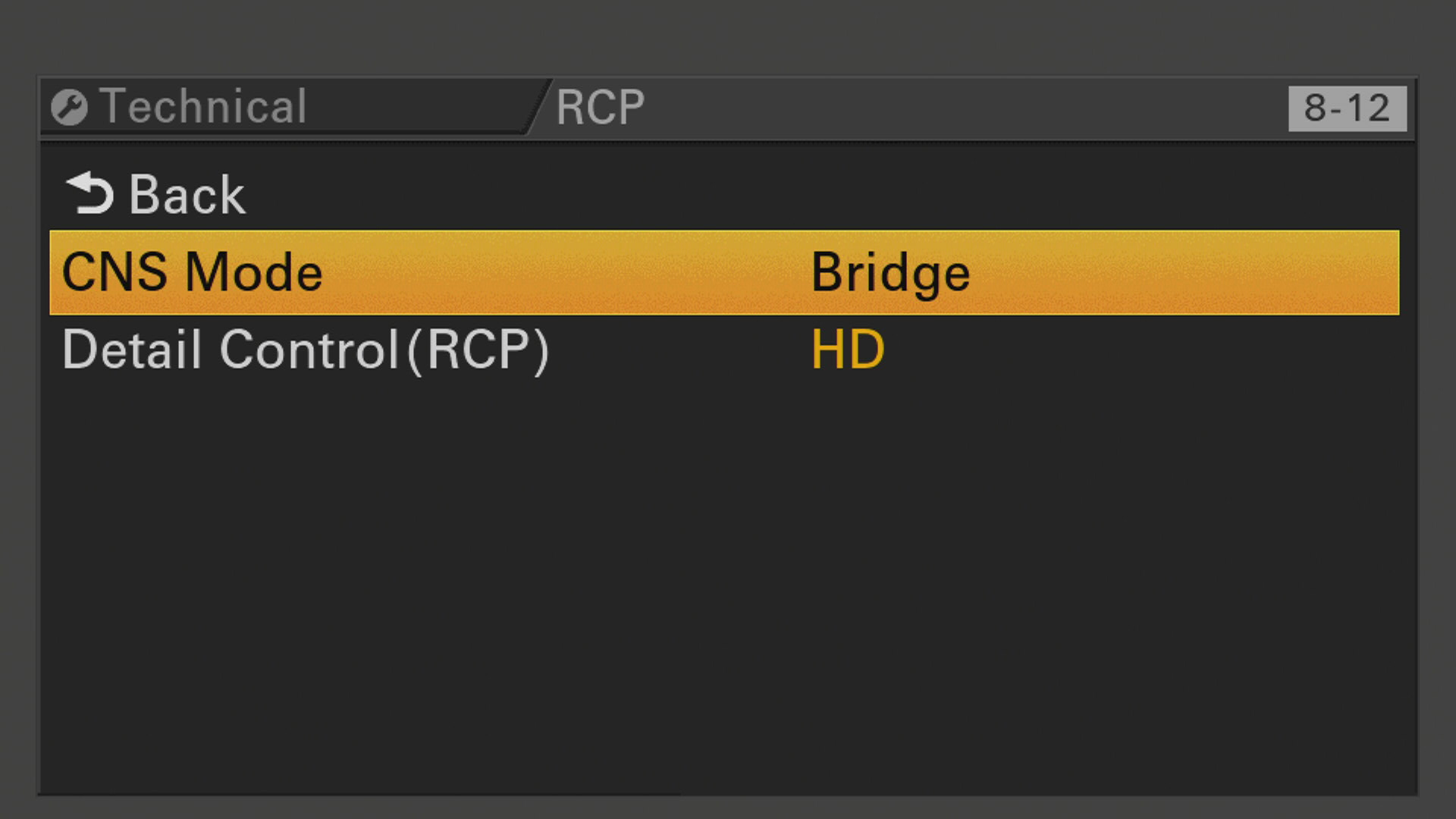
Under Menu > Technical > RCP, set:
- CNS mode to Bridge
Tally
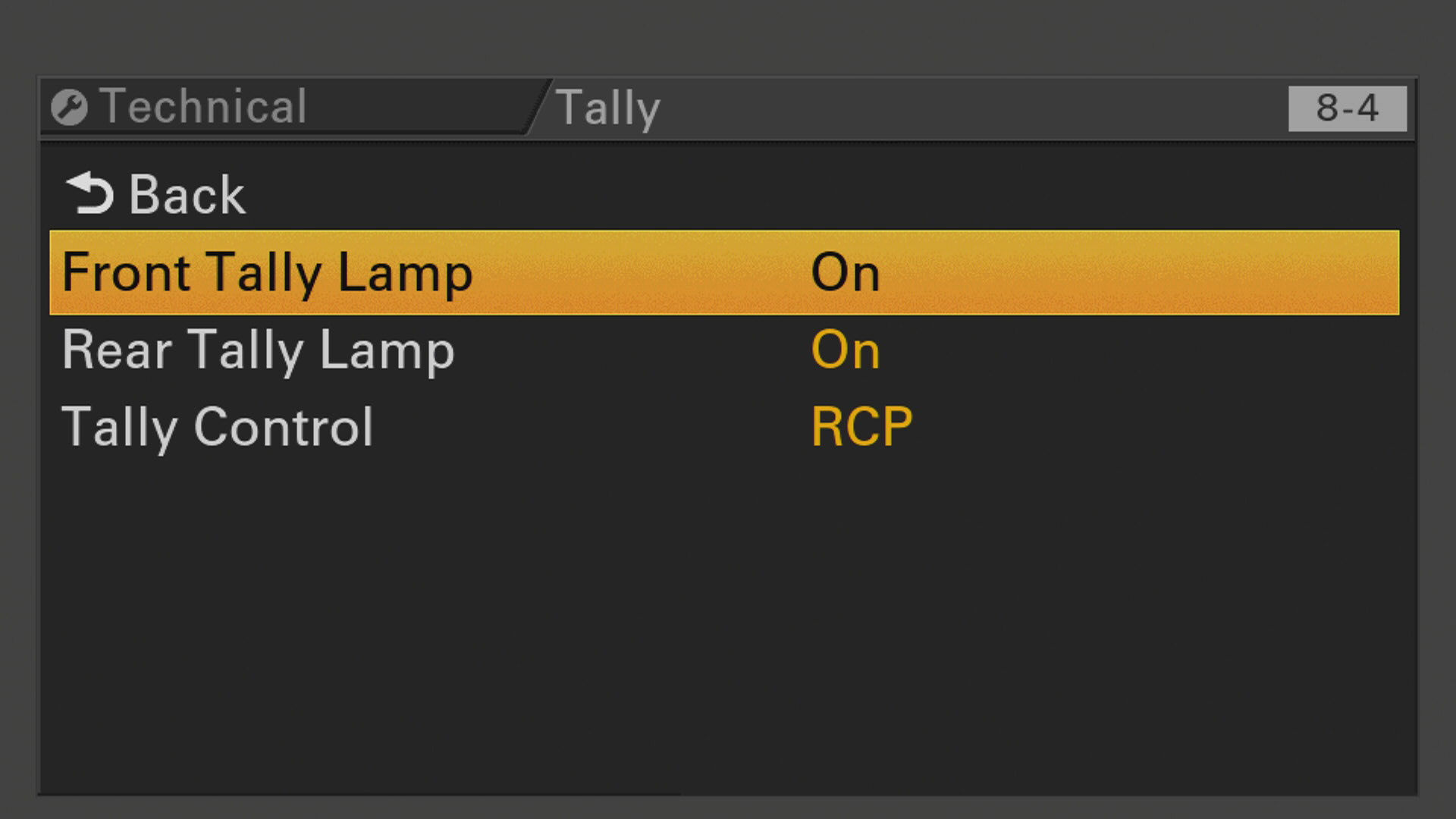
Under Menu > Technical > Tally, set:
- Tally Control to RCP
Ethernet
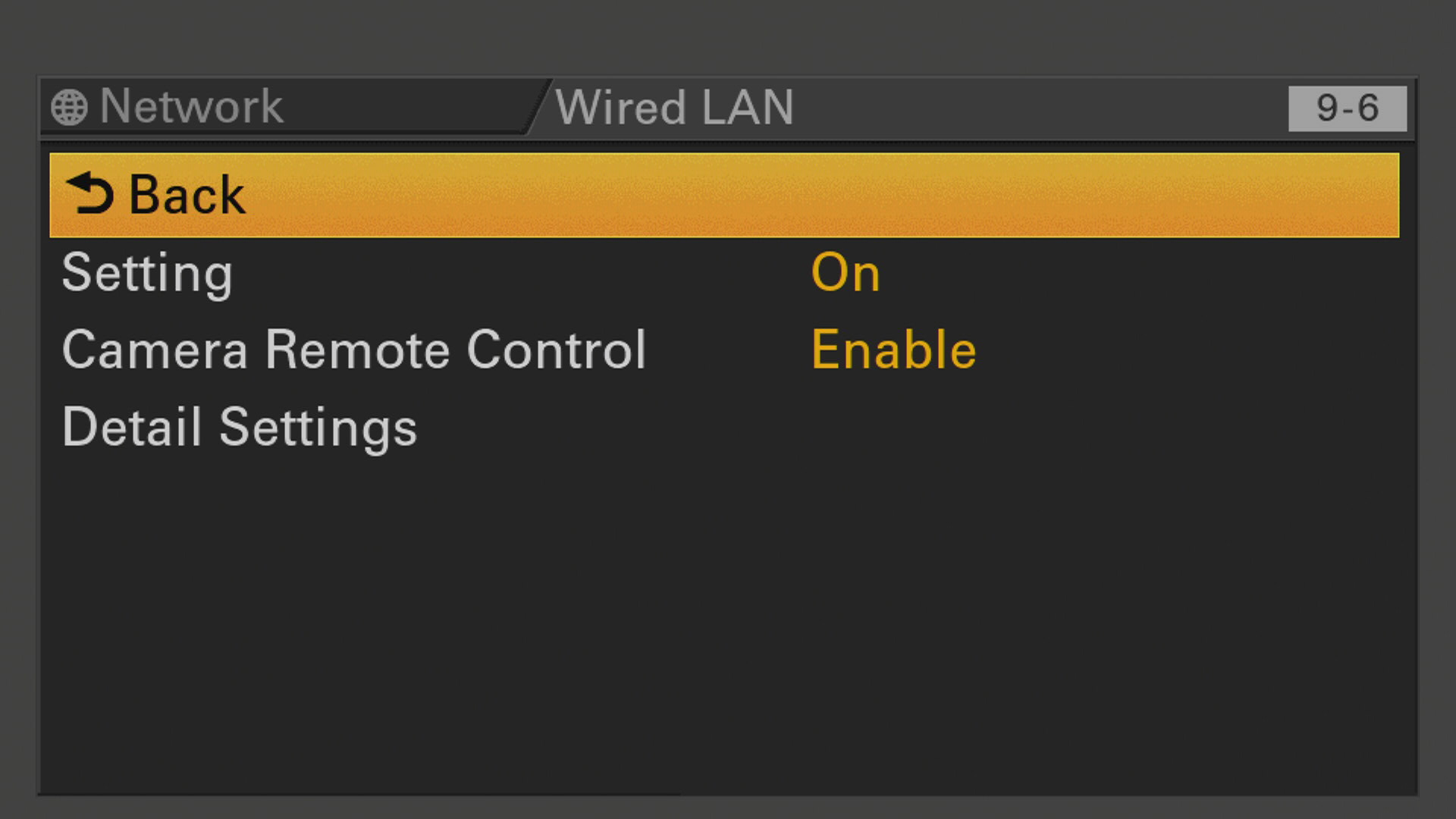
Under Menu > Network > Wired LAN, set:
- Setting to On
- Camera Remote Control to Enable
- Detail Settings according to your network setup (DHCP or static)
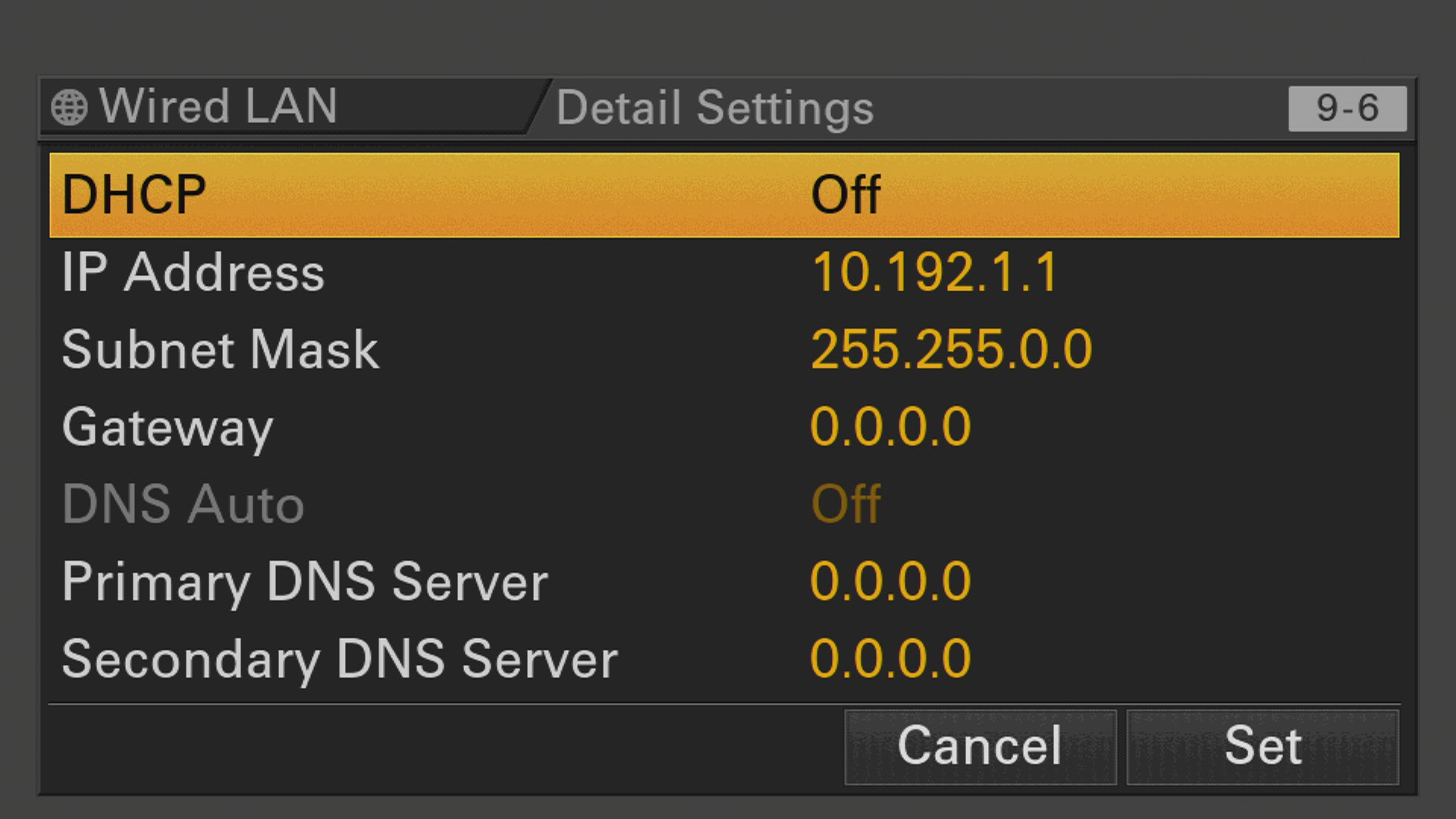
Example of a static IP setup (Menu > Network > Wired LAN > Detail Settings):
Wi-Fi
To connect the camera to an existing Wi-Fi network:
-
Under
Menu > Network > Wireless LAN, set Setting to Station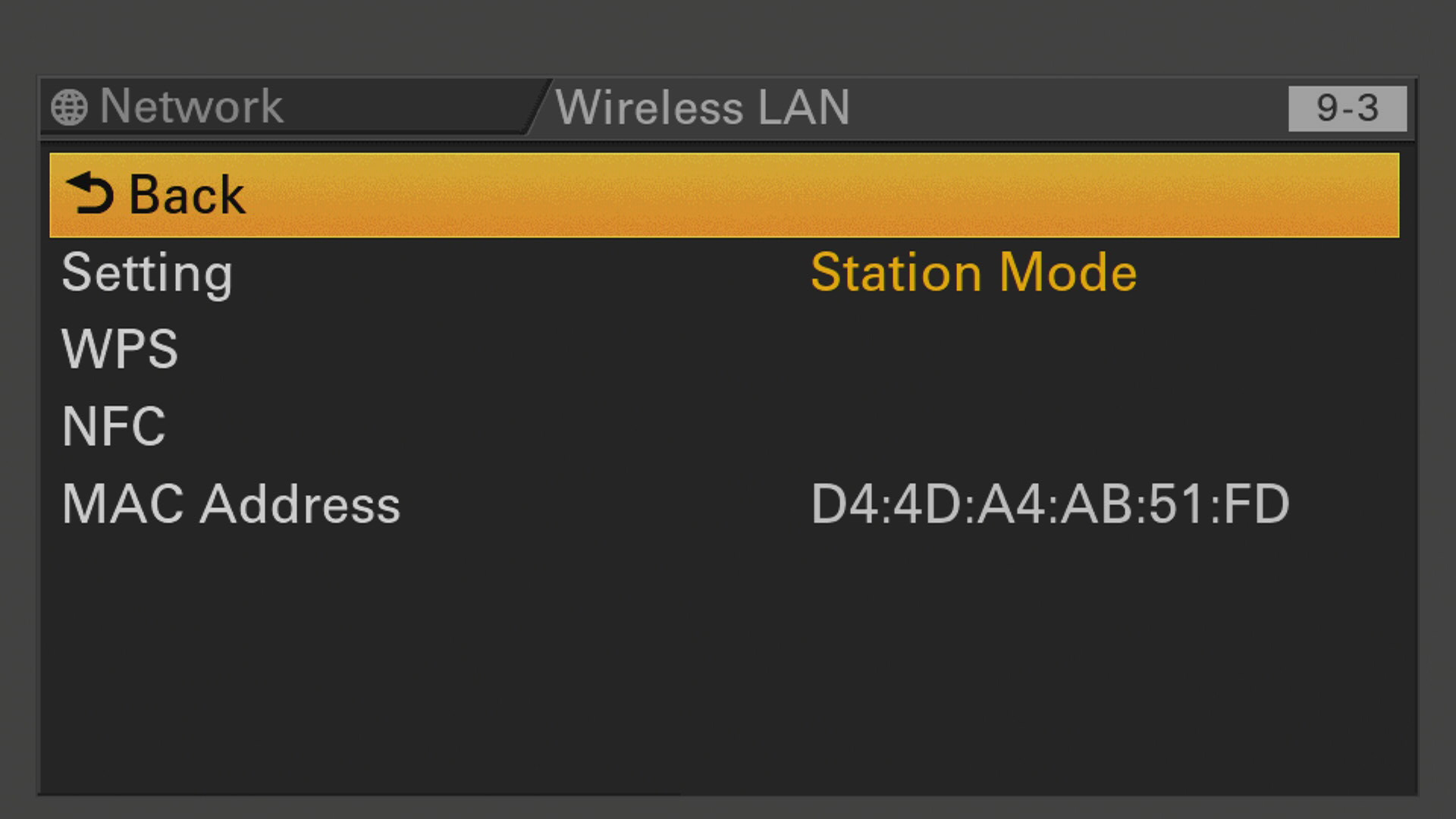
-
Under
Menu > Network > ST Mode Settings, set:- Camera Remote Control to Enable
- Connected Network: enter your Wi-Fi SSID/password and choose static IP or DHCP
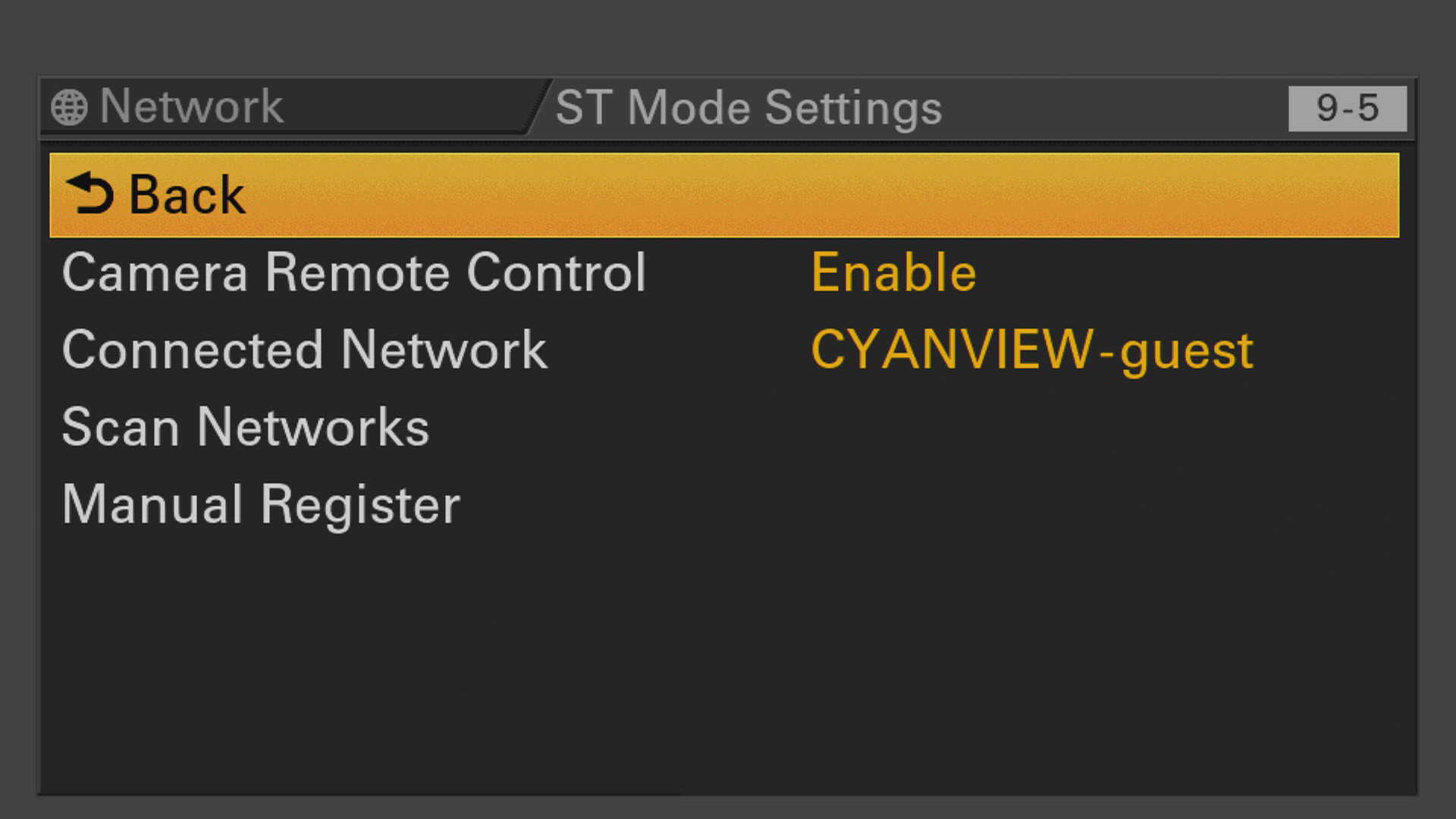
The same applies in Access Point mode. Don't forget to enable Camera Remote Control.
RCP/RIO Setup Steps
- Add a new camera in the RCP configuration UI
- Enter a custom number, name, etc.
- Select brand: Sony
- Select protocol: Sony FX9
- Enter the camera's IP address
If your camera is in a different IP range than your RCP, see IP Configuration.
The setup should look like this:
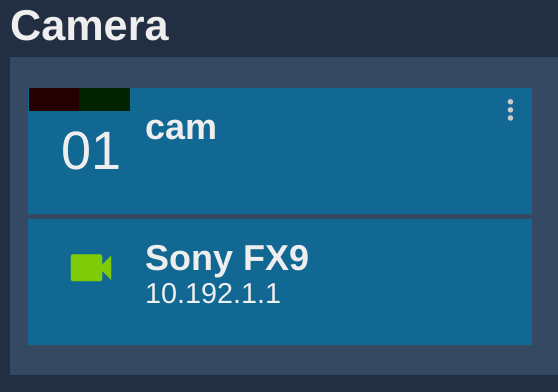
Once correctly connected, it turns green.
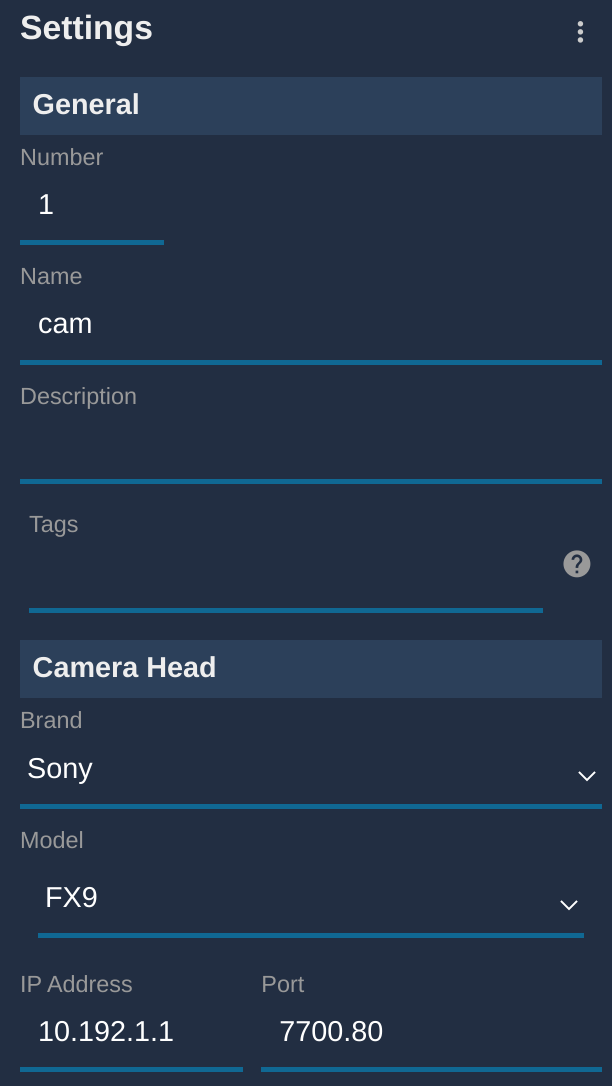
In FX9 mode, two protocols are combined to control the camera, which puts the camera in RCP mode; you lose variable ND filter and fine gain control.
If you want:
- 1 dB gain steps
- a variable ND filter
choose the CBM model instead of FX9 (a camera reboot may be required for it to work properly). See Sony CBM for details.
B4 Lenses
To add a Canon CINE-SERVO, Fujinon Cabrio or any other B4 lens to your FX9, see B4 Lens.