Sony PXW/HXR
Source
This content is based on Cyanview's official manuals. Always check the official page for the latest information and precise specifications.
https://support.cyanview.com/docs/Integrations/Sony/Sony_PXW
https://support.cyanview.com/docs/Integrations/Sony/Sony_PXW
Supported Models
With the new Sony SDK (released in 2025), the following models are supported:
- PXW-Z200
- PXW-Z300
- HXR-NX800
caution
The new integration based on the 2025 Sony SDK is only supported from RCP/RIO version 25.10.1Beta2. Make sure the RCP and RIO are updated to this version or later (see Software Update).
Supported Control Functions
The current beta release supports a limited set of controls. More features are expected to be added in future releases.
| Item | Details |
|---|---|
| Exposure | Iris, gain, shutter |
| ND | Neutral density |
| Color Temperature and Tint | White balance adjustment |
Workflow
The RCP connects directly to the camera's LAN port and communicates entirely over IP.
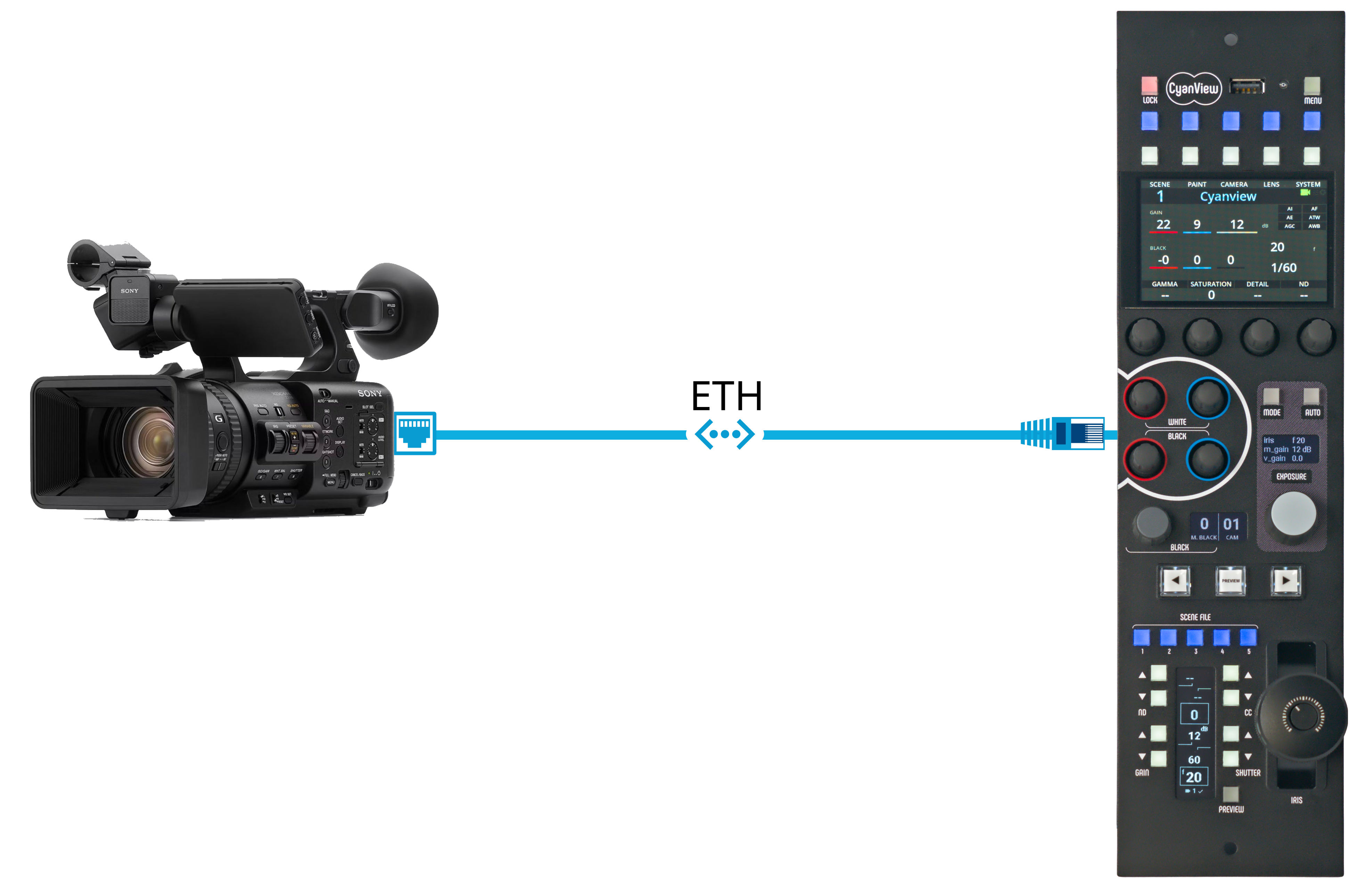
Camera Setup Steps
- Set a "username" and "password" on the camera (make a note of them; you will need to enter them on the RCP)
- Go to
Network > Wired LAN - Enable
Camera Remote Control - Configure the camera's IP address and network settings
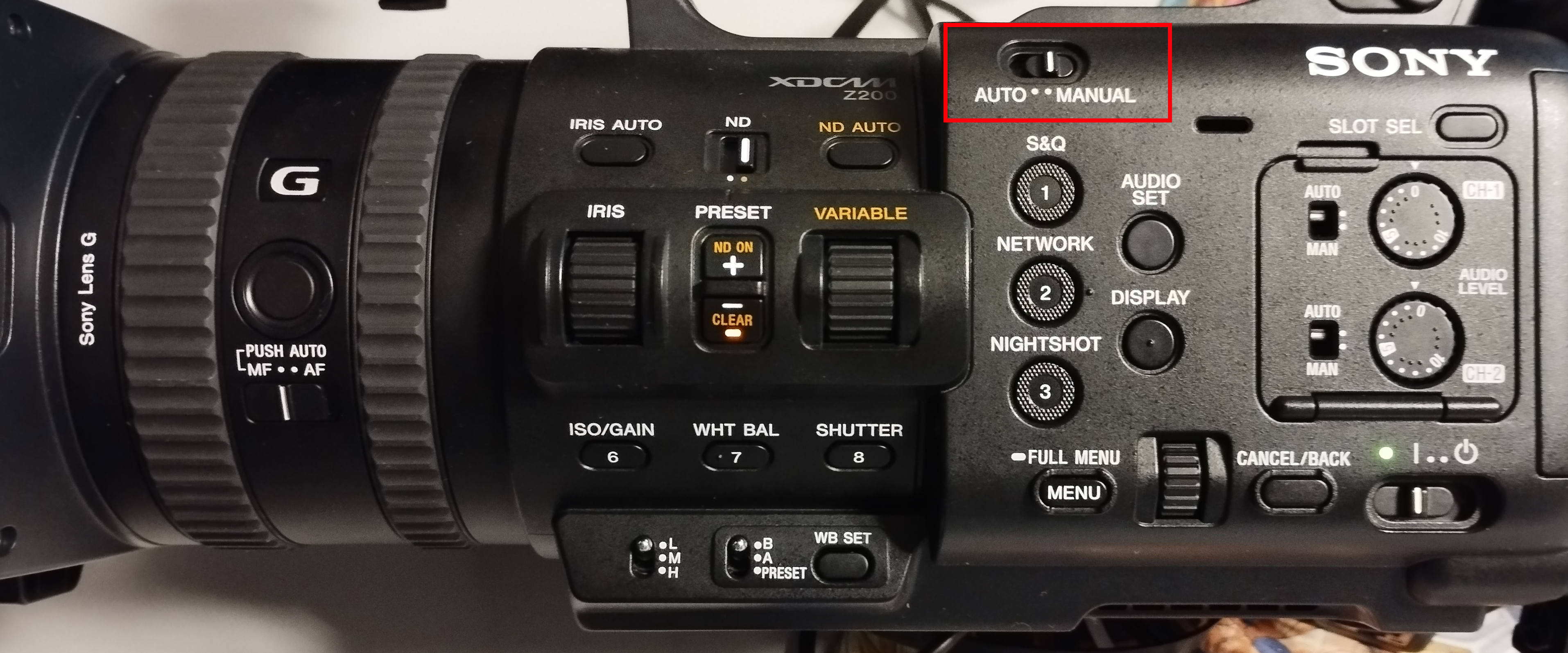
- Important: set the physical switch on the camera body to Manual
RCP/RIO Setup Steps
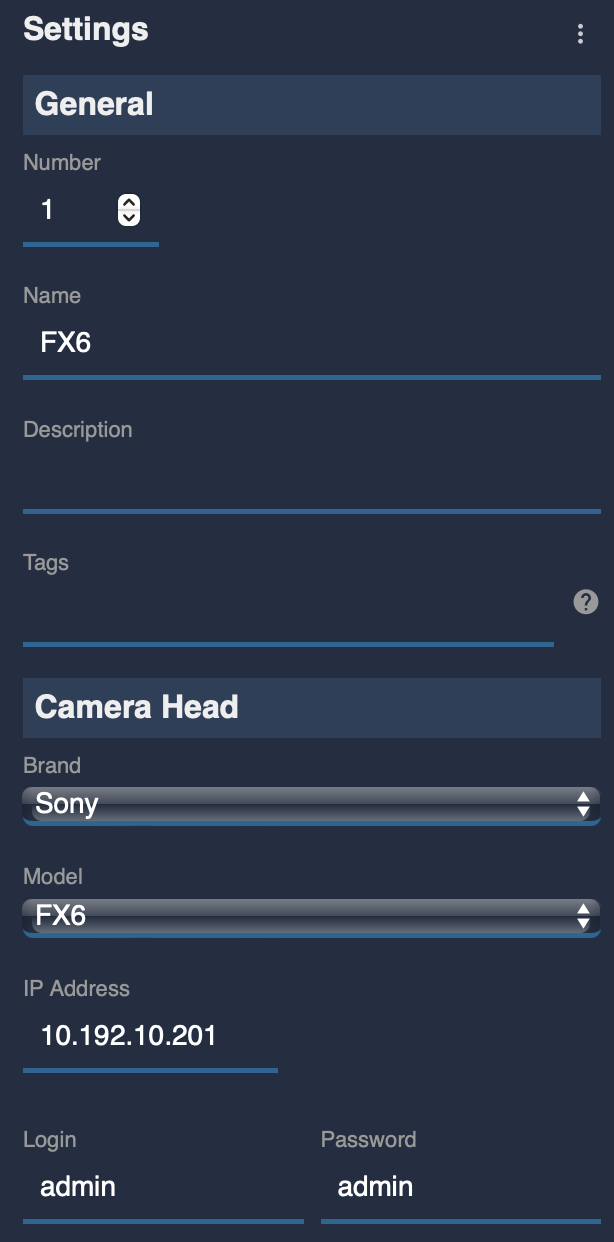
- Open the Web UI of the RCP (or RIO) (see Getting Started for how)
- Click "+" in the Camera section
- Enter the camera number and name under "General"
- Select brand: Sony
- Select model: FX6 (currently, the only way to set up these cameras is to use the FX6 model; a future update will provide a UI specific to each model)
- Enter the login credentials and password
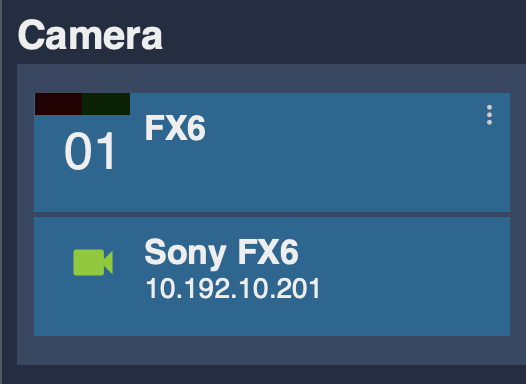
Once configured correctly, the status turns green.