First-Time Setup and Screen Controls
Source
This content is based on Cyanview's official manuals. Always check the official page for the latest information and precise specifications.
https://support-next.cyanview.com/docs/products/software/cyan-camera-app
https://support-next.cyanview.com/docs/products/software/cyan-camera-app
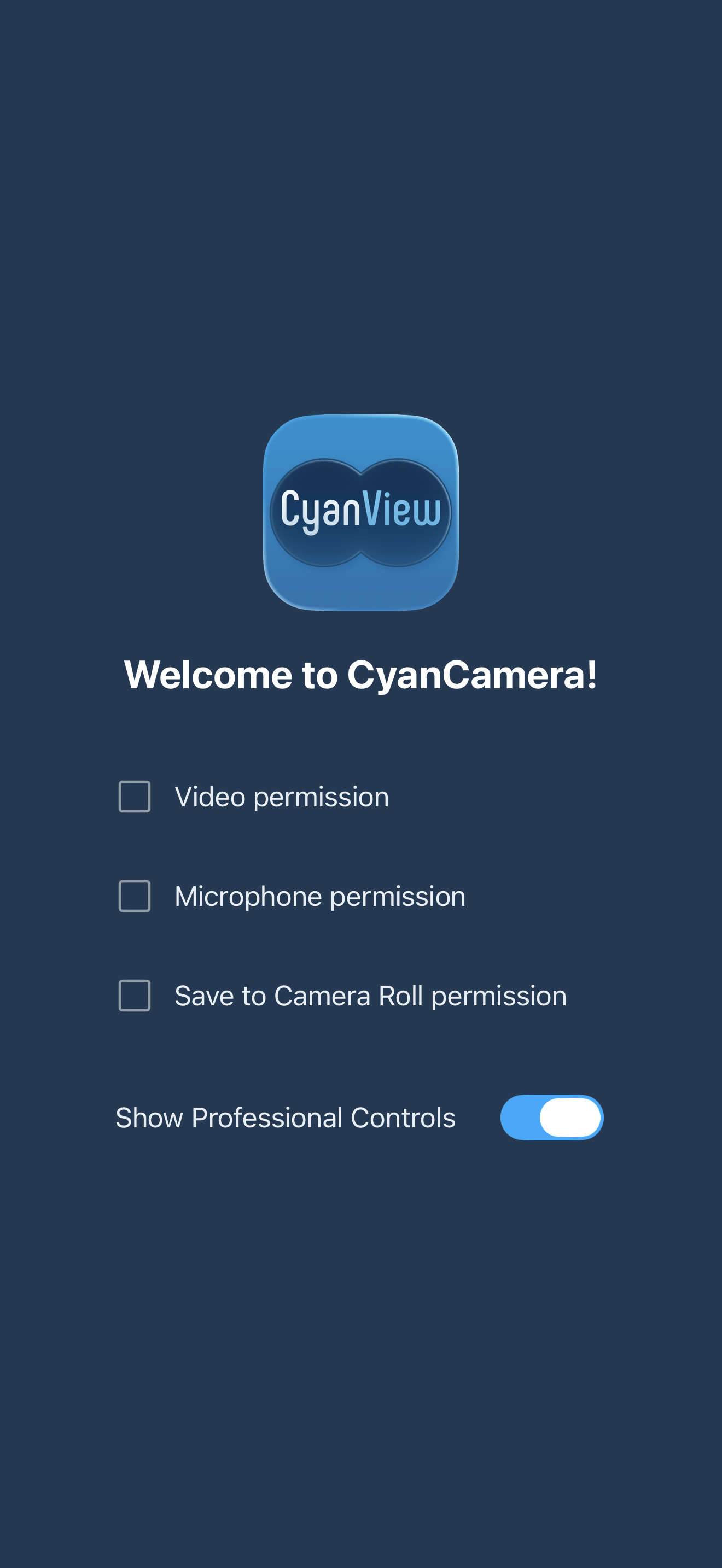
First-time setup
When you launch the app for the first time, it asks for three permissions. You must grant all three to get started.
- Video (camera)
- Microphone
- Save to Camera Roll
Tap each row to grant it; granted rows turn into a filled checkbox. Once all three are granted, the camera screen opens.
The Show Professional Controls toggle on the same screen sets whether the full professional overlay is shown by default (you can change it later in Settings).
Main screen buttons
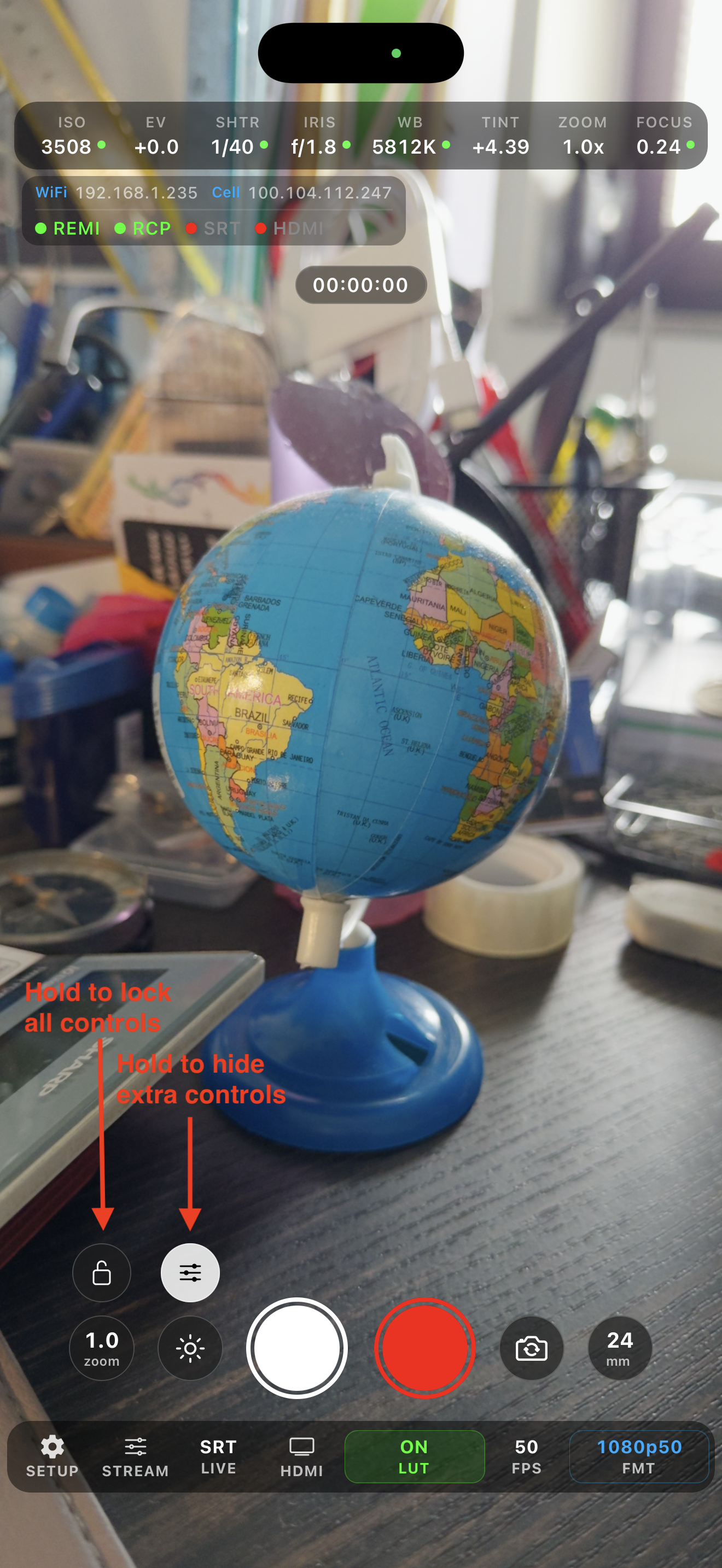
The live preview fills the screen, and overlays rotate to match the device orientation. Controls cluster around the center.
Right side
| Button | Function |
|---|---|
| Record | Red circle; becomes a red square while recording |
| Lens flip | Switches between the front and back cameras |
| Lens switch | Shows the focal length (e.g. 24 mm); tap to cycle physical lenses (ultra-wide / wide / tele) |
Left side
| Button | Function |
|---|---|
| Photo | Takes a still |
| Flash | Torch on the back camera; screen-brightness "flash rim" on the front camera |
| Zoom preset | Tap to toggle 1× / 2× |
| Lock | Hold for about 1.5 s to lock / unlock all controls |
| Pro | Hold for about 1 s to show / hide the professional overlay |
Gestures
| Gesture | Function |
|---|---|
| Pinch | Zoom (1× to 10×) |
| Single tap | Set the focus / exposure point |
| Double tap | Clear the point |
| Long press (about 0.6 s) | Lock focus / exposure |
| Vertical drag | Adjust exposure compensation (EV) by ±2 stops (up = brighter) |
Bottom toolbar
| Item | Function |
|---|---|
| SETUP | Opens settings (see Settings) |
| STREAM | Opens stream settings (see Streaming) |
| LIVE | Starts / stops the stream; green when live, orange while connecting |
| HDMI | Turns HDMI output on / off; green when a display is connected |
| LUT | Opens the color screen; the value shows the color state (OFF, ON, Studio, RCP, ON+RCP, Studio+RCP) (see Color (LUT)) |
| FPS | Current frame rate (read-only) |
| FMT | Tap to pick the format: 1080p23.98, 1080p29.97, 1080p50, 1080p59.94, 1080p60, 4K30, 4K60 (locked while streaming) |
Parameter bar and status
The parameter bar at the top shows ISO, EV, SHTR (shutter), IRIS, WB (white balance), TINT, ZOOM, and FOCUS, each with a status dot.
| Dot | Meaning |
|---|---|
| Green | Auto |
| Orange | Manual |
| Dim | Not supported on this device |
Tap a manual value to return it to auto.
The status pill shows:
- The device IP address (tap to copy)
- REMI (gateway up) and RCP (panel registered)
- RTP / SRT / WebRTC (with the live bitrate)
- HDMI, battery, free storage, and the clock