Using REMI Tags - WAN / Public Internet Edition
https://support.cyanview.com/docs/how-to-guides/remi-wan-workflow
For many users, "REMI" is known as the term for remote production workflows, but Cyanview's implementation offers additional capabilities beyond that. This guide covers checking your LAN setup, WAN workflows for remote production and wireless connectivity, verifying cloud connectivity, and checking the REMI connection.
Supported products
- RCP
- RCP-J
- RIO
- NIO
Types of workflows
LAN prerequisites
Before deploying a WAN solution, first confirm that things work over a local area network using REMI tags, and verify that the RCP can control cameras locally through RIO/RCP/NIO components. See Using REMI Tags (Local Network Edition) for details.
WAN / remote production workflows
RIO WAN configuration
Connects a RIO device to the public internet or a 4G/5G network, allowing direct camera control from a remote location. For example: connecting an FX3 mirrorless camera via USB to a RIO with a 4G dongle lets it communicate wirelessly with the RCP over the cellular network.
RCP WAN configuration
Multiple RCPs at a local master control room (MCR) use a REMI tag over a WAN connection to control cameras or other RCPs at a remote location.
RIO with multiple IP cameras
Uses a RIO to connect multiple IP cameras at a remote location, while the RCP is operated locally at the MCR. This design prevents WAN latency from affecting camera operation.
Cloud services
Cloud functionality applies only to WAN configurations and is available only on supported devices (RCP, RIO).
Licensing: A LAN-licensed RIO can be upgraded to WAN functionality through purchase. RCPs come standard with unlimited, free cloud control.
Key features: Remote camera control over the internet, and remote web UI access from anywhere. The purpose of the cloud is to eliminate the need for firewall configuration, since every device only opens OUTGOING connections.
Network information if firewall configuration is required:
| Item | Value |
|---|---|
| DNS (dynamic) | remi.cyanview.com |
| DNS (Europe) | 1-eu-west-3.remi.cyanview.com |
| DNS (US) | 1-us-west-2.remi.cyanview.com |
| Port | 7887 |
Configuration steps
Verifying the cloud connection
Before proceeding, confirm that your REMI tag has been configured. Check the cloud status in the REMI menu. "Red" means not connected, and "green" means the connection is good.
One device can belong to multiple groups. Once every device has been configured, you can see the status of all devices in your groups.
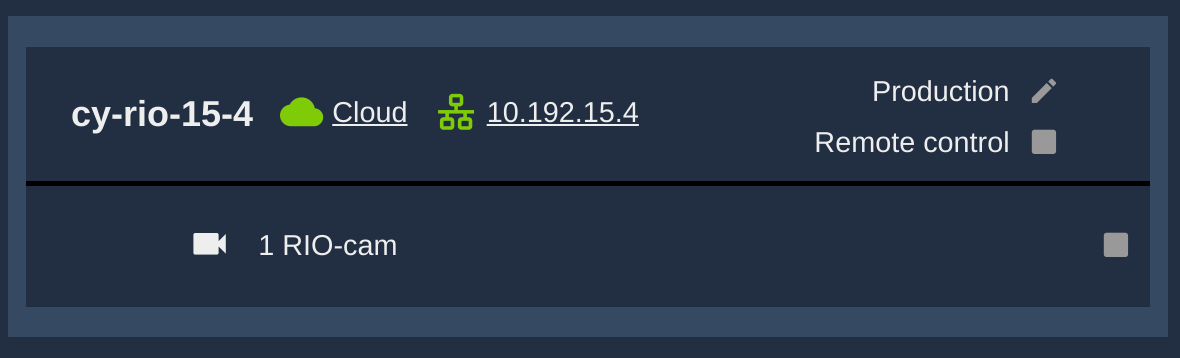
- Cloud icon: the device can be reached through the cloud
- Ethernet icon: the device can be reached over a local link
- Below them, the list of cameras exported by each device
Group names can be easy to guess and function like a password. Choose a name that's as hard to guess as possible, and don't share it with anyone you don't want to have access.
Navigating to the remote GUI
Once a RIO and RCP share the same group, you can remotely access their web configuration screens from anywhere by clicking the cloud or IP address link next to the device name.
Troubleshooting
Can't connect to the cloud
First, check your internet connection. Open the "Admin" page and confirm every item in the connectivity check section is green before proceeding.
Connected to the internet but can't access REMI
Check that the server region setting is correct. Users in the US may need to change their server settings. Open the REMI menu, enable advanced options via the "…" (ellipsis) in the top-right, and adjust the server region.