Integrating a B4 Lens
https://support.cyanview.com/docs/Integrations/Lens/B4Lens
This page explains how to set up B4 lens control in parallel with camera control. Typical use cases:
- Specialty/robotic applications
- The camera cannot control the lens (e.g. Dreamchip AtomOne + B4 ENG lens)
- The lens is not compatible with the camera
Iris/zoom/focus changes are sent to the lens and shading changes are sent to the camera. This is transparent for the vision engineer on the RCP.
Works with ENG lenses, box lenses, etc. from Canon and Fujinon.
Wiring
Required cable: CY-CBL-6P-B4-01 (see the Cable Catalog)
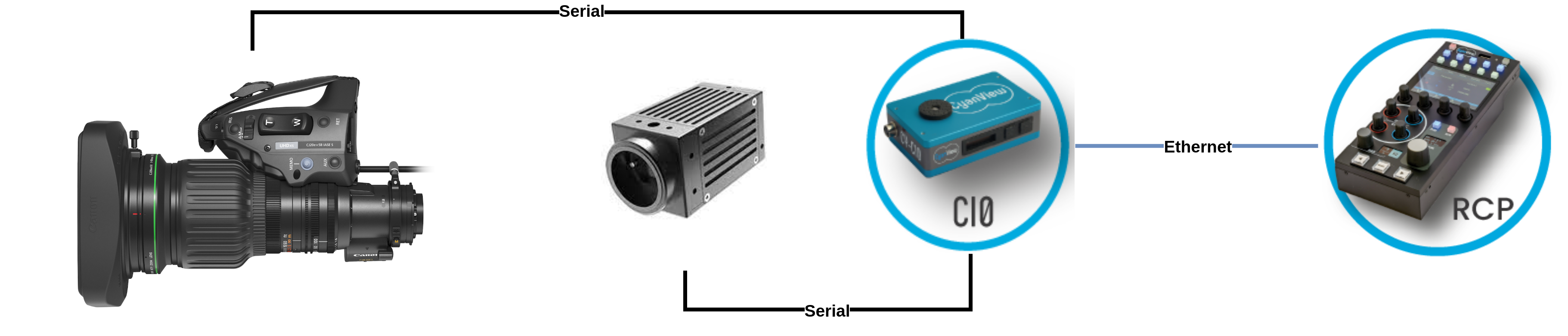
Compatible Cyanview Devices
- CI0 / RIO LAN: local control (LAN)
- RIO WAN: remote control (internet)
- CI0 acts as a serial/IP converter. If the link between the RCP and CI0 is broken or unstable, the lens is no longer controlled and the iris will close/reset.
- RIO LAN / RIO WAN is a CI0 with the brain of an RCP (all the protocols). If the link between the RCP and RIO is broken or unstable, the lens is still controlled by the RIO.
Controls
- Iris
- Zoom
- Focus
RCP/RIO Setup
Example setup:
- One CI0 (named
CI0-12-137) - A Dreamchip AtomOne plugged into port 1
- A B4 lens plugged into port 2 of the same CI0
Steps:
-
Open the Configuration tab and create a new camera or edit an existing one.
-
Set up your camera as usual by following the relevant guide (serial camera, IP camera).
-
Set the number and name.

-
Set the brand and model.

-
In the "Lens" block:
- Select "B4 Generic"
- Select the CI0/RIO and the port the lens is plugged into

Once correctly connected, the block turns green.

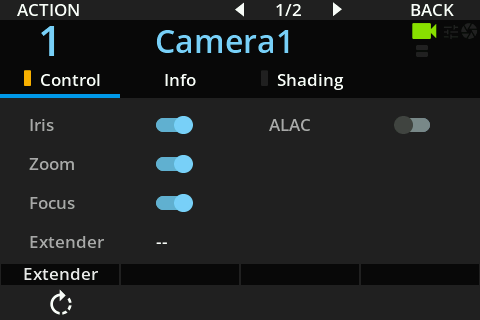
If you only need iris control and want the camera operator to control zoom/focus, on your RCP:
- Go to the Lens submenu (MENU → LENS)
- Select the "Lens" menu
- Check or uncheck Iris / Zoom / Focus to enable or disable each control