EVS Hypermotion
Source
This content is based on Cyanview's official manuals. Always check the official page for the latest information and precise specifications.
https://support.cyanview.com/docs/Integrations/EVS/EVSHM
https://support.cyanview.com/docs/Integrations/EVS/EVSHM
note
- This guide assumes that a compatible slow-motion camera (Atom SSM500, Phantom, etc.) is already configured on your RCP.
- For more about EVS configuration and operation, refer to the EVS documentation.
Overview
To integrate the EVS with the Cyanview RCP, the RCP is configured as a Hypermotion camera in the EVS. The RCP then performs all the protocol conversion, so the EVS does not need to care about the camera's origin or compatibility.
Configuration
First, all devices need to be able to reach each other over the network. To do so, check the EVS IP address and add a matching IP address to the Cyanview RCP.
Check the EVS IP Address
-
Connect to the EVS Web UI and open the "Server" tab.
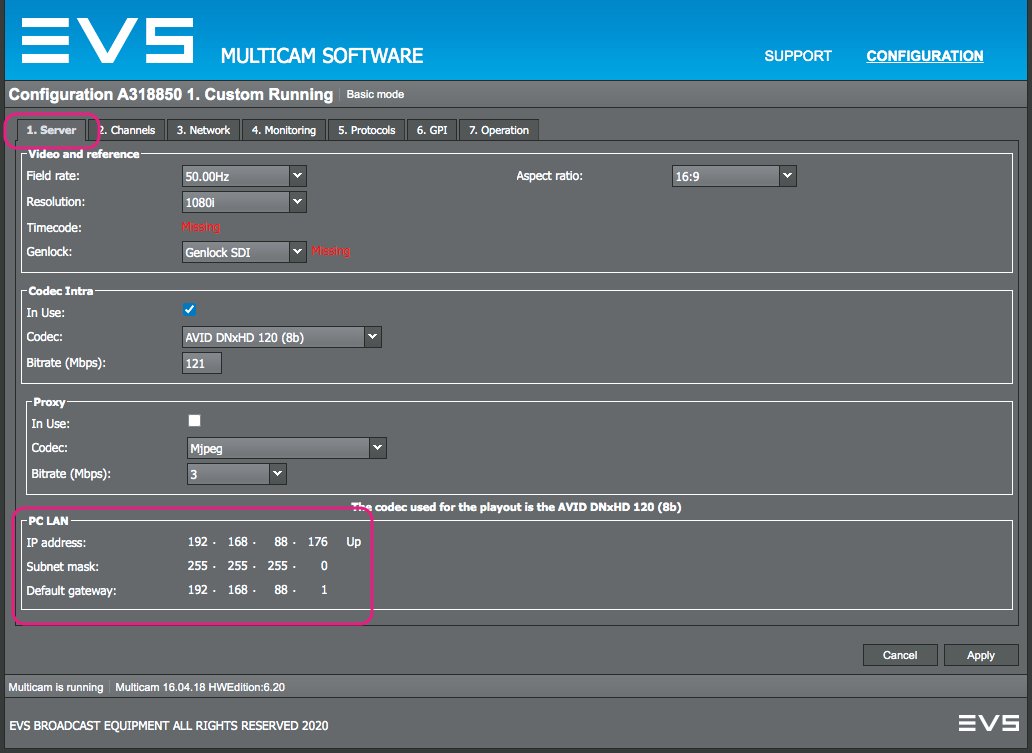
-
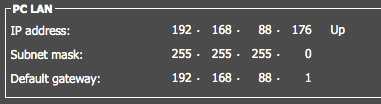
Check the "Configured PC LAN address".
Add an IP Address to the RCP
- Access the RCP's Configuration Web UI and open the Configuration page.
- Click the "IP Connection" panel.
- Click the "+" button to add a new IP address to the RCP interface.
- Choose "Static" and specify the IP address and IP mask (in a range that can reach the EVS).
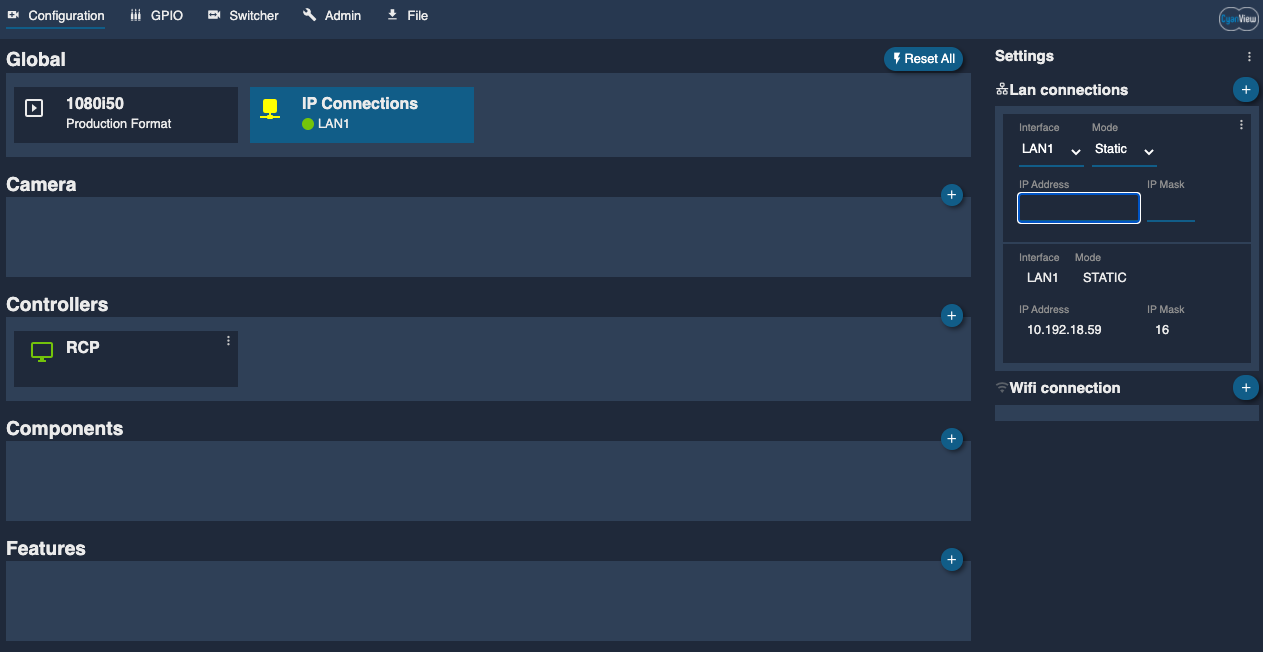
The devices can now "see" each other on the network.
Configure the RCP as a Hypermotion Camera in the EVS
-
Connect to the EVS Web UI and open the "Operator" tab.
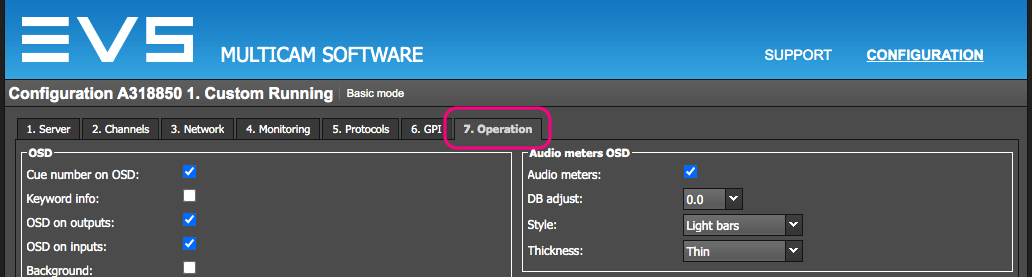
-
Scroll to the "Hypermotion Camera" section.
-
Set the following parameters:
Item Value Port Lan PC Protocol 7115 IP address The RCP's new IP address 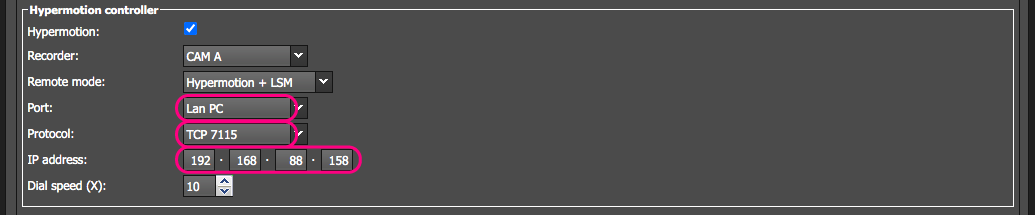
-
Click "Apply".