Lawo V__pro8 / V__line
Source
This content is based on Cyanview's official manuals. Always check the official page for the latest information and precise specifications.
https://support.cyanview.com/docs/Integrations/Lawo/VPro8
https://support.cyanview.com/docs/Integrations/Lawo/VPro8
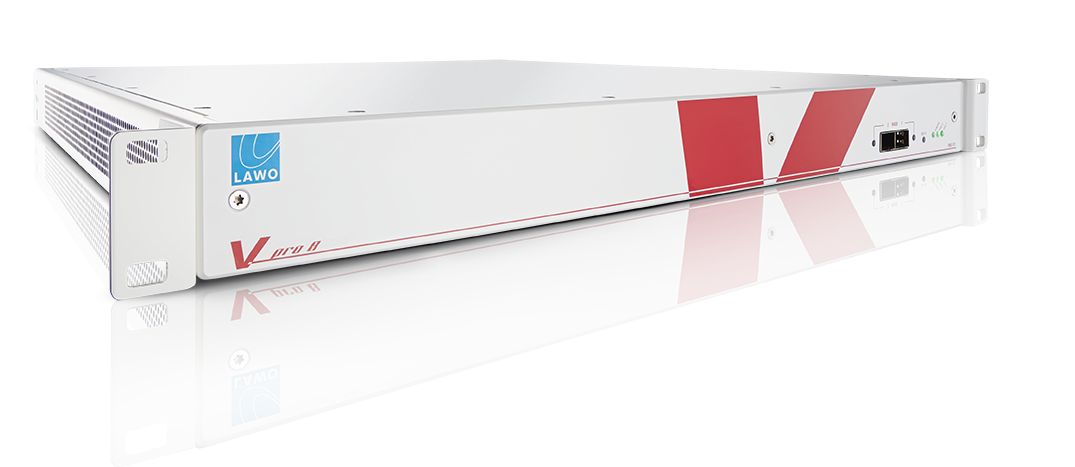
Supported Models
- V__pro8
- V__remote4
- V__link4
- V__matrix
Supported Controls
All devices support the same set of primary corrections. Like a ProcAMP, they operate on gamma-corrected signals. Note that they do not emulate the behavior of a real camera.
| Control | Notes |
|---|---|
| Gain (master/RB) | |
| Gamma (master/RB) | |
| Black (master/RB) | |
| Saturation |
Wiring

Setup
Step 1: Check the Version
Make sure your V__pro8 version is at least V_pro8_120121. Older versions are not supported.
Step 2: Connect the RCP to the V__pro8
- In the RCP Configuration UI, click "+" in the "Components" block.
- Select "Video Processor > Lawo: V__pro8".
- Enter the IP address of your V__pro8.
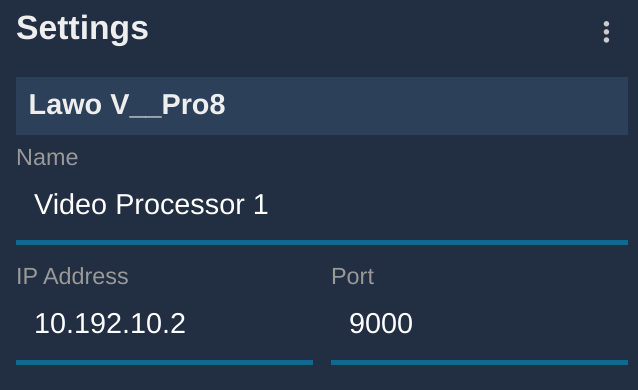
If everything is correct, the block turns green.
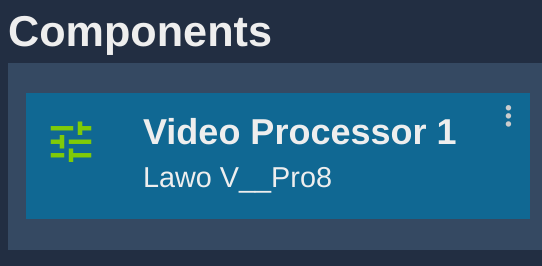
note
If you have more than one V__pro8, simply repeat the operation and give each one a unique name.
Step 3: Control the Desired Channels
- In the RCP Configuration UI, click "+" in the "Camera" block.
- In the "General" section, give it a number and a name.
- In the "Camera Head" section, select the "Not controlled" brand.
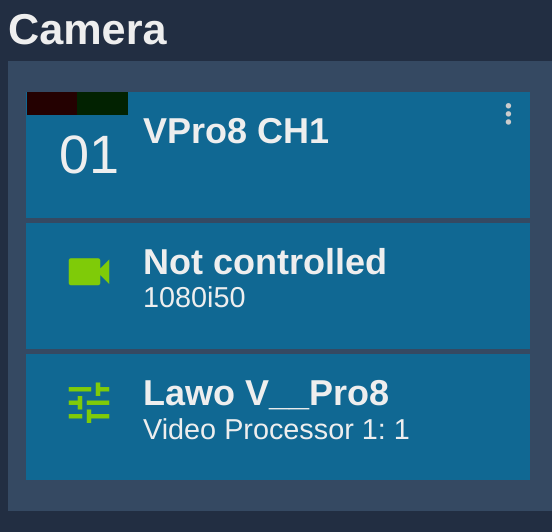
- In "Video Processor", select your V__pro8 and video channel (format:
VPRO8_NAME : VPRO8_CHANNEL).
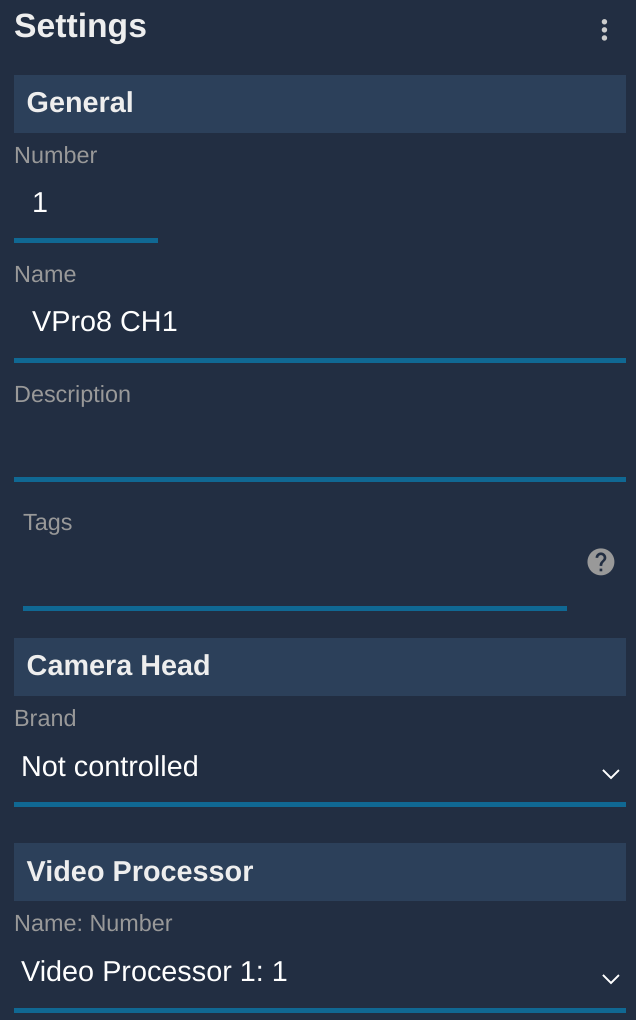
If everything is correctly configured, it looks like this:
note
Repeat the operation for every V__pro8 video channel you use.