Remote Support
https://support.cyanview.com/docs/Configuration/RemoteSupport
Remote support is a service that allows Cyanview to connect remotely to your equipment for support. It is mainly used to help diagnose configuration issues, inspect logs, check connectivity, and assist with advanced setup.
The device must have internet access. The RCP opens an outgoing connection to the Cyanview support server on port 56336. No incoming port forwarding is required on the customer network.

Checking the status on the RCP screen
To check the remote support status on the RCP screen, open MENU > SYSTEM > INFO > Network.
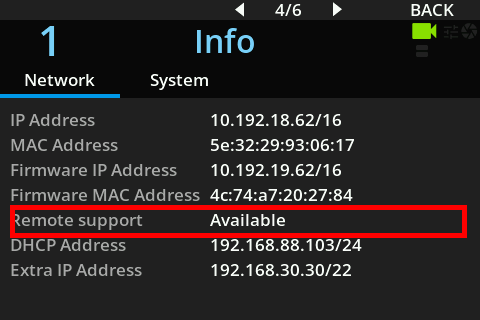
When everything is working, it shows "Remote support Available". If the status is "Not Available", check that the RCP has a valid internet connection, gateway, and DNS configuration. See the IP Primer for more details about these network settings.
Enabling and starting from the Web UI
Access the RCP's Configuration Web UI (see "Accessing the Web UI over the LAN"), then open the Admin page.

| Button | Behavior |
|---|---|
| Enable | Authorizes remote support on the device and starts the connection automatically. This state persists across reboots |
| Disable | Prevents remote support from being used and stops the connection automatically. This state persists across reboots |
| Start | Starts the remote support connection until the next device reboot. If the service is disabled, it will not start automatically on the next boot |
| Stop | Stops the current remote support connection without changing whether the service is enabled or disabled at boot |
Starting and stopping from the RCP screen
Remote support can also be controlled directly from the RCP screen. Open MENU > SYSTEM > ADVANCED > REMOTE.
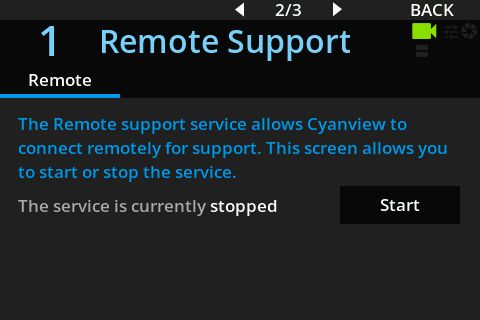
Start / Stop controls the current remote support connection.
On the RCP screen, remote support can only be started or stopped. Enabling or disabling remote support is only possible from the Web UI configuration page.