Updating Your Product
https://support.cyanview.com/docs/Manuals/RCP/ProductUpdate
Cyanview products support two types of updates: application updates and system updates.
:::danger Updating may erase your settings Whether your settings survive an update depends on the firmware version. Assume your settings will be erased, and always back up your settings before updating. :::
Types of updates
Application update
- Updates only the main software, and takes little time
- Requires an internet connection
- The official manual says settings are restored once complete, but depending on the firmware they may be erased. Always back them up first
- Only available when no filesystem/library update is needed (it's disabled otherwise)
System update
- Updates the entire filesystem, including the OS, libraries, and application
- Can be performed offline
- Takes roughly 15 minutes
- Previous settings are not restored automatically. The official manual says an automatic backup named "Snapshot @ SWUPDATE" is created, but do not rely on it: always make your own backup first
Which method should I use?
| Situation | Method |
|---|---|
| The device can reach the internet and you can select the release on the Web UI's "Admin" tab | Application update (quick) |
| The device cannot reach the internet (offline environment) | System update |
| The application update is disabled (the release needs an OS/library update) | System update |
Whichever method you use, always back up your settings first.
The CI0 and first-generation RCP (serial CY-RCP-11-xx) don't support manual updates — they automatically receive firmware from the connected RCP, RIO, or GWY.
Back up your settings first
Because updating may erase your settings, you must back them up from the "File" section of the web UI before updating. If your settings are gone after the update, load this backup to restore them.
Application update procedure
-
Make sure the device has internet access (every item in the Connectivity check block on the web UI's "Admin" tab should be green)
-
Access the device's web UI (see IP Configuration to find its IP address)
-
Open the "Admin" tab and wait until the list of available versions is displayed
-
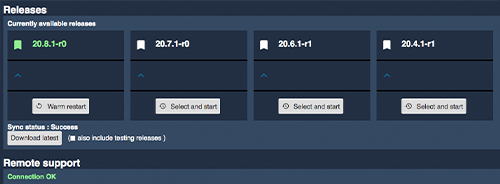
Click "Select and start" for the release you want to upgrade to, and wait a couple of minutes
-
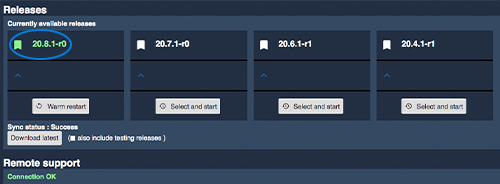
After a few seconds, the release you selected turns green. The application update is complete
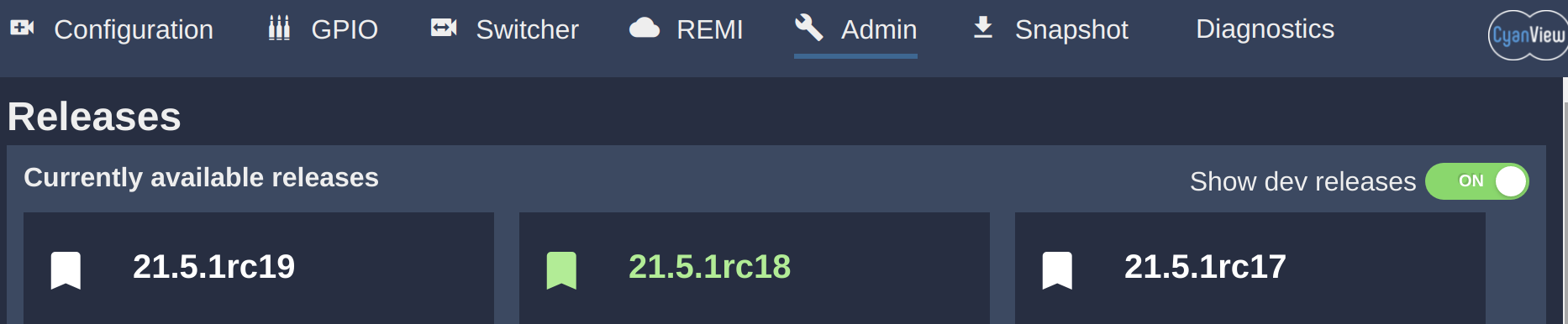
:::tip Accessing beta releases By default, only stable releases are shown. Click "Show dev releases" in the top-right of the Admin tab to display all releases, including development (beta) releases.
 :::
System update procedure
:::caution Important Some browsers may unload inactive tabs. If this happens during the system update, the update may fail. Keep the update tab open and active (visible in the foreground) until the update finishes. :::
-
Download the latest system update file from the release download page
-
Find your device's IP address (see IP Configuration) and open the update page at
http://10.192.XX.YY:8080in your browser (note the port8080)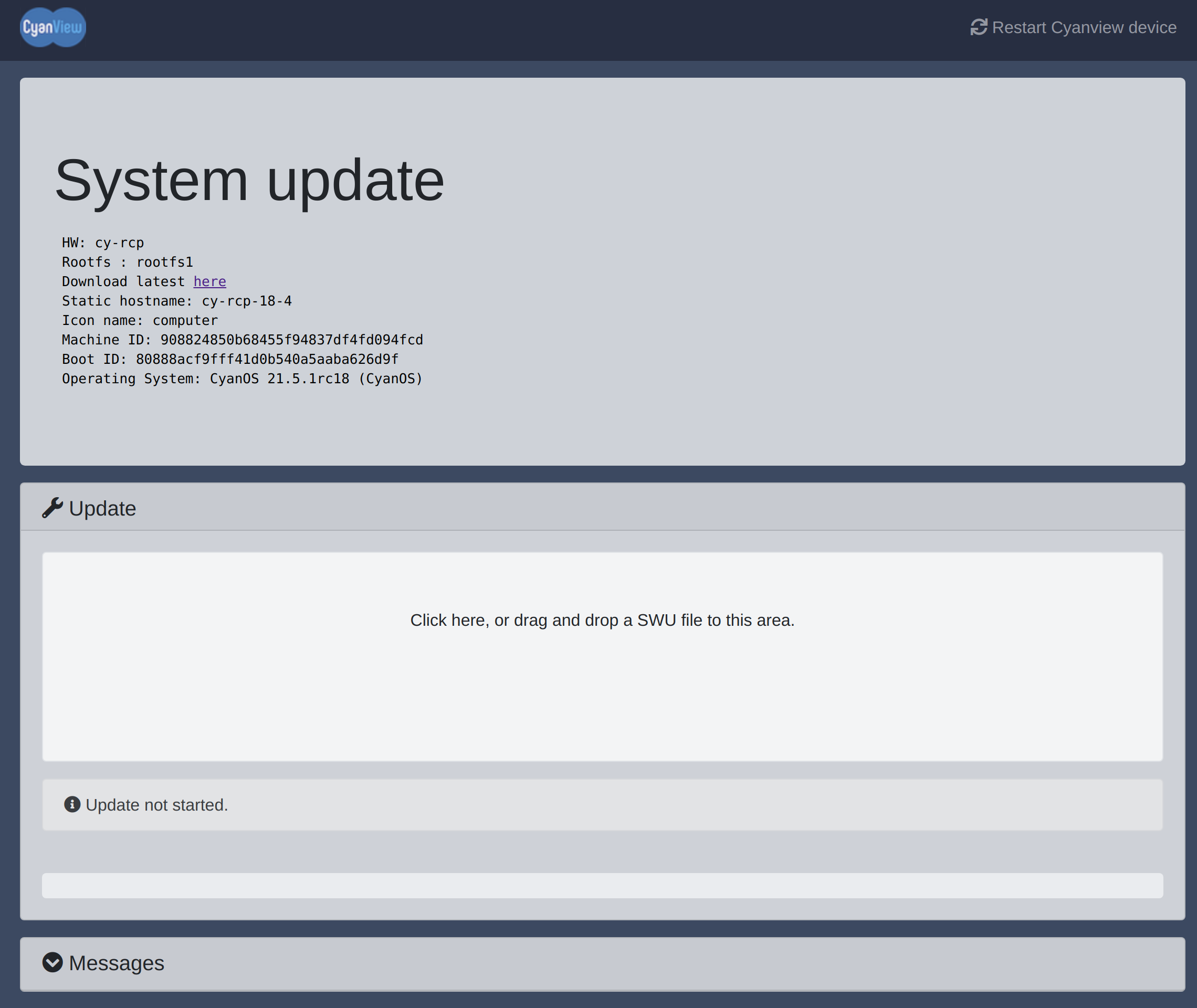
-
Check the hardware type (HW, e.g.
cy-rcp) and the current version (Operating System) shown on the page -
Drag and drop the downloaded
.swufile into the "Software Update" section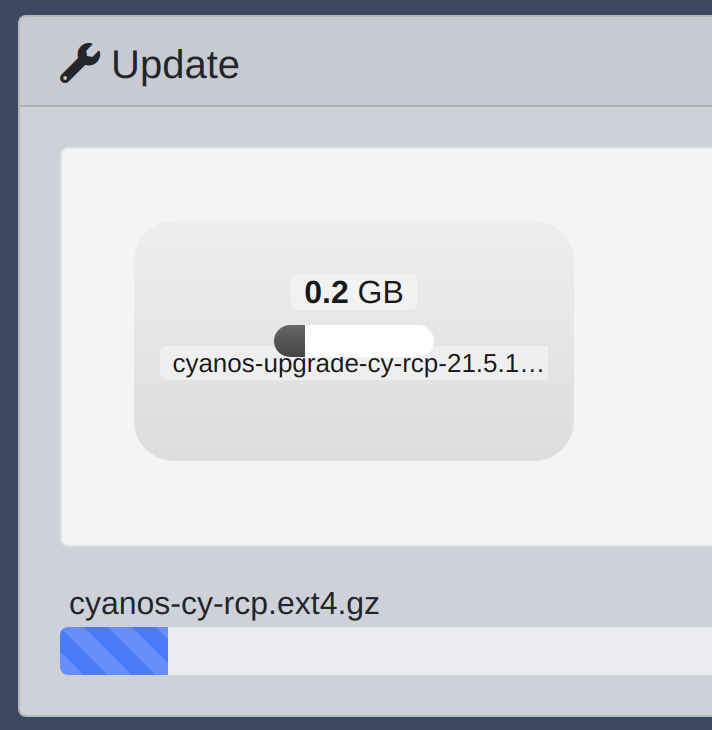
-
Wait about 15 minutes without closing the tab
-
The device will reboot once the update completes
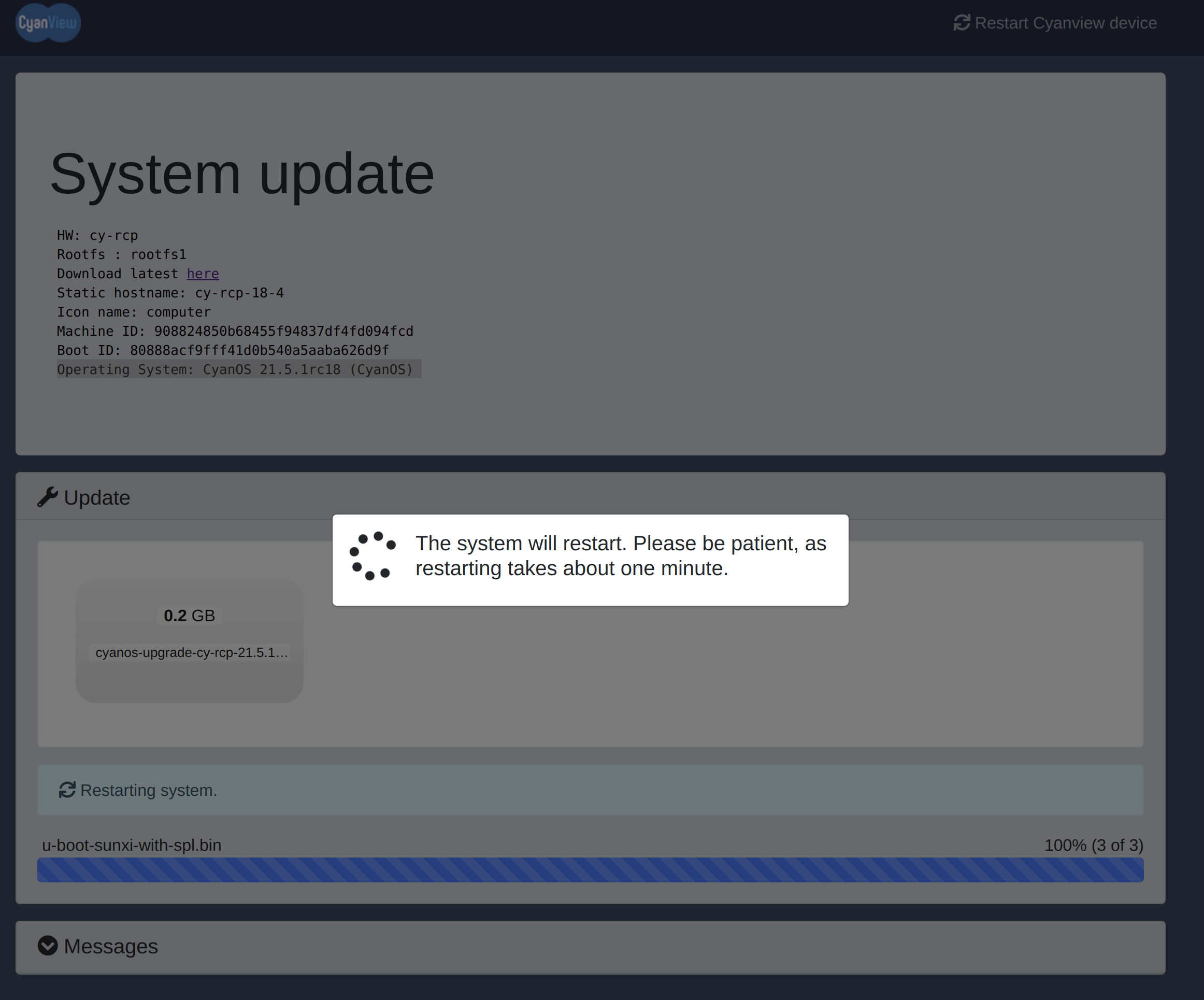
-
Refresh the page if needed and confirm the Operating System value matches the version in your
.swufile name
Example: When upgrading from 21.5.1rc18 to 21.5.1rc19, you should see 21.5.1rc18 in step 3 and 21.5.1rc19 in step 7.
Downloading releases
https://support.cyanview.com/docs/Configuration/RelDownload
.swu files for the full system update of CY-RCP, CY-RIO, CY-NIO, and CY-VP4 are available from Cyanview's official download page. Incremental application updates are currently only available through the web UI while the device is connected to the internet.
The latest releases as of November 6, 2026 are listed below. Releases are updated regularly, so always check Cyanview's official download page for the latest version. For what each release contains, see the Release Notes.
Before downloading, make sure you identify your device type (model and revision) correctly based on its serial number.
Your device type is also shown in the HW field of the update page opened in step 3 of the system update procedure (e.g., cy-rcp). Use it as a reference when matching against the "Device type" in the table below.
| Device type | Stable release | Development release |
|---|---|---|
| cy-rcp | 26.10.2 | 26.11.1rc2 |
| cy-rio-rev2 | 26.10.2 | 26.11.1rc2 |
| cy-rio-air | 26.10.2 | 26.11.1rc2 |
| cy-nio-rev2 | 26.10.2 | 26.11.1rc2 |
| cy-vp4 | 26.10.2 | 26.11.1rc2 |
| cy-gateway-pc-x86-64 | 26.10.2 | 26.11.1rc2 |
:::note Legacy hardware
Models with a built-in Wi-Fi antenna (cy-rio serials 15-1 through 15-50, cy-nio serials 22-1 through 22-50) are no longer receiving updates. Their final stable release is 25.9.5 (for cy-rio / for cy-nio).
:::
:::warning VP4 downgrade compatibility
VP4 units with serial numbers CY-VP4-14-113 and higher are not compatible with versions earlier than 26.10.1. Installing an earlier version is strongly discouraged, as it may cause significant instability.
:::
:::caution About the RCP-J joystick
On RCP-J units, in some cases after a system update, the joystick may remain on "Waiting for connection". This is caused by internal network changes made by the system update compared to the previous version. To recover the joystick connection, force the joystick bootloader (see Forcing the IJ bootloader). Apply the same procedure after downgrading an RCP-J to a version older than 26.4.1.
:::