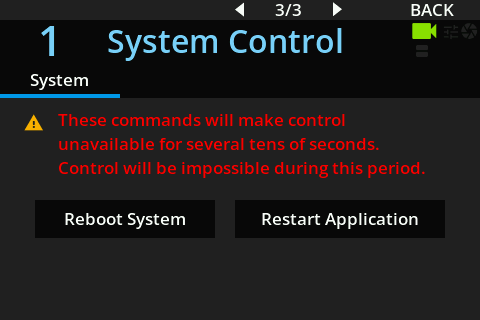
RCP UI (Control Panel) - Overview
https://support.cyanview.com/docs/Manuals/RCP/RCPUI
Home Screen
The home screen is the first thing displayed after powering on.


Menu Operation
To access advanced settings, press the MENU button in the upper right. Settings are organized by category and submenu. Once you are in a submenu (leaf screen), you can:
- MENU button (short press): Hide/show the menu
- MENU button (long press): Return to the main menu
- BACK button (right-side white button): Return to the parent menu
- ⏴ / ⏵ buttons (3rd and 4th white buttons from the left): Move between the leaf screens of the same submenu
Menu Hierarchy
| Category | Submenus |
|---|---|
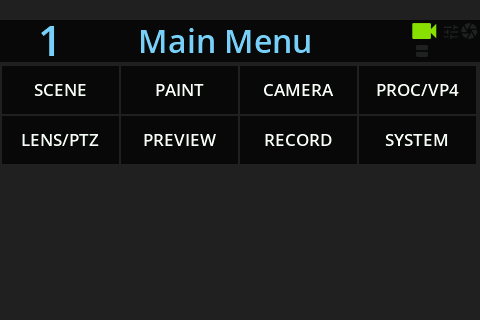
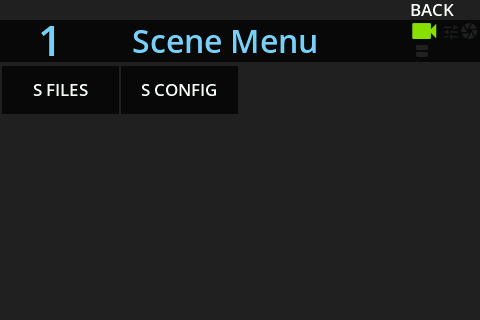
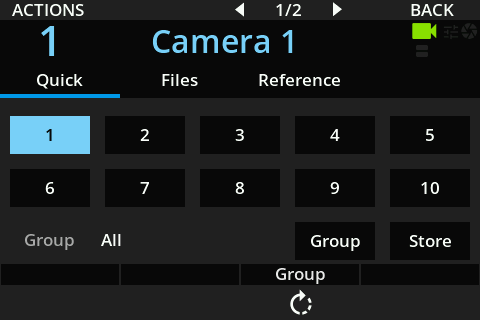
| SCENE | S. FILES (Quick / Files / Presets), S. CONFIG (Folders / Filters) |
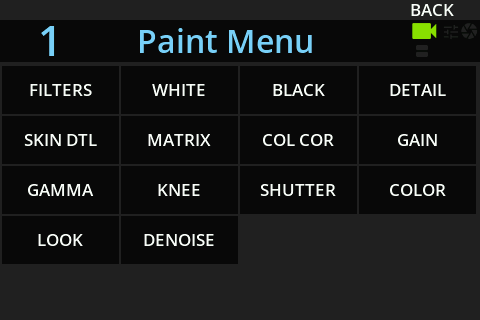
| PAINT | FILTERS, WHITE, BLACK, DETAIL, SKIN DTL, MATRIX, COL COR, GAIN, GAMMA, KNEE, SHUTTER, COLOR, LOOK, DENOISE |
| CAMERA | AUDIO, AUTO, CUSTOM, FORMAT, MENU, POWER, SENSOR, SETTINGS, STATUS, TALLY, TEST |
| PROC / VP4 | FORMAT, LOOK, PRIO |
| LENS / PTZ | LENS, PTZF, PT SETUP, STAB, SHADING, JOYSTICK |
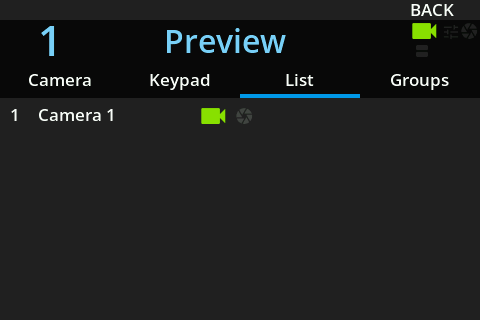
| PREVIEW | - |
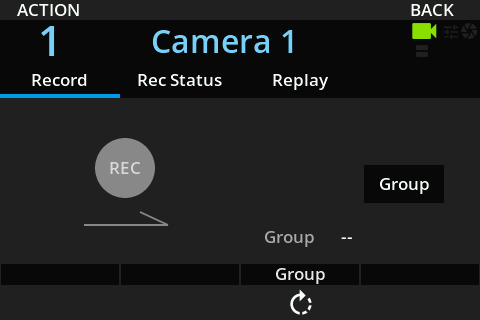
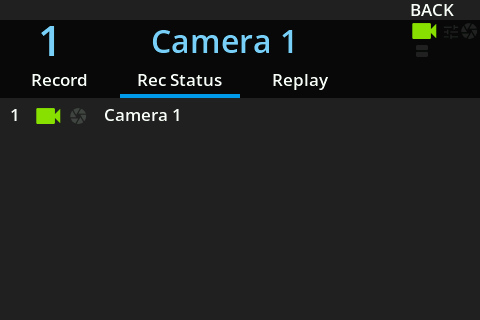
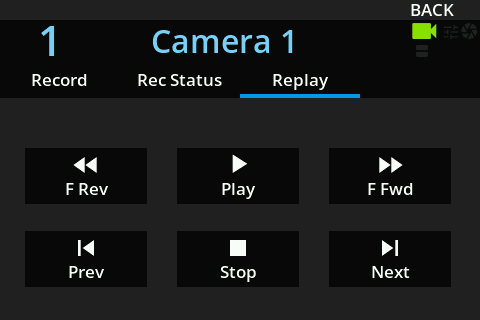
| RECORD | - |
| SYSTEM | ASSIGN., DISPLAY, GPIO, INFO, POWER, SETTINGS, ADVANCED (IP CONF / REMOTE / SYS CTL) |
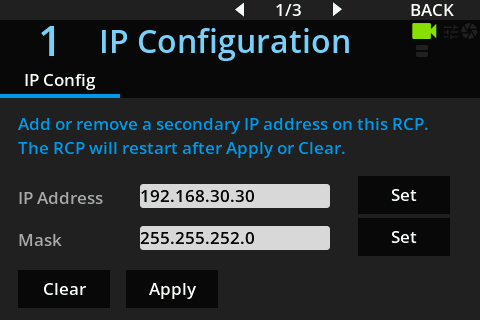
:::info About the Web UI Some RCP settings, such as network configuration, are handled through the Configuration Web UI, accessed from a browser. For details, see Cyanview's official Web UI manual. For IP settings under SYSTEM > ADVANCED > IP CONF, see also IP Configuration; for REMOTE, see Remote Support. :::
Detail Pages
- General Operation - Assignable buttons, encoder dual functions, the AUTO button, ACTION, and more
- Scene Files - Saving/loading scenes, presets, folders, filters
- Assignables - Button and encoder assignment settings
- Lens - Lens/PTZF control and settings
- Power Management - Power / System Control menus
- Settings - Settings / Units / Sensitivity
- Camera Groups - Group control of multiple cameras
MENU Screens
Screens for each menu. Click a category name to expand it.
Main menu
SCENE
SCENE menu
SCENE > S. FILES
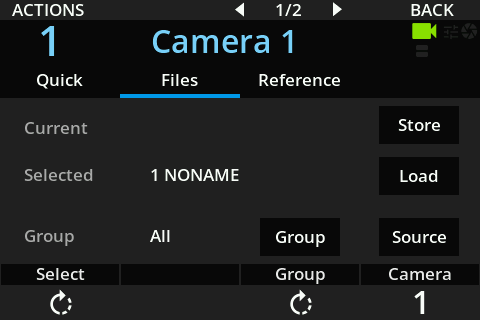
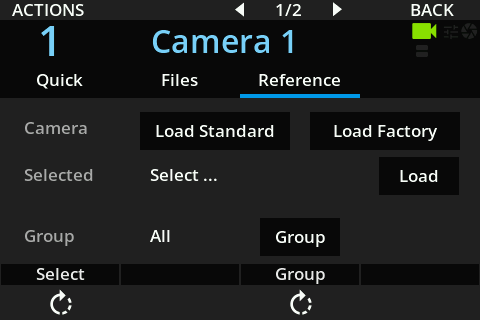
SCENE > S. CONFIG
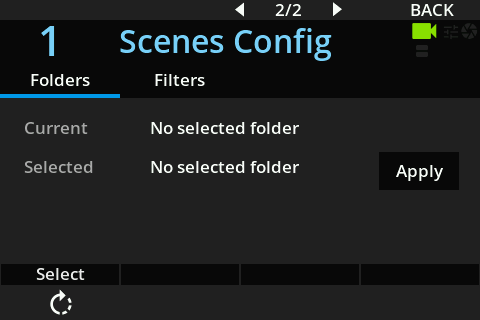
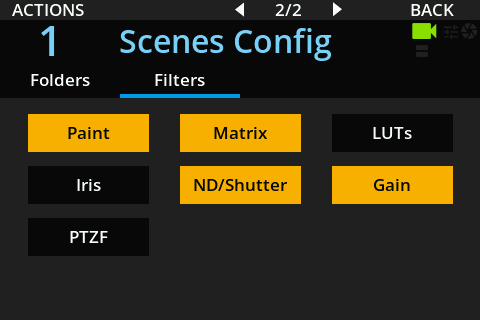
PAINT
PAINT menu
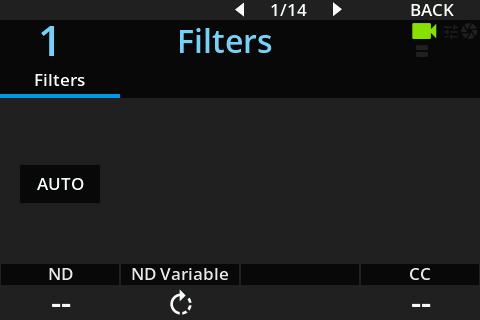
PAINT > FILTERS
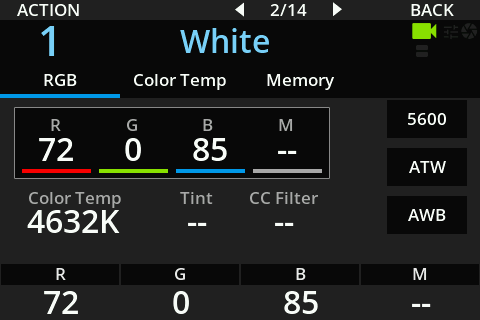
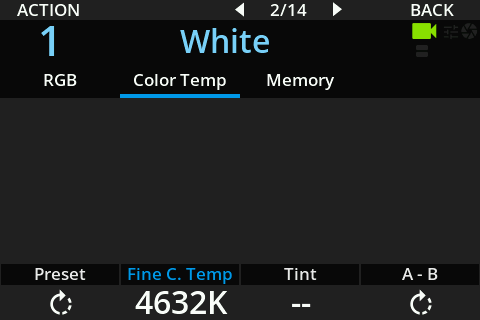
PAINT > WHITE
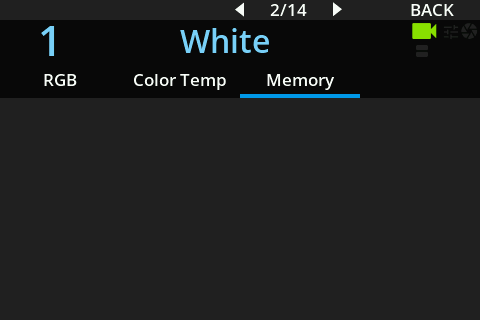
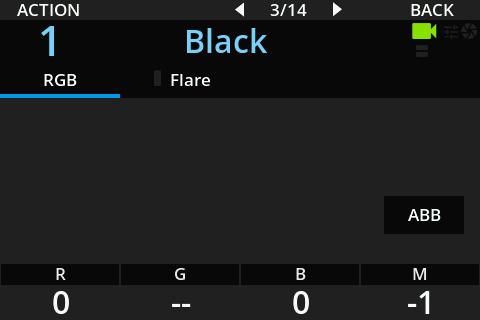
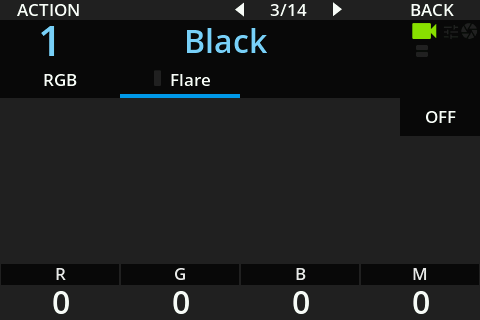
PAINT > BLACK
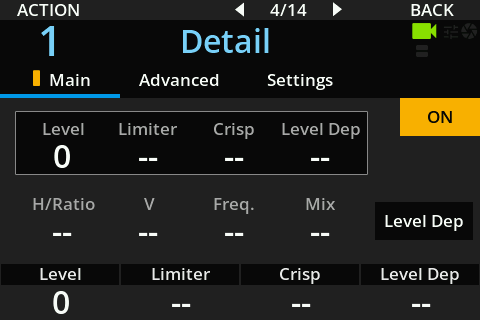
PAINT > DETAIL
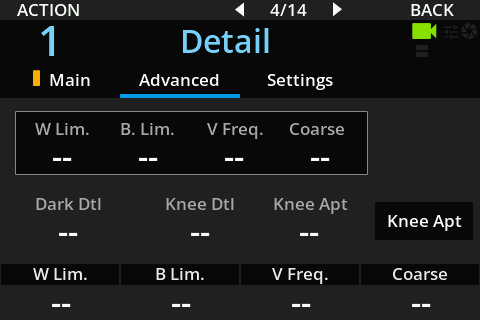
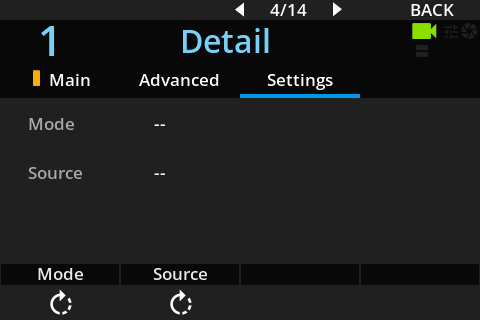
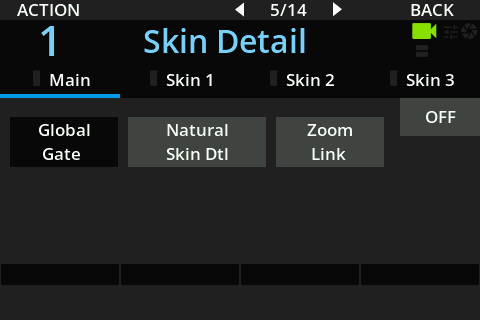
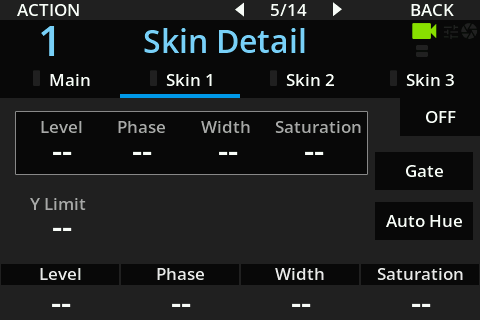
PAINT > SKIN DTL
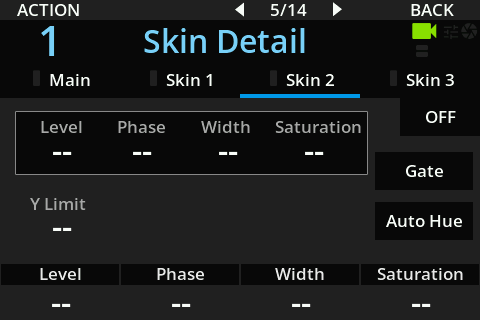
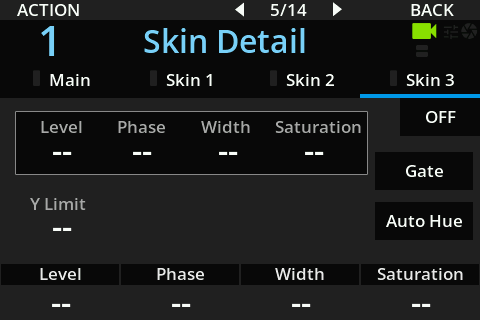
PAINT > MATRIX
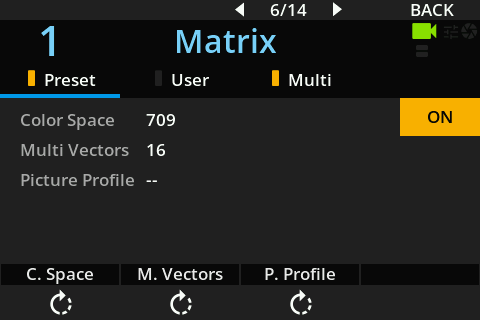
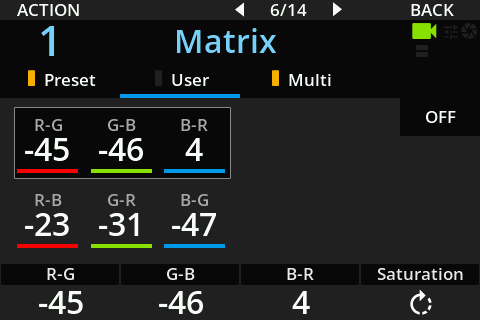
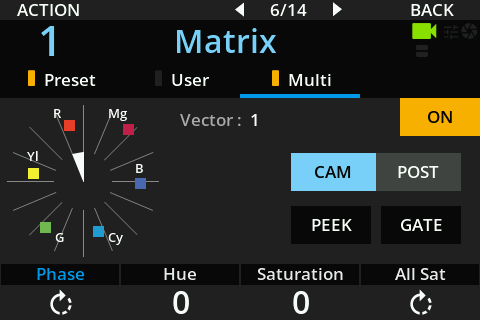
PAINT > COL COR
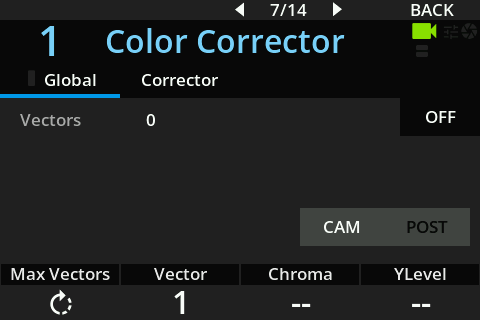
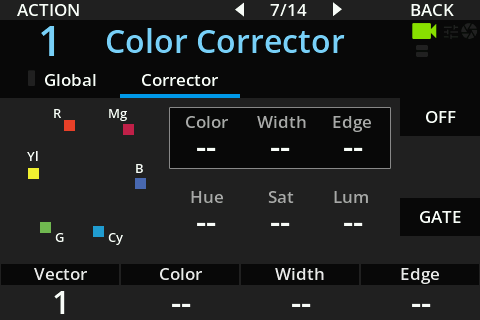
PAINT > GAIN
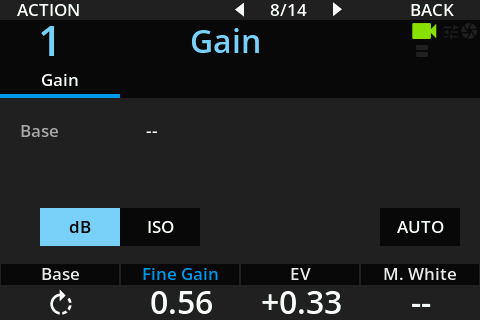
PAINT > GAMMA
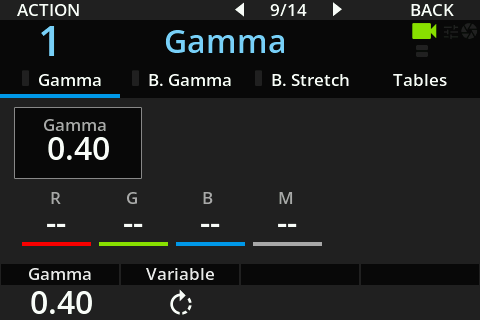
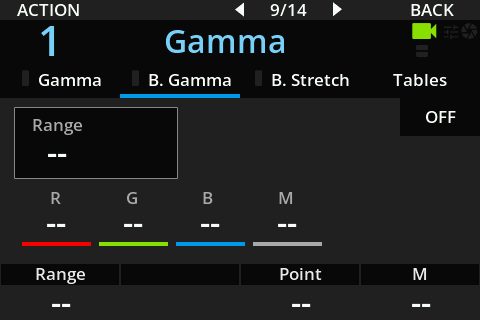
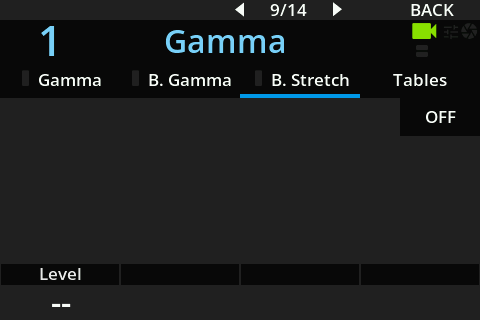
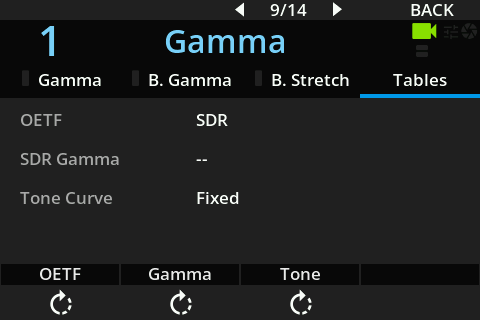
PAINT > KNEE
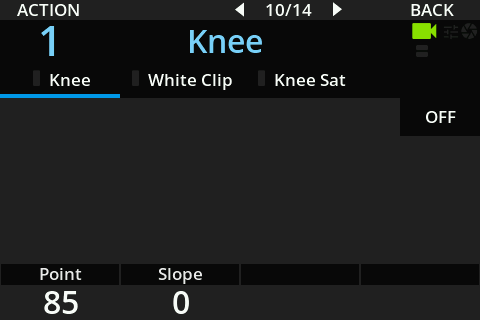
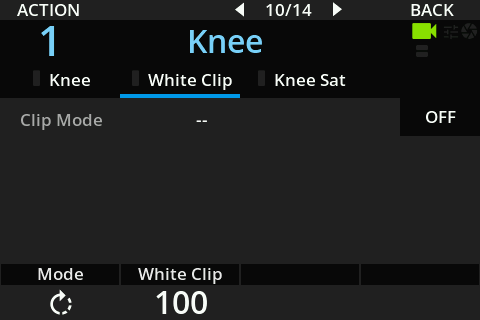
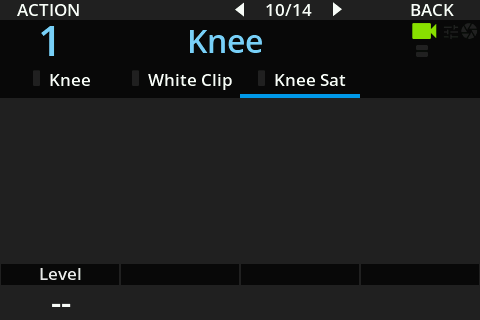
PAINT > SHUTTER
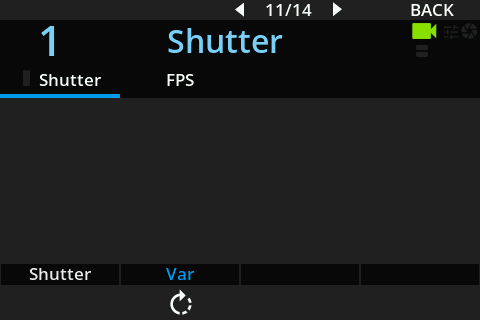
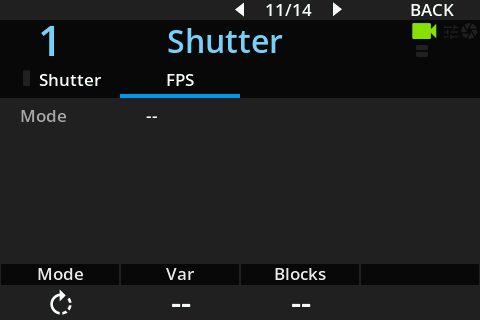
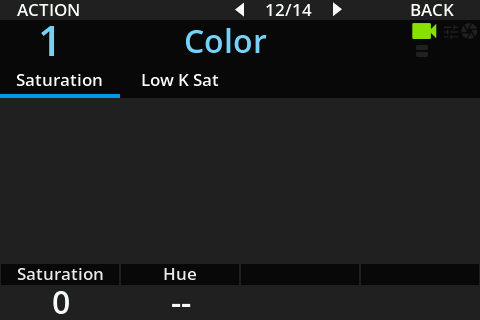
PAINT > COLOR
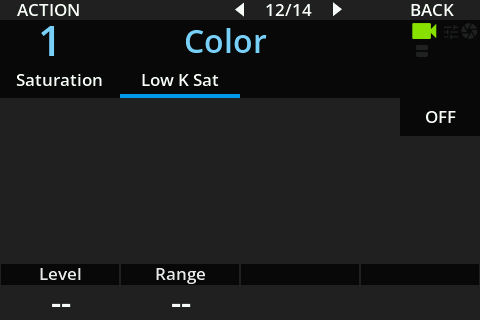
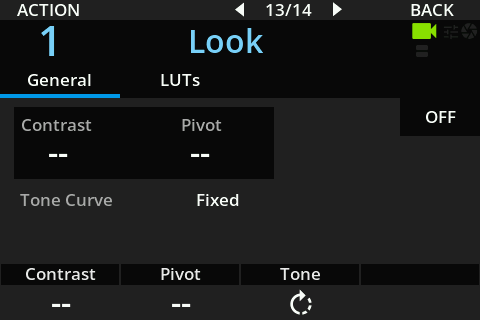
PAINT > LOOK
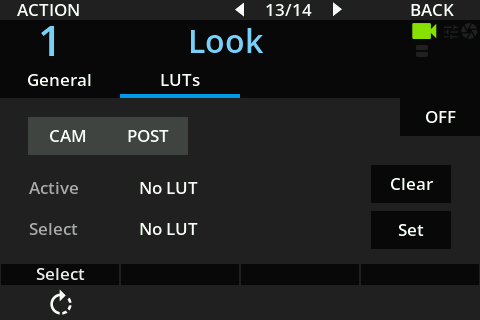
PAINT > DENOISE
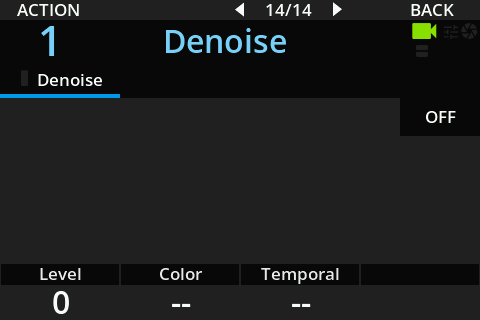
CAMERA
CAMERA menu
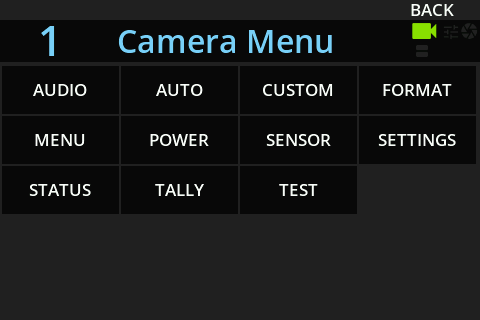
CAMERA > AUDIO
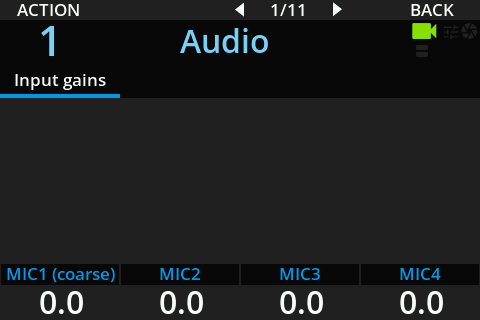
CAMERA > AUTO
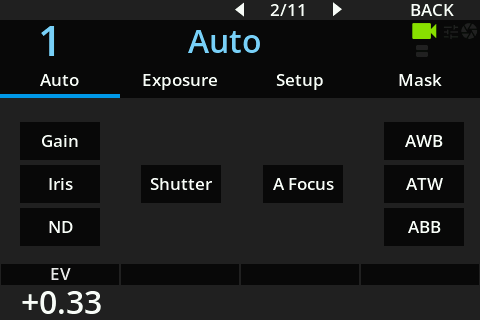
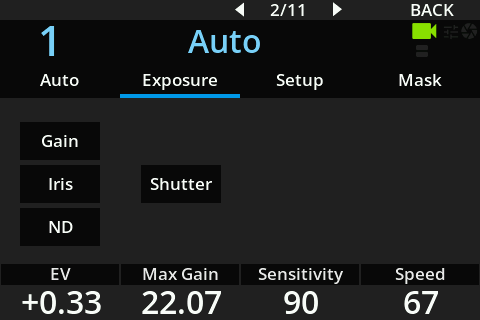
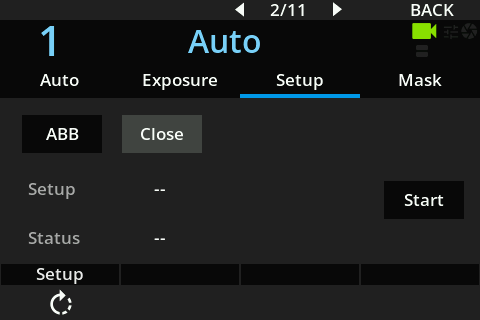
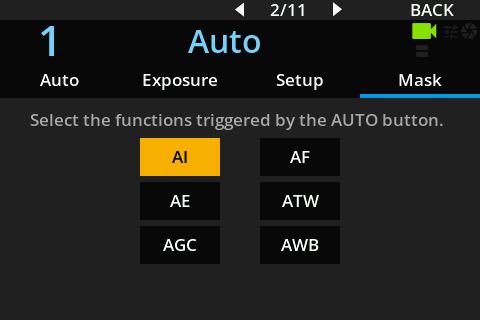
CAMERA > CUSTOM
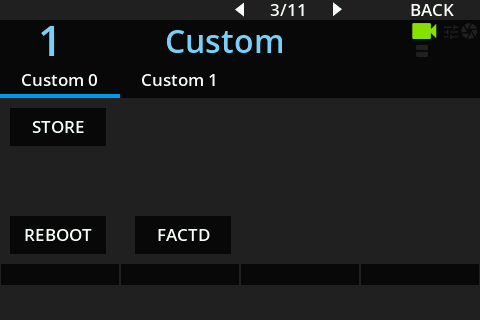
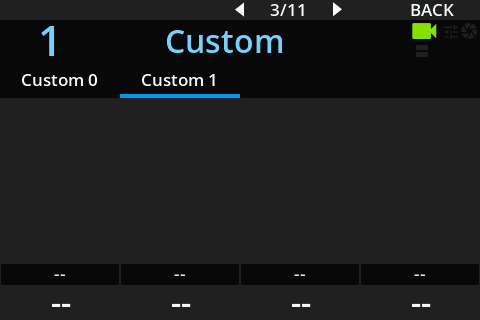
CAMERA > FORMAT
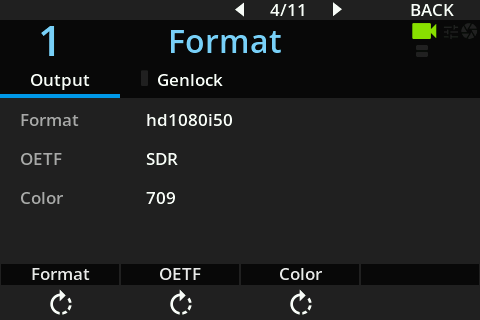
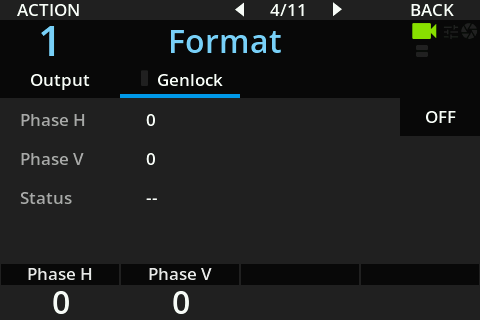
CAMERA > MENU
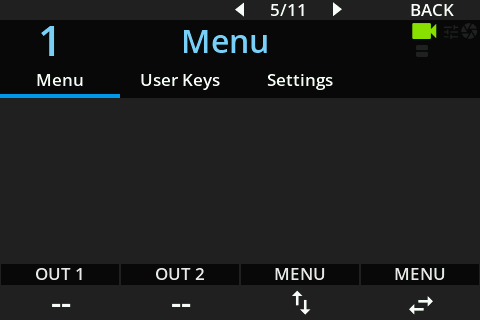
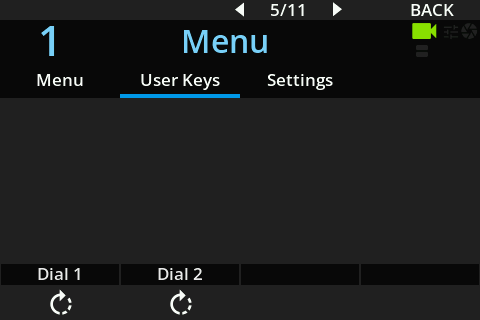
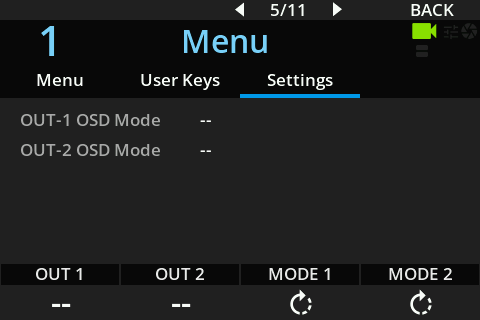
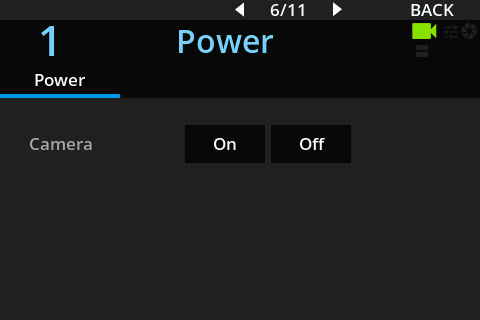
CAMERA > POWER
CAMERA > SENSOR
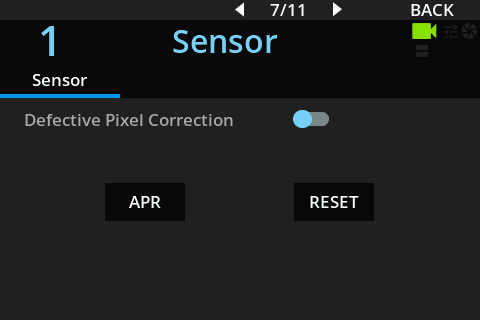
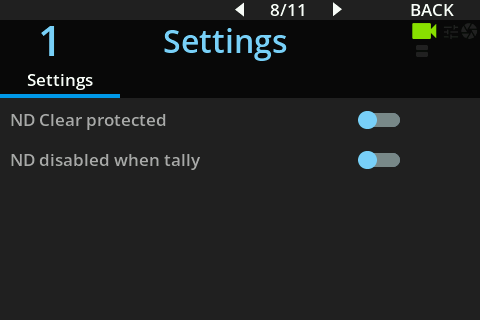
CAMERA > SETTINGS
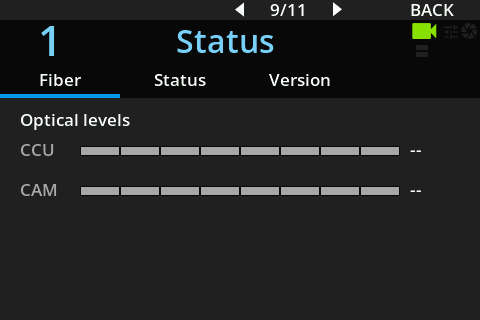
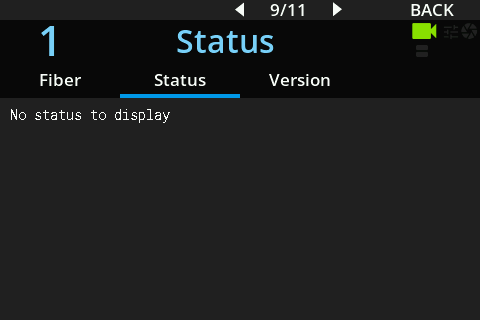
CAMERA > STATUS
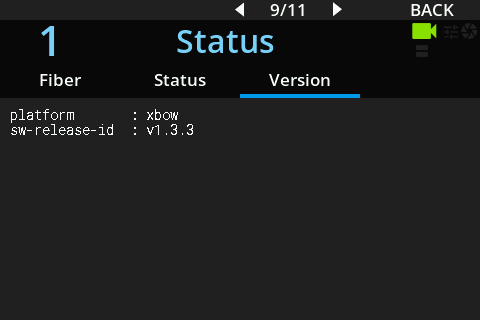
CAMERA > TALLY
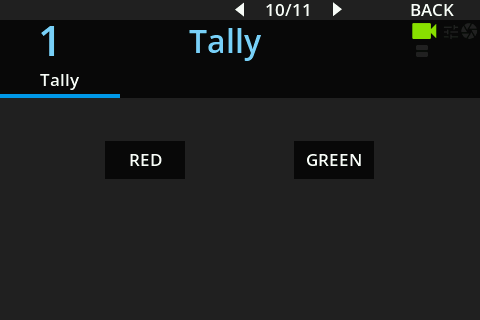
CAMERA > TEST
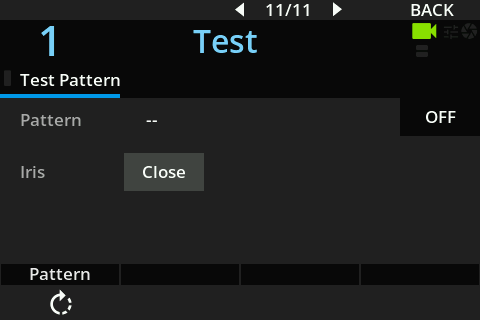
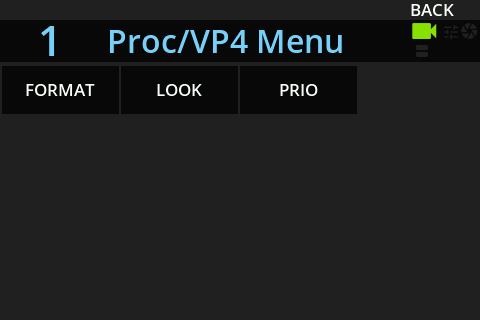
PROC/VP4
PROC/VP4 menu
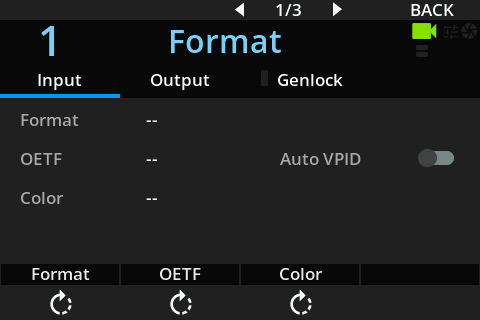
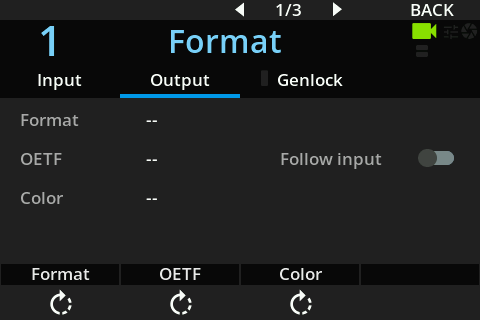
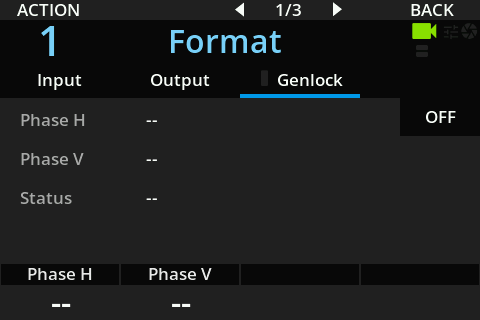
PROC/VP4 > FORMAT
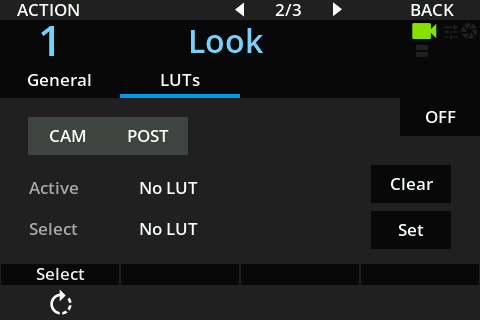
PROC/VP4 > LOOK
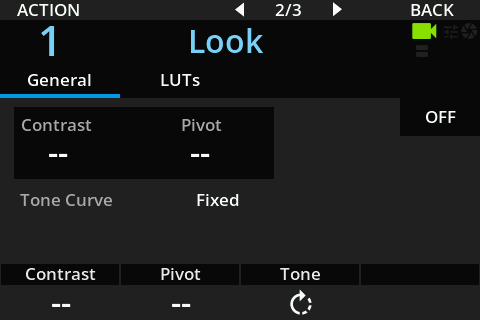
PROC/VP4 > PRIO
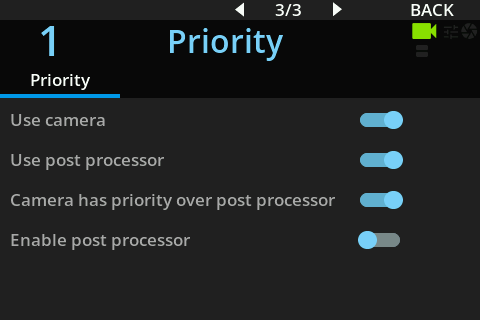
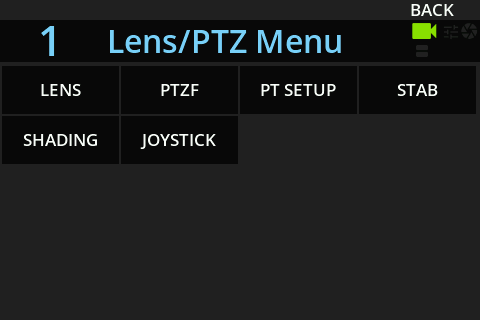
LENS/PTZ
LENS/PTZ menu
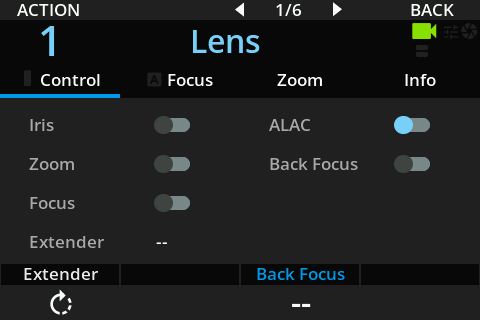
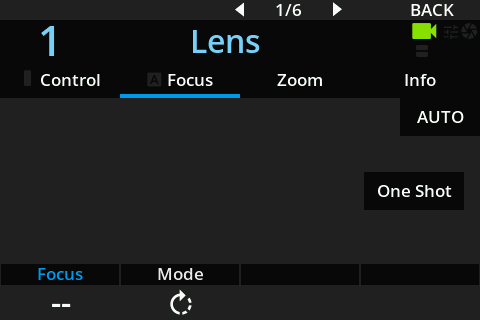
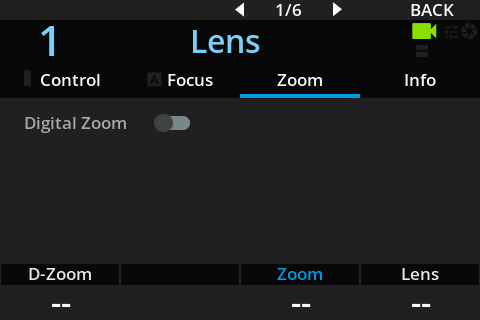
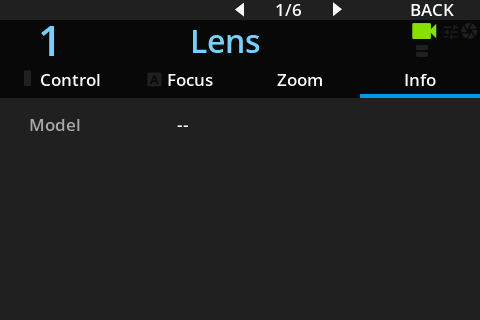
LENS/PTZ > LENS
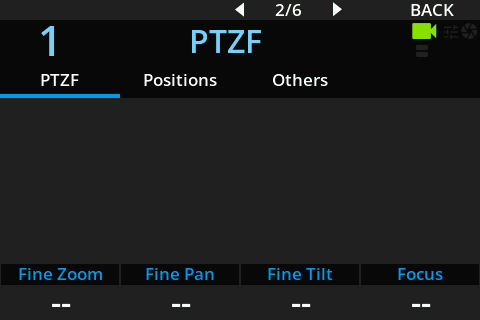
LENS/PTZ > PTZF
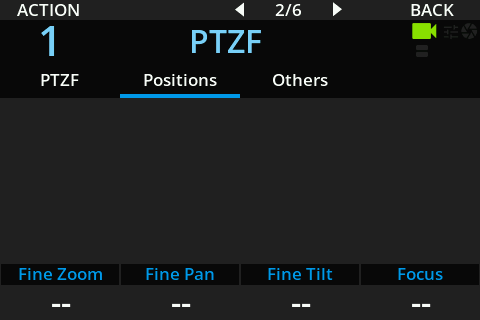
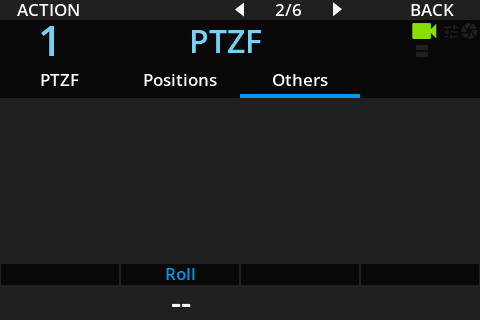
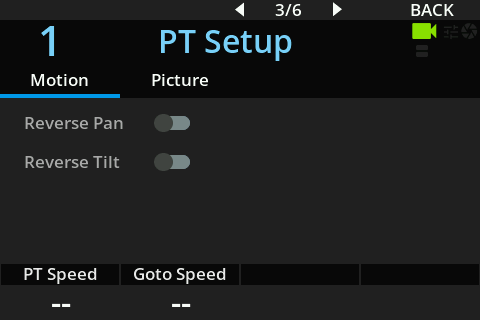
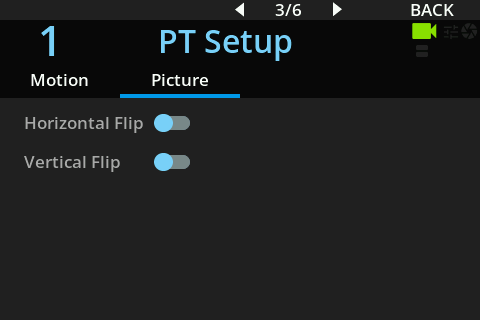
LENS/PTZ > PT SETUP
LENS/PTZ > STAB
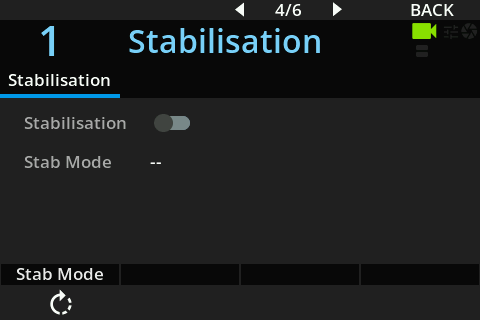
LENS/PTZ > SHADING
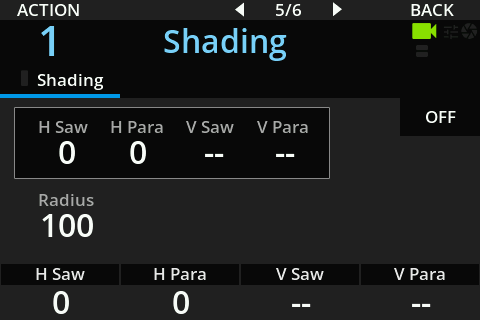
LENS/PTZ > JOYSTICK
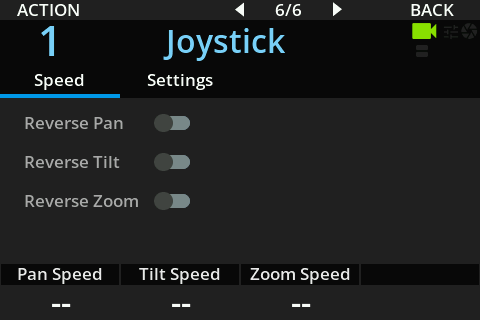
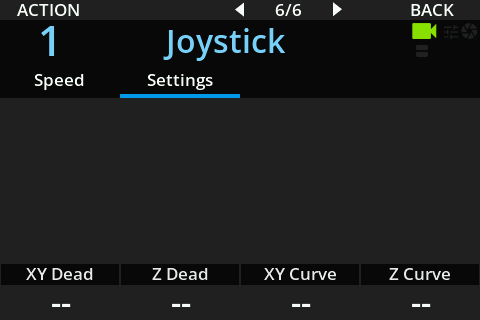
PREVIEW
PREVIEW menu
RECORD
RECORD menu
SYSTEM
SYSTEM menu
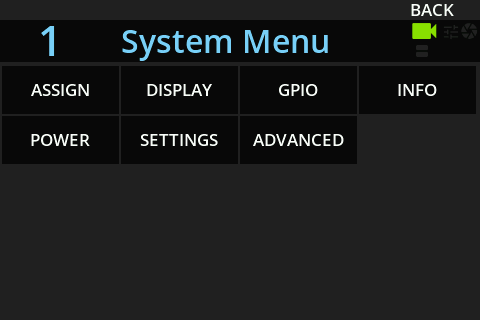
SYSTEM > ASSIGN.
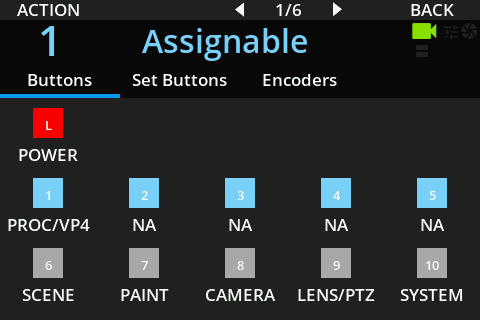
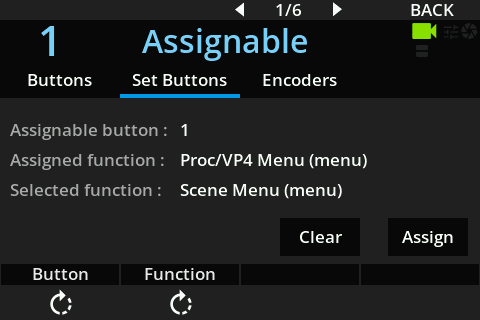
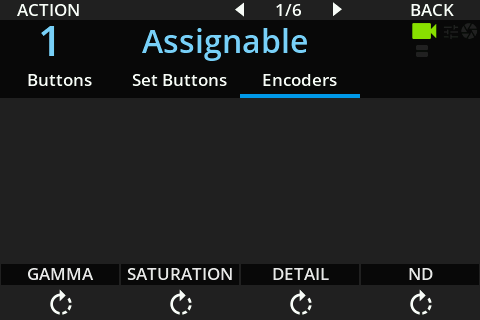
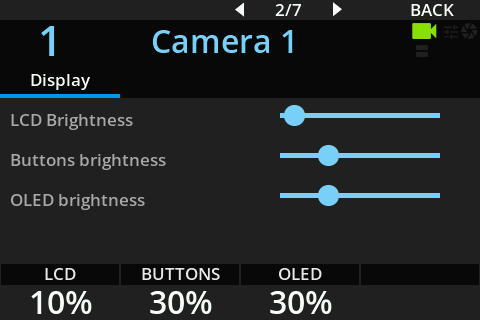
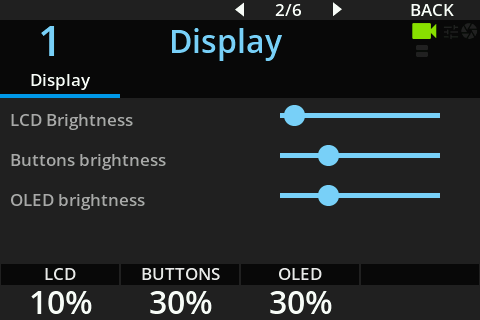
SYSTEM > DISPLAY
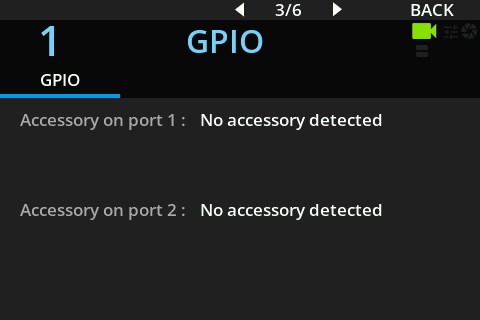
SYSTEM > GPIO
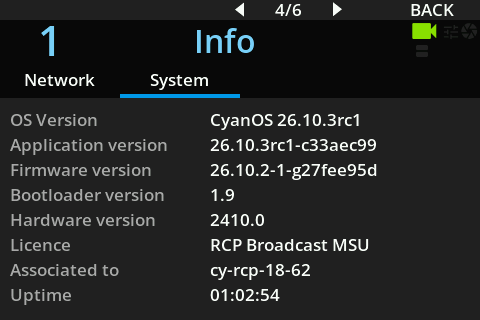
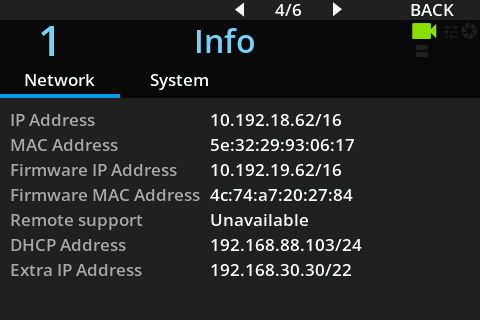
SYSTEM > INFO
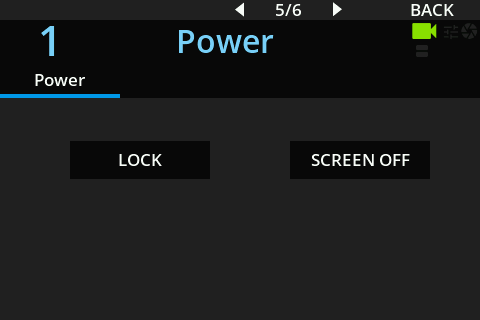
SYSTEM > POWER
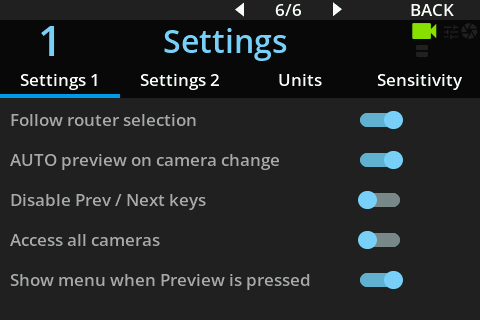
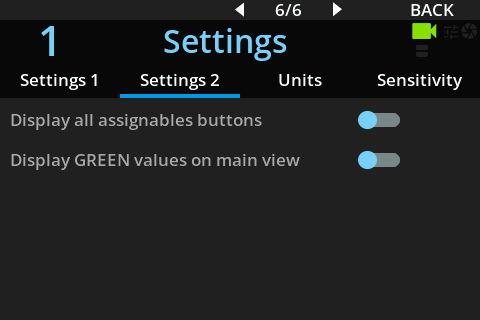
SYSTEM > SETTINGS
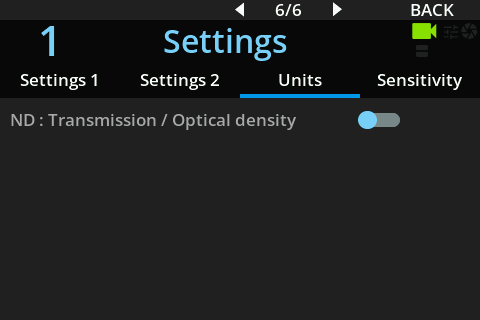
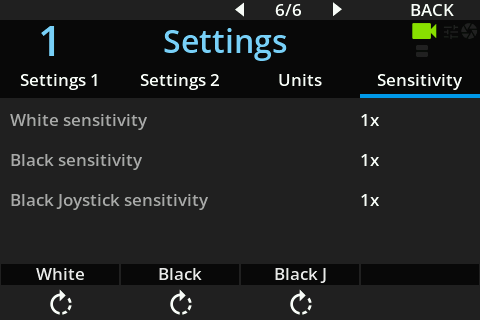
SYSTEM > ADVANCED
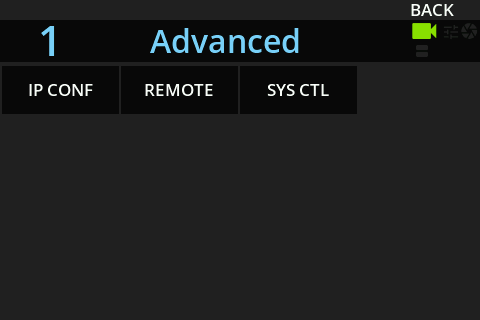
SYSTEM > ADVANCED > IP CONF
SYSTEM > ADVANCED > REMOTE
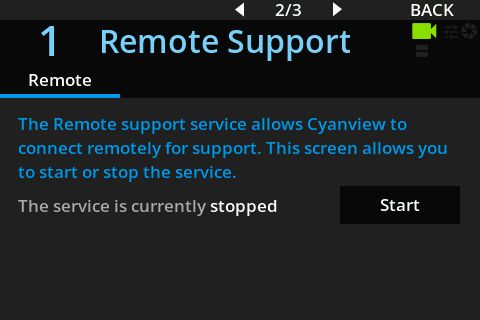
SYSTEM > ADVANCED > SYS CTL